Applying Presets in Adobe Photoshop 2026,

Therefore, applying a preset in Photoshop depends entirely on what kind of preset you are trying to use. The term usually refers to either Camera Raw Presets (for color grading photos) or Tool/Adjustment Presets (like brushes, gradients, or adjustment layers).
In other words, here is exactly how to apply the most common types.
Applying Presets in Adobe Photoshop 2026,
1. Camera Raw Presets (.xmp files)
Best for: Photo color grading, filters, and Lightroom-style effects.
Therefore, if you downloaded a photo filter preset, it is almost certainly a Camera Raw preset.
1. Open Camera Raw: Keyboard shortcut: Ctrl+Shift+A / Cmd+Shift+A.
In other words, with your image open in Photoshop, go to the top menu and select Filter > Camera Raw Filter.
2 . Navigate to Presets: Right-hand toolbar.
Therefore, on the far right side of the Camera Raw window, click the Presets icon (it looks like two overlapping circles).
3 . Apply or Import: One-click apply.
To use built-in presets: However, click on any folder (like Portraits or Cinematic) and click a preset to apply it.
To import new ones: For instance, click the three dots ... at the top of the Presets panel, select Import Profiles & Presets, and choose your downloaded .xmp or .zip file. It will show up under a “User Presets” folder.
Applying Presets in Adobe Photoshop 2026,
2. Adjustment Presets:
Best for: Quick, non-destructive exposure and color adjustments.
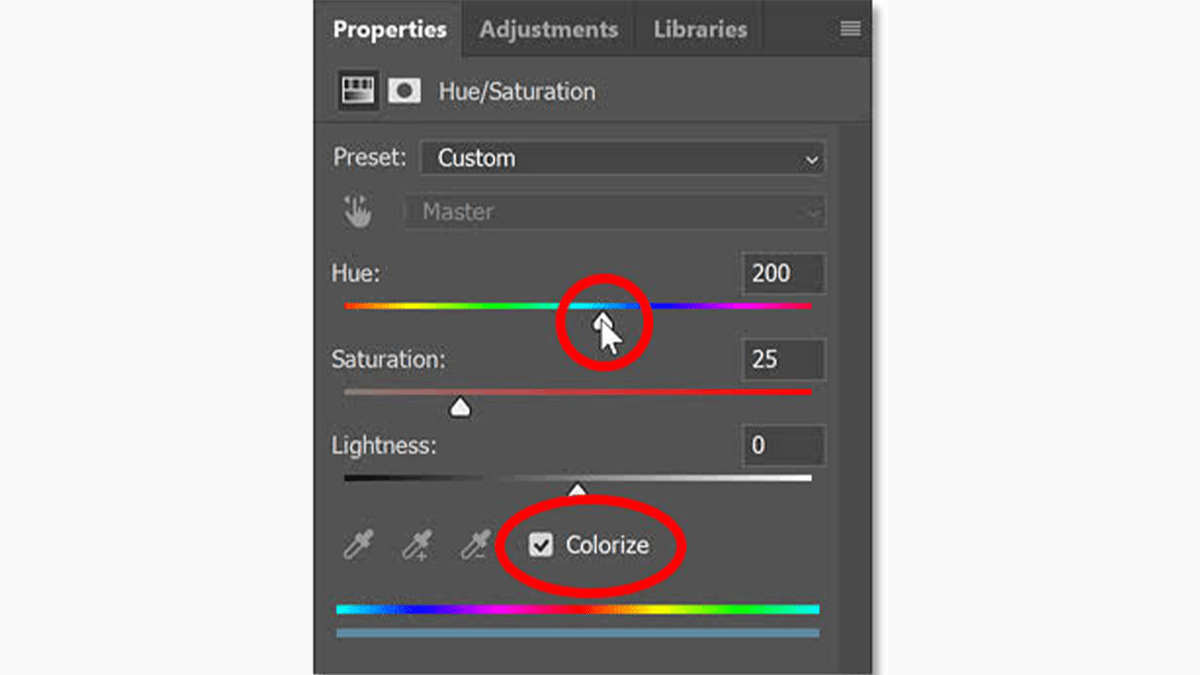
In other words, Photoshop features dedicated presets for standard adjustment layers (like Curves, Hue/Saturation, or Black & White) inside the Adjustments panel.
How to use them: However, go to Window > Adjustments to open the panel. Click on any adjustment type (like Curves). In the Properties panel that pops up, click the Preset dropdown menu at the top and select your desired look.
Applying Presets in Adobe Photoshop 2026,
3. Brushes, Gradients, and Tool Presets:
Best for: Digital painting, design assets, and workspace tools.
In other words, if you have downloaded custom brushes (.abr), gradients (.grd), or patterns (.patYou can load them directly into their respective panels.
The Quick Method: However, often, you can simply double-click the downloaded preset file on your computer desktop while Photoshop is open, and it will automatically load itself into the correct panel.
The Manual Method: Open the specific panel you want (e.g., Window > Brushes), click the small lines icon (hamburger menu) in the top-right corner of that panel, and select Import Brushes (or Import Gradients/Patterns).
