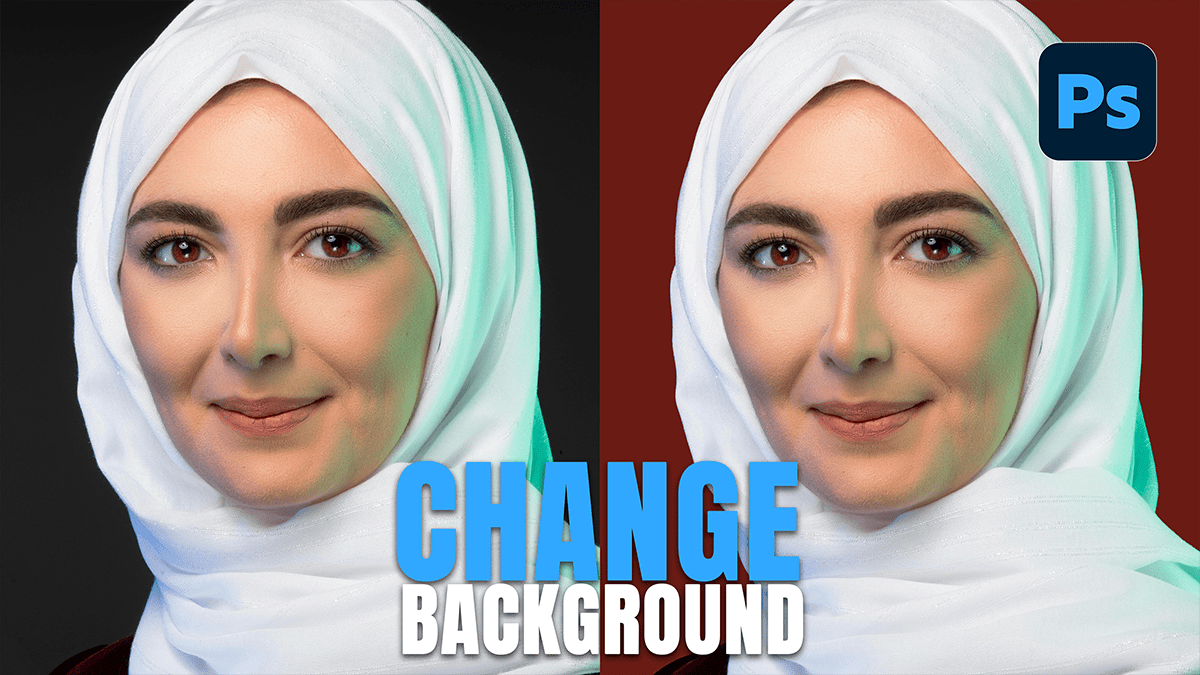
Photoshop Background Change Methods For Beginners 🔰 ,

Therefore, changing a background in Photoshop has become significantly easier thanks to Adobe’s AI tools, but the “old school” manual way still offers the most precision.
Photoshop Background Change Methods For Beginners 🔰
In other words, here are the three best ways to get it done, depending on how much control you want.
1. The “Quick & AI” Method (Best for Speed)
Therefore, if you have a relatively clear subject, Photoshop’s Generative Fill is a literal magic wand.
In other words, open your photo in Photoshop.
Therefore, in the Contextual Task Bar (the floating menu near your image), click Select Subject.
In other words, once the “marching ants” appear around your subject, click the Invert Selection icon (or press. Ctrl + Shift + I / Cmd + Shift + I). Now the background is selected.
Therefore, Click Generative Fill.
Type a prompt (e.g., “sunny beach” or “dark moody library”) and hit Generate. Adobe Photoshop will give you three variations to choose from in the Properties panel.
Photoshop Background Change Methods For Beginners 🔰
2. The “Remove Background” Method (Best for Transparency)
In other words, use this if you want to place the subject onto a specific photo you already own.
However, unlock your layer by clicking the Lock icon in the Layers panel.
Above all, go to the Properties Panel (Window > Properties).
However, under Quick Actions, click Remove Background.
Above all, Photoshop automatically creates a layer mask, hiding the background.
Drag and drop your new background image into the file and move it below your subject layer in the Layers panel.
3. The “Select and Mask” Method (Best for Hair/Fur)
Above all, when AI misses a few strands of hair, you need to refine the edges.
However, use any selection tool (like the Quick Selection Tool) to select your subject.
Above all, click Select and Mask… at the top of the screen.
However, use the Refine Edge Brush Tool (the second one down on the left) to paint over messy edges like flyaway hairs.
Above all, in the Output Settings, choose “New Layer with Layer Mask” and click OK.
Photoshop Background Change Methods For Beginners 🔰
Pro Tips for Realism:
Above all, to make sure your subject doesn’t look like a “bad cutout,” keep these two physics rules in mind:
Match the Lighting: If your new background has a sunset on the right, but the light on your subject is coming from the left, it will look fake. You can use Image > Adjustments > Match Color to help blend them.
Depth of Field: Real backgrounds are rarely perfectly sharp. Apply a slight Gaussian Blur (Filter > Blur > Gaussian Blur) to your new background to make the subject pop.
Would you like me to walk you through how to use the “Match Color” tool to make your subject blend perfectly into the new background?
