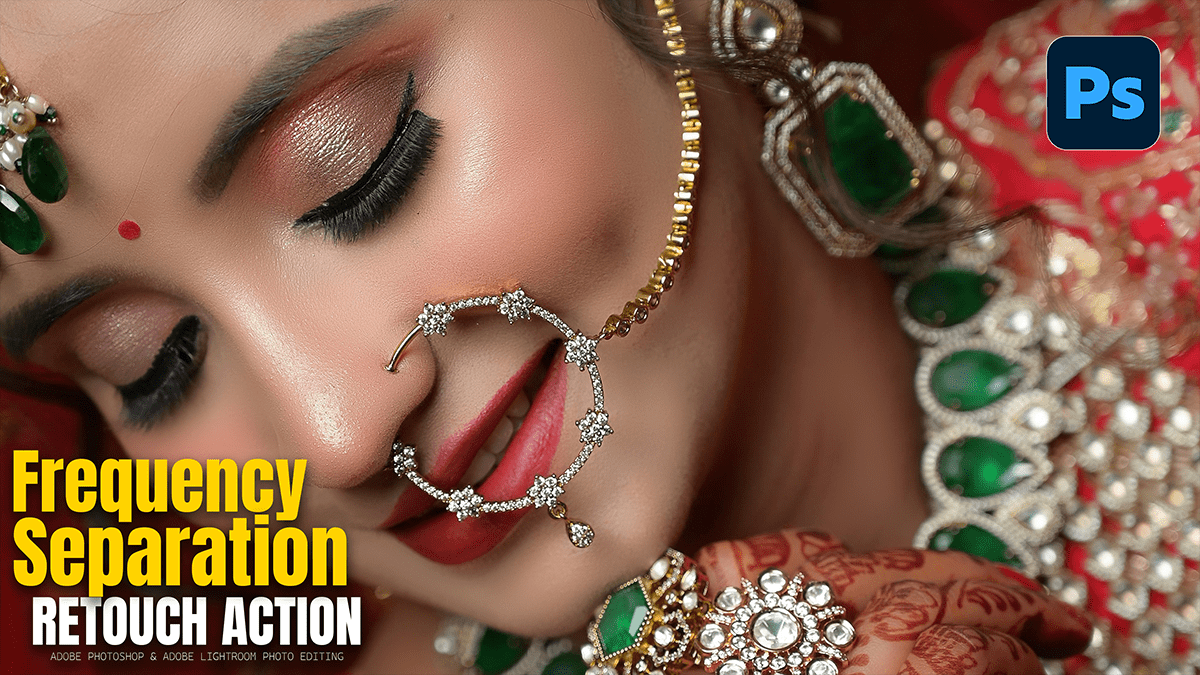
Frequency Separation Layers Step-By-Step in Photoshop 2026,

Therefore, Frequency Separation is the “gold standard” because it allows you to fix skin colors (redness, blotchiness) without destroying the texture (pores, fine lines). In Photoshop 2026, the process remains the same, but the precision of the blur algorithms has improved.
In other words, here is the step-by-step breakdown to set up your layers from scratch.
Frequency Separation Layers Step-By-Step in Photoshop 2026,
Phase 1: Creating the Two Layers
Duplicate your background layer twice. * Rename the top copy to “High Frequency” (Texture).
Therefore, rename the middle copy to “Low Frequency” (Color/Tone).
Group them: In other words, select both layers and hit Ctrl+G (or Cmd+G). Name the group “Retouch.”
Hide the High Frequency layer for now by clicking the eye icon.
Step 2: Setting the Low Frequency (Color)
Therefore, select the Low Frequency layer.
In other words, go to Filter > Blur > Gaussian Blur.
The Secret Step: Therefore, increase the radius until the skin texture (pores) just disappears, but you can still see the shapes of the face. Usually, a radius between 4.0 and 8.0 is perfect. Click OK.
Phase 3: Setting the High Frequency (Texture)
In other words, turn the eye icon back ON for the High Frequency layer and select it.
However, go to Image > Apply Image.
Match these exact settings in the dialog box (this tells Photoshop to subtract the color and keep only the detail):
Layer: Select your “Low Frequency” layer.
Blending: Subtract.
Scale: 2.
Offset: 128.
Opacity: 100%.
However, Click OK. Your image will turn a flat, middle-gray color.
The Final Fix: For instance, change the Blending Mode of this High Frequency layer from “Normal” to Linear Light. Your image should now look exactly like the original.
Frequency Separation Layers Step-By-Step in Photoshop 2026,
Step 4: How to Actually Retouch
Above all, now that the layers are set, you can edit them independently:
To fix blotchy skin tones: Above all, select the Low Frequency layer. Use the Lasso Tool (with a 20px feather) to select a patch of skin. Go back to Filter > Gaussian Blur and blur it slightly more. The colors will blend perfectly while the texture stays sharp.
To fix bumps or scars: Select the High Frequency layer. Use the Clone Stamp Tool (set to “Current Layer”). Sample a “clean” area of texture and paint it over the blemish. The color won’t change, but the bump will vanish.
| Layer | Content | Tools to Use |
| High Frequency | Pores, Hairs, Wrinkles | Clone Stamp, Healing Brush |
| Low Frequency | Skin Tone, Shadows, Highlights | Lasso Tool + Blur, Mixer Brush |
Pro Tip: In the 2026 version, you can now use the AI Remove Tool directly on the High Frequency layer to “smart-heal” texture while maintaining the underlying lighting.
In conclusion, would you like me to explain how to use the Mixer Brush on the Low Frequency layer for even smoother color transitions?
