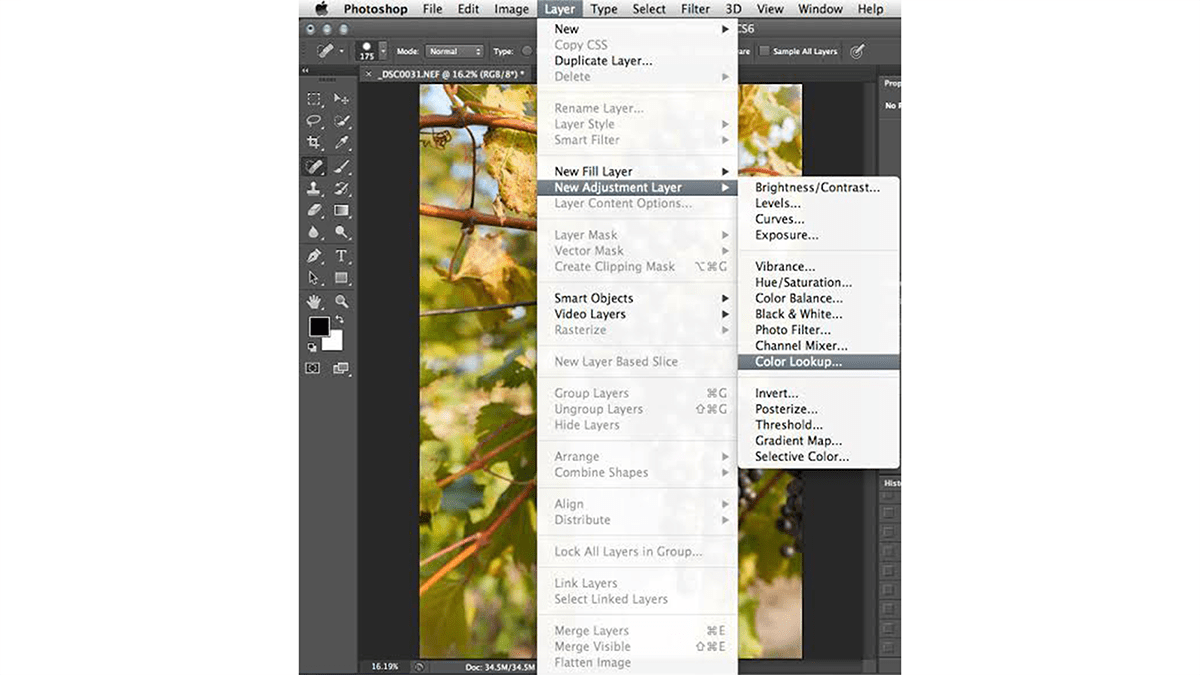
Colour Lookup Table: Use Professional Photo Editing 2026,

Therefore, Advanced color grading in Photoshop moves beyond simple slider adjustments like Hue/Saturation or Brightness/Contrast. It involves manipulating specific tonal ranges (shadows, midtones, highlights) and utilizing precise color theory to create a distinct mood, atmosphere, or cinematic look.
In other words, here is a breakdown of the most powerful tools and workflows used by professionals for advanced color grading.
1. The Color Lookup Table (LUT) Workflow:
Therefore, LUTs are mathematical recipes that instantly remap the colors of your image to a specific cinematic palette. They serve as an excellent starting point or final polish.
How to use it: Add a Color Lookup adjustment layer.
Advanced Tip: Don’t just leave it at 100% opacity. Drop the opacity to 30–50% and change the blending mode to Soft Light for increased contrast, or Color if you only want to affect the hues without touching the luminosity.
2. Advanced Curves (The Industry Standard)
Therefore, Curves give you pixel-level control over contrast and color. Instead of adjusting the RGB channel as a whole, advanced grading relies on manipulating the individual Red, Green, and Blue channels.
The “S-Curve” Technique:
Therefore, to create a classic cinematic or matte look, you can manipulate the individual color channels:
The Cinematic Teal & Orange: Go to the Red channel and lift the highlights slightly (adds red) while pulling down the shadows (adds cyan). Then, go to the Blue channel, pull down the highlights (adds yellow) and lift the shadows (adds blue).
The Matte/Faded Look: On the composite RGB channel, create a point in the shadows and drag the bottom-left anchor point straight up. This lifts the true blacks into a moody, stylized gray.
3. Color Grading in Camera Raw Filter:
In other words, you don’t need a RAW file to use the Camera Raw engine. Going to Filter > Camera Raw Filter unlocks the Color Grading panel, which is identical to Lightroom’s three-way color wheel system.
Shadows, Midtones, Highlights: You can assign distinct hues to each tonal range. A popular aesthetic is introducing cool tones (blues/cyans) into the shadows and warm tones (oranges/golds) into the highlights.
Blending and Balance Sliders:
Blending controls how much the color wheels overlap.
Balance shifts the weight of the grading. If you want your highlight color to dominate the image, push the balance slider to the right.
Colour Lookup Table: Use Professional Photo Editing 2026,
4. Selective Color (Fine-Tuning Specific Hues)
In other words, Selective Color is incredibly powerful for targeted adjustments, particularly for skin tones, foliage, and skies. It allows you to subtract or add Cyan, Magenta, Yellow, and Black (CMYK) from specific color groups.
Perfecting Foliage: Select Yellows or Greens and push the Cyan slider up to turn bright, distracting greens into a deeper, moodier forest tone.
Skin Tone Clean-up: Select Reds or Yellows and subtly reduce Cyan to make skin tones look warmer and healthier, or adjust the Black slider to add richness to the skin.
5. Luminosity Masking for Targeted Grading:
In other words, Advanced color graders rarely apply colors uniformly. Luminosity masks allow you to apply a color grade only to pixels of a specific brightness level.
However, go to your Channels panel.
However, Hold Ctrl (Windows) or Cmd (Mac) and click on the RGB channel thumbnail. This selects the brightest areas (Highlights).
In other words, with this selection active, create a Color Balance or Solid Color adjustment layer. Photoshop automatically turns your selection into a layer mask.
However, Invert the mask (Ctrl/Cmd + If you want to target the shadows instead.
Colour Lookup Table: Use Professional Photo Editing 2026,
Pro-Tips for a Cohesive Grade:
Match the Luminosity First: Color grading reacts differently depending on contrast. Always fix your exposure, highlights, and deep shadows before you start injecting color.
Check your Scopes: Go to Window > Extensions > Adobe Color Themes (or use external scopes if available) to check color distribution objectively. Your eyes adapt to colors quickly, which can trick you into over-grading.
The “Check Layer” Trick: Create a Black & White adjustment layer at the very top of your stack while you work on contrast, then toggle it off when working on color. Create a Solid Color layer filled with a neutral gray (Hex #808080) set to Luminosity blend mode to isolate and inspect your color saturation levels without being distracted by brightness changes.
Which specific style or mood (e.g., moody/dark, vibrant/commercial, vintage/faded) are you trying to achieve for your current project?
