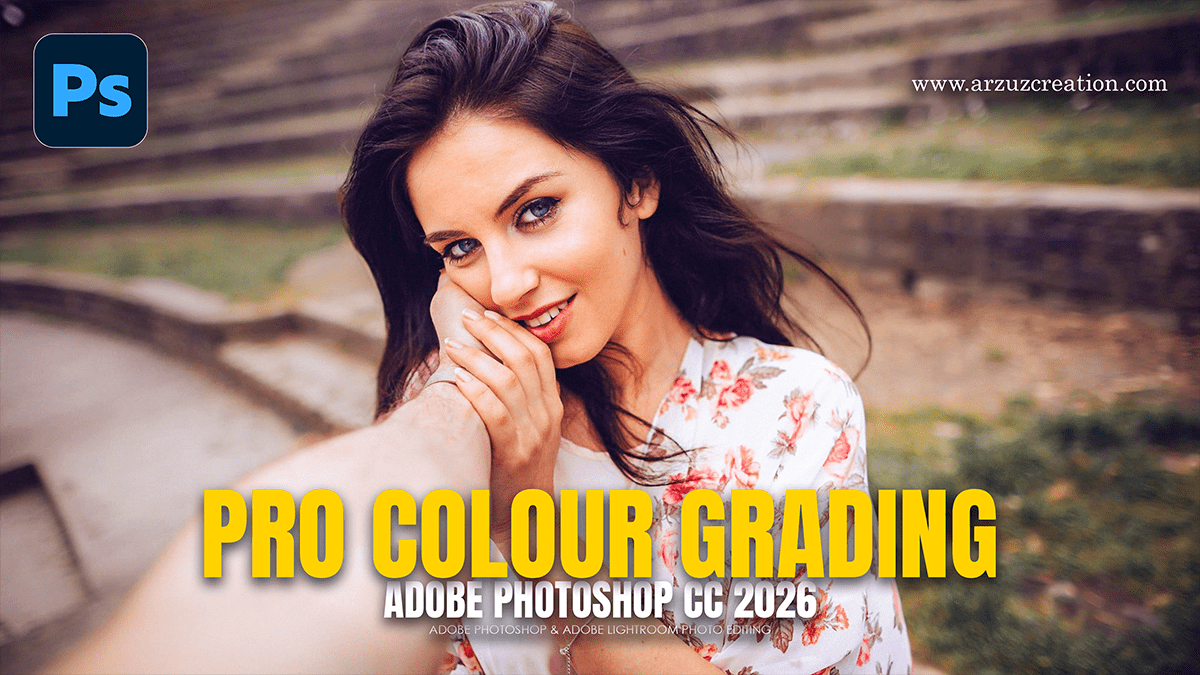
Photoshop Colour Grading Workflow: Professional Photo Editing

Therefore, Professional color grading in Adobe Photoshop separates a good photo from an evocative, cinematic image. While color correction is about making an image look accurate and real, color grading is entirely about stylization—injecting specific hues into your highlights, midtones, and shadows to create a distinct mood.
Therefore, the most powerful, industry-standard way to color grade non-destructively in Photoshop is through the Camera Raw Filter, followed by targeted Adjustment Layers.
In other words, here is the professional workflow to achieve cinematic tones.
Photoshop Colour Grading Workflow: Professional Photo Editing,
The Professional Color Grading Workflow:
Step 1: Establish Your Foundation (The Pre-Check)
In other words, before adding stylistic colors, you must have a clean canvas. If you try to grade an image that has a bad color cast or incorrect exposure, your colors will look muddy.
Open as a Smart Object: Go to Filter > Convert for Smart Filters. This ensures all your edits are non-destructive, letting you change them or tweak opacities later.
Open Camera Raw: Go to Filter > Camera Raw Filter.
Fix the Basics: In the Basic panel, correct your white balance, pull down overblown highlights, and balance your exposure.
Step 2: The Camera Raw Color Grading Panel:
In other words, scroll down the Camera Raw sidebar to the Color Grading panel. This tool gives you three specialized color wheels mimicking high-end video grading software: Shadows, Midtones, and Highlights.
1. Grade the Shadows: Set the base mood.
However, click the Shadows wheel (left). Click and drag the center point toward the color you want to inject into the dark areas.
- Pro Tip: Professional colorists heavily lean into Blues, Cyans, or Teals in the shadows to give the photo depth and a cinematic feel. Don’t overdo it—keep the point close to the center.
Photoshop Colour Grading Workflow: Professional Photo Editing,
2. Grade the Highlights: Add complementary warmth.
However, click the Highlights wheel (right). To create a natural, pleasing contrast, drag the center point toward a color complementary to your shadows.
- Pro Tip: If your shadows are teal/blue, pull your highlights toward Orange, Gold, or Warm Yellow. This replicates natural sunlight and creates a beautiful color contrast.
3. Fine-Tune with Blending and Balance: The secret to clean transitions.
However, look at the two sliders below the wheels:
Blending: Controls how much the shadow and highlight colors overlap. Push it toward 100 for seamless transitions, or lower it 0 to keep the colors strictly separated.
Balance: Shifts the weight. If your image looks too blue, slide it to the right to let the warm highlights dominate more of the image.
Advanced Photoshop Adjustment Layers:
For instance, once you close Camera Raw, you can layer advanced adjustments on your main canvas to pinpoint specific colors.
1. Selective Color (For Precision Tuning)
For instance, this is a high-end retoucher’s favorite because it lets you modify individual colors without touching the rest of the image.
Above all, Create a New Adjustment Layer > Selective Color.
For instance, drop down the colors menu. Choose Neutrals or Blacks.
Above all, to get a clean, rich color grade, tweak the sliders. For example, in the Neutrals channel, reducing Cyan slightly will introduce a beautiful, warm red tone to your photo’s midtones.
Photoshop Colour Grading Workflow: Professional Photo Editing,
2. Curves (For Matte and Cinematic Contrast)
Above all, Curves give you ultimate control over both contrast and RGB color channels.
In addition, create a New Adjustment Layer > Curves.
After that, select an individual color channel (e.g., Blue) from the dropdown menu.
In addition, lifting the very bottom-left of the line adds blue to your deepest blacks. Pulling the top-right down adds yellow to your brightest highlights.
| Adjustment Tool | Best Used For | Pro-Level Impact |
| Color Grading Wheels | Overall cinematic styling | Separates the mood of highlights vs. shadows seamlessly. |
| Selective Color | Tweaking specific hues | Ideal for perfecting skin tones (Oranges/Reds) or changing foliage greens. |
| Curves Panel | Stylized contrast & matte looks | Creates the popular “faded black” or color-crushed shadow aesthetic. |
Retoucher’s Rule of Thumb: If your color grade feels too heavy or overwhelming after you’re done, simply go to your layers panel and drop the Opacity of your adjustment layers or your Camera Raw smart filter down to 60-70%. Subtle grading always looks more professional than aggressive tinting.
