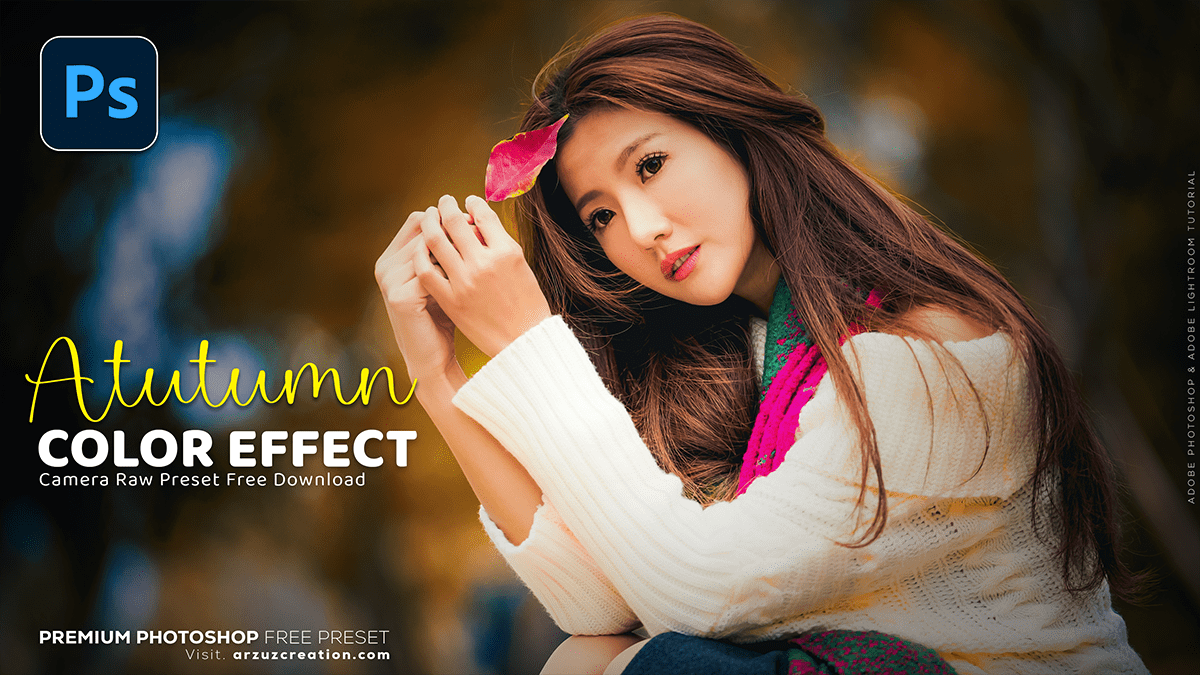
Autumn Color Effect in Adobe Photoshop 2025,
Therefore, there are several popular methods in Photoshop to achieve an autumn color grading effect, often focusing on shifting greens and blues towards warmer tones (yellow, orange, red) and increasing overall warmth and vibrance.

Therefore, here are a few common approaches using Adjustment Layers:
Autumn Color Effect in Adobe Photoshop 2025,
1. Using Hue/Saturation Adjustment Layer:
Therefore, this is one of the quickest ways to change specific colors in the foliage:
- Add a Hue/Saturation Adjustment Layer: Therefore, Go to
Layer > New Adjustment Layer > Hue/Saturation. - Target Greens and Yellows: In the
Propertiespanel, select the Greens channel from the drop-down menu (where it says “Master”).- In other words, adjust the Hue slider to shift the greens towards yellow or orange (e.g., a large negative value, such as -80).
- However, increase the Saturation slightly to make the new color more vibrant.
- In other words, adjust the Luminance if needed (darkening can add drama).
- Repeat for Yellows: Select the Yellows channel.
- Therefore, adjust the Hue slider to shift the yellows toward orange/red (e.g., around -40).
- However, increase the Saturation for richness.
Autumn Color Effect in Adobe Photoshop 2025,
2. Using Selective Color Adjustment Layer:
Therefore, this offers more precise control over how colors are affected:
- Add a Selective Color Adjustment Layer: Go to
Layer > New Adjustment Layer > Selective Color. - Target Yellows and Reds:
- However, select the Yellows channel.
- Above all, adjust the Cyan slider to the negative side (less Cyan adds Red/Yellow).
- However, adjust the Yellow slider to the right (toward more Yellow).
- Above all, you can also play with the Magenta and Black sliders to fine-tune the richness and shadow.
- In addition, repeat the process for the Reds channel.
- Target Greens (if present):
- However, select the Greens channel.
- In other words, adjust the Cyan to the negative side and the Yellow to the positive side to turn them into autumnal colors.
Autumn Color Effect in Adobe Photoshop 2025,
3. Adding Overall Warmth:
In other words, once the colors are shifted, you typically want to add a warm, cozy feel to the whole image:
- Photo Filter: Add a
Photo FilterAdjustment Layer.- Above all, Choose a Warming Filter (like Warming Filter 85 or 81).
- In addition, adjust the Density slider to control the intensity of the warmth.
- Color Balance: Add a
Color BalanceAdjustment Layer.- In addition, Select Midtones and increase the Yellow and Red levels slightly to infuse warmth.
- Above all, you can also add a little warmth to the Highlights or Shadows.
Autumn Color Effect in Adobe Photoshop 2025,
4. Final Touches:
- Vibrance/Saturation: Use the
Vibranceadjustment layer to boost colors, often focusing on Vibrance (which affects less-saturated colors more) rather than overall Saturation. - Contrast/Curves/Levels: Add a
CurvesorLevelsadjustment layer to deepen the contrast, potentially creating a subtle S-curve for more punch. - Vignette: Add a slight darkening around the edges (vignette) using a separate layer or the
Lens Correctionfilter to draw the eye to the center.
Many photographers also use Photoshop Actions, which automate these steps to apply a specific autumn style with a single click. You can find free and paid autumn color grading actions online.
