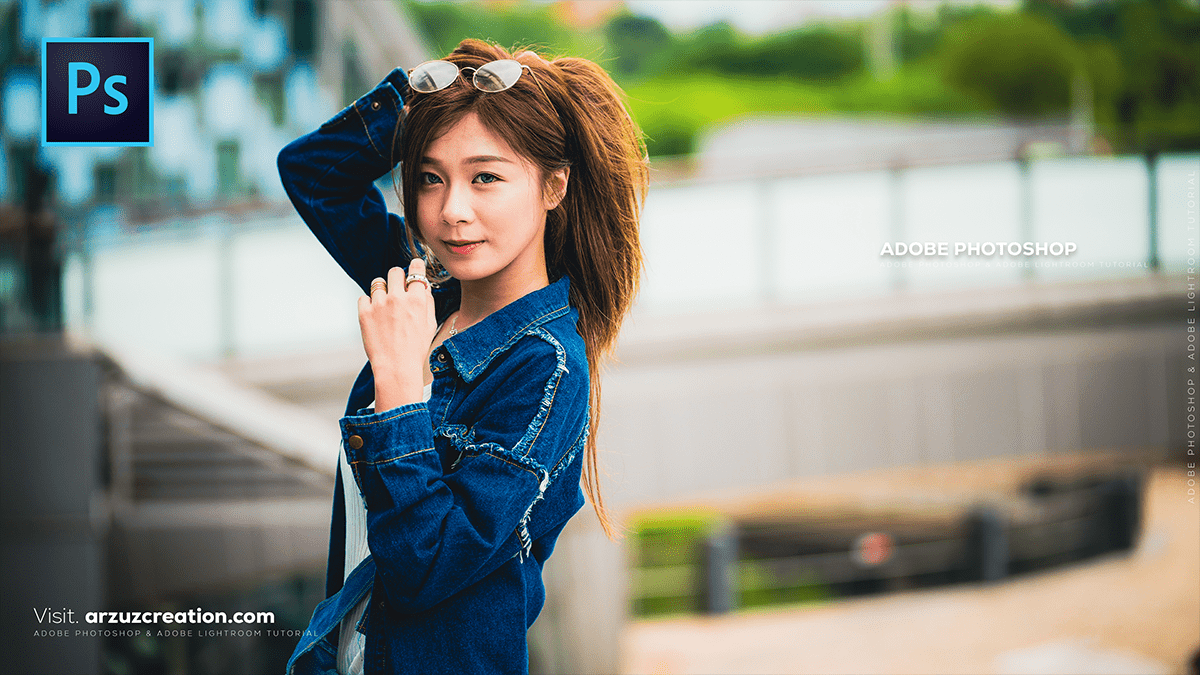
Adobe Photoshop: Portrait Colour Grading Tutorial For Beginners,

Color grading an outdoor portrait in Photoshop can dramatically enhance the mood and professionalism of your photo! While the exact steps depend on the specific look you want (e.g., warm and cinematic, cool and moody, or vibrant and punchy), here is a general, effective workflow using Adjustment Layers.
Adobe Photoshop: Portrait Colour Grading Tutorial For Beginners,
🎨 Outdoor Portrait Color Grading Workflow:
Using Adjustment Layers is non-destructive, meaning you can always go back and change your settings.
1. Initial Adjustments (Camera Raw/Bridge)
If your image is a RAW file, it’s best to start in Camera Raw (or the Filter > Camera Raw Filter in Photoshop).
- White Balance (Temp & Tint): Correct any major color cast to get a neutral starting point.
- Basic Tonal Adjustments: Adjust Exposure, Contrast, Highlights, Shadows, Whites, and Blacks to set the overall light and dynamic range.
- Clarity & Vibrance: Add a bit of Clarity for mid-tone contrast and increase Vibrance to boost less saturated colors, often a good first step for outdoor shots.
Adobe Photoshop: Portrait Colour Grading Tutorial For Beginners,
2. Primary Color Grading (Photoshop)
Once in Photoshop, use Adjustment Layers for global color shifts.
A. Curves Adjustment
- Go to Layer > New Adjustment Layer > Curves…
- Create an “S-curve” on the RGB channel to add global contrast (darken shadows, brighten highlights).
- Switch to the Red, Green, and Blue channels individually to fine-tune the color.
- Example for a warm, cinematic look:
- Red Channel: Drag the Shadow point down slightly (adds Cyan to shadows) and the Highlight point up slightly (adds Red to highlights).
- Blue Channel: Drag the Shadow point up slightly (adds Blue to shadows) and the Highlight point down slightly (adds Yellow/Amber to highlights).
- Example for a warm, cinematic look:
B. Color Balance
- Go to Layer > New Adjustment Layer > Color Balance…
- Use the dropdown to adjust Midtones, Shadows, and Highlights separately.
- General Outdoor Tip: Add Yellow/Red to the Highlights for a sunnier feel, and add a touch of Cyan/Blue to the Shadows for more separation and depth.
Adobe Photoshop: Portrait Colour Grading Tutorial For Beginners,
3. Selective Color Refining
This is crucial for targeting specific colors, like skin tones and foliage.
A. Selective Color
- Go to Layer > New Adjustment Layer > Selective Color…
- Target Skin Tones (Reds and Yellows): Select Reds or Yellows from the dropdown. Adjust the Cyan/Magenta/Yellow/Black sliders to perfect the skin color without affecting the rest of the image too much.
- Tip: To remove too much green/yellow from skin, reduce the Yellow and increase the Magenta in the Red and Yellow channels.
- Target Foliage/Sky (Greens and Blues): Select Greens or Blues to make the foliage or sky more appealing.
- Example for muted greens: Select Greens and push the Yellow slider into the Cyan range, and increase Black for a darker, richer green.
B. Hue/Saturation (Optional)
- Go to Layer > New Adjustment Layer > Hue/Saturation…
- Use the dropdown to select a specific color channel (like Greens or Blues) and adjust its Hue, Saturation, or Lightness without affecting other colors.
Adobe Photoshop: Portrait Colour Grading Tutorial For Beginners,
4. Final Touches
A. Dodge & Burn (Contrast/Depth)
- Create a new blank layer and set its Blending Mode to Overlay or Soft Light.
- Fill this layer with 50% Gray (Edit > Fill > 50% Gray).
- Use a soft brush with low flow/opacity (around 5-10%).
- Paint with White to Dodge (brighten) areas like the subject’s eyes, cheekbones, or highlights.
- Paint with Black to Burn (darken) areas like hair, shadows, or the edges of the frame (vignette) to draw focus.
B. Sharpening
- Once all color and tonal adjustments are done, merge a copy of all layers (Ctrl+Alt+Shift+E or Cmd+Option+Shift+E).
- Apply a final sharpening pass using Filter > Sharpen > Smart Sharpen… or convert the merged layer to a Smart Object and apply the Camera Raw Filter for a more controlled sharpening.
Would you like me to find a YouTube video tutorial that demonstrates one of these techniques?
