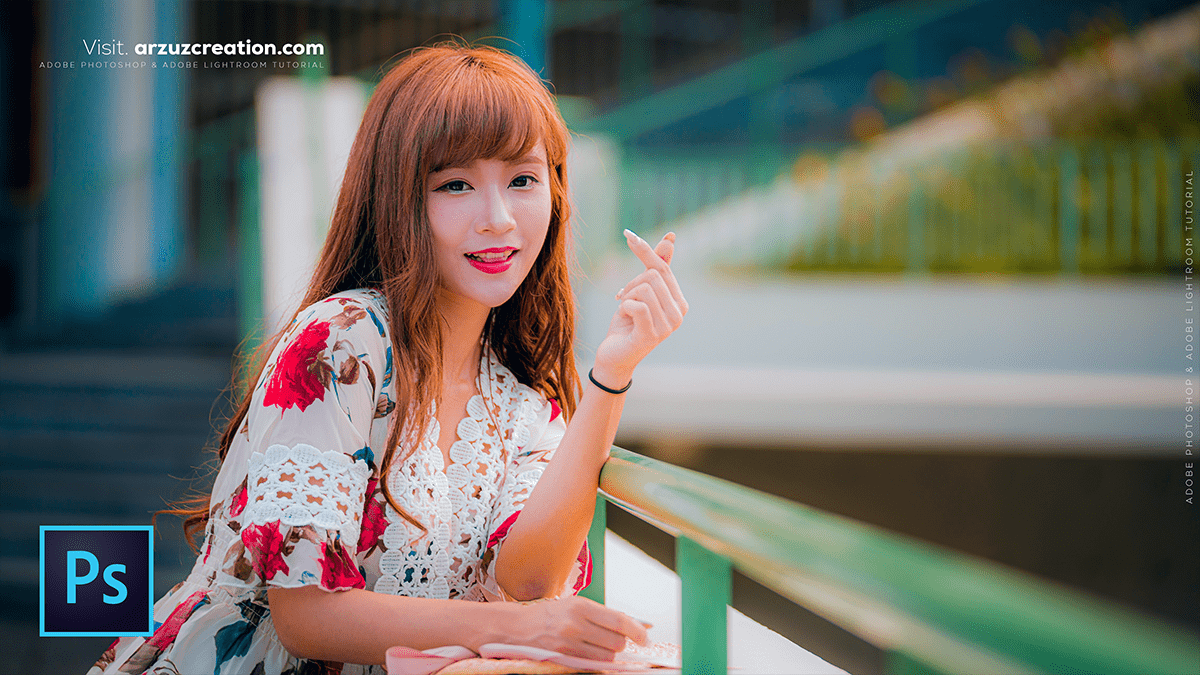
Adjustment: Adobe Photoshop Photo Editing Tutorial 2025,
Therefore, in Photoshop, Adjustment Layers are the gold standard for photo editing because they allow for non-destructive editing. Unlike direct adjustments (found under Image > Adjustments), adjustment layers act like a transparent sheet of film over your image, applying color and tonal changes without permanently changing a single pixel of your original photo.

Adjustment: Adobe Photoshop Photo Editing Tutorial 2025,
Why Use Adjustment Layers?
- Reversibility: Therefore, you can double-click the layer at any time to change the settings or delete the layer to go back to your original image.
- Selective Editing: In other words, every adjustment layer comes with a built-in Layer Mask, allowing you to paint on the mask to apply the effect to only specific parts of your photo.
- Flexibility: Therefore, You can change the Opacity or Blending Mode of the adjustment layer to fine-tune how it interacts with the layers below.
Common Types of Adjustment Layers
| Adjustment Type | Best Used For… |
| Brightness/Contrast | Quick, simple fixes for exposure and punch. |
| Levels | Precisely setting the black, white, and mid-tone points. |
| Curves | Advanced control over contrast and specific color channels. |
| Hue/Saturation | Changing specific colors or boosting overall color intensity. |
| Vibrance | Boosting muted colors without over-saturating skin tones. |
| Color Balance | Fixing color casts (e.g., making a “yellow” photo look more natural). |
| Black & White | Converting to grayscale with control over how original colors translate to gray tones. |
Adjustment: Adobe Photoshop Photo Editing Tutorial 2025,
How to Create and Use Them
1. Adding the Layer
Therefore, go to the Adjustments Panel (Window > Adjustments) and click an icon, or click the half-black/half-white circle icon at the bottom of the Layers panel.
2. Refining with Masks
Therefore, by default, the adjustment affects everything below it. To limit where it applies:
- In other words, select the white box (the mask) next to the adjustment icon.
- However, use a Brush Tool (B) set to Black to “hide” the adjustment from certain areas.
- In other words, use White to “reveal” the adjustment back onto the image.
Adjustment: Adobe Photoshop Photo Editing Tutorial 2025,
3. Using Clipping Masks
Therefore, if you only want the adjustment to affect the one layer directly beneath it (rather than every layer in the stack):
- In other words, right-click the adjustment layer and select Create Clipping Mask.
- alternativelyrnatively, hold
Alt(Win) orOption(Mac) and click the line between the adjustment layer and the image layer.
Pro Tip: In other words, If you ever find yourself using Image > Adjustments, stop! Converting your image layer to a Smart Object first will allow those same adjustments to be applied as “Smart Filters,” which are also non-destructive.
Would you like me to walk you through how to use a specific adjustment, like Curves or Hue/Saturation, for a particular photo effect?
