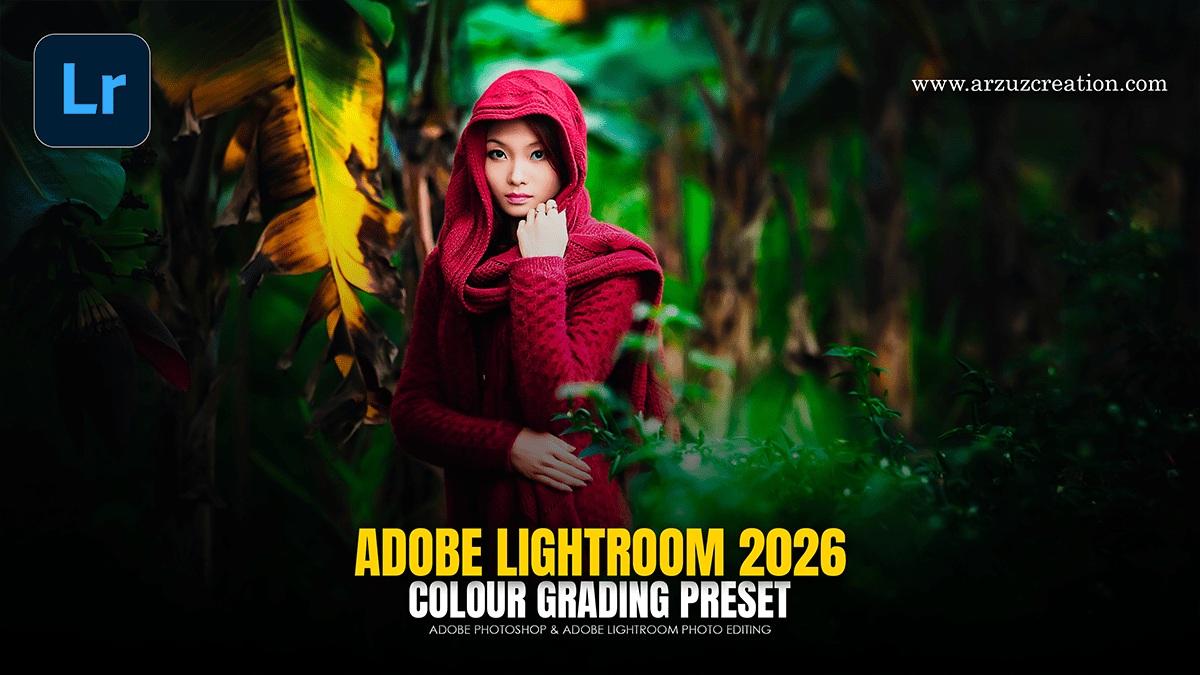
Adobe Lightroom 2026 Colour Grading Tutorial For Beginners,

Therefore, the 2026 updates for Adobe Lightroom (version 15.2) have introduced several powerful AI-driven enhancements to the color and editing workflow. While the core Color Grading panel (Shadows, Midtones, Highlights) remains the standard for cinematic looks, the new Point Color Variance and Assisted Culling features significantly change how you approach the process.
Adobe Lightroom 2026 Colour Grading Tutorial For Beginners,
New & Enhanced Color Tools for 2026:
1. Point Color Variance (New)
Therefore, this is the standout update for precision grading. In the Color Mixer panel, you can now use the Variance slider after selecting a color with the eyedropper.
Landscape: Increase variance to create more separation between similar tones (e.g., making autumn leaves pop against a brownish trunk).
Cinematic Lightroom Presets DNG,
Portraits: In other words, Decrease variance to “smoothen” color inconsistencies in skin tones, acting like a digital foundation without losing texture.
2. Generative Upscale (via Firefly/Topaz)
Therefore, Integrated directly into the desktop version, you can now perform a 4x Generative Upscale. This is helpful for color grading older, low-resolution files or heavy crops, as it adds “hallucinated” detail that holds onto color adjustments much better than traditional resizing.
Adobe Lightroom 2026 Colour Grading Tutorial For Beginners,
3. Landscape Masking: Snow:
In other words, A new Snow detection has been added to the Landscape AI masks. This allows you to instantly isolate snowy areas to cool them down (adding blues/teals) or brighten them without affecting the rest of the landscape’s color grade.
The Standard Color Grading Workflow:
However, if you are looking for the classic “Cinematic” look, the 3-Way wheels are still your home base. You can find them in the Develop Module under the Color Grading tab.
| Section | Best Used For… | Pro Tip |
| Shadows | Adding teals or deep blues to the darks. | Hold Alt/Option while dragging to slow down movement for precise hues. |
| Midtones | Maintaining natural skin tones or adding warmth. | Skin tones generally sit in the orange/red range; keep saturation low here. |
| Highlights | Adding oranges or yellows for a “Golden Hour” feel. | Above all, Use the Luminance slider (under the wheel) to make highlights “glow.” |
| Blending | Controlling the overlap between wheels. | Higher values create a smoother, more “washed” transition between colors. |
| Balance | Shifting the priority of the grade. | Slide left to prioritize your Shadow color; slide right for the Highlight color. |
Adobe Lightroom 2026 Colour Grading Tutorial For Beginners,
Efficiency Upgrades:
Assisted Culling: Above all, before you even start grading, the new AI model can filter your photos based on quality, focus, and “eyes open” status, so you only spend time grading your best shots.
Shared AI Credits: However, note that many 2026 generative features now use a monthly credit system (e.g., 250–1000 credits depending on your plan).
Would you like me to walk you through a specific “look,” such as a Teal and Orange or a Dark Mood grade?
