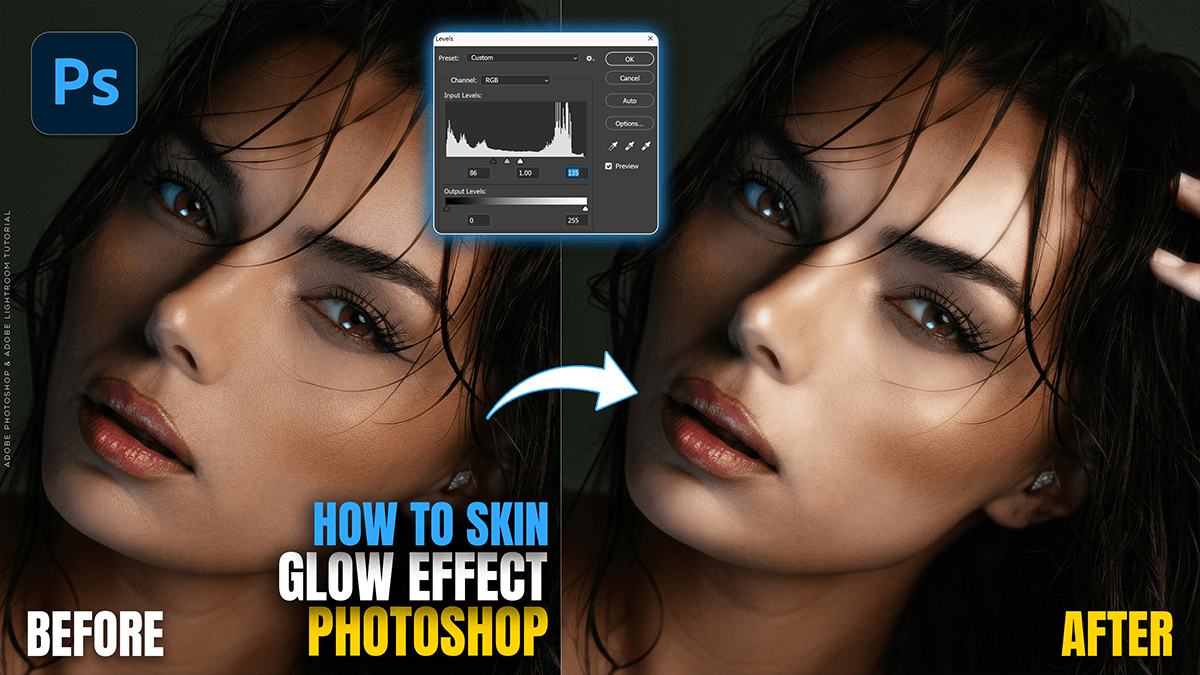
Create Skin Glow Effect in Adobe Photoshop 2026,
Therefore, in Photoshop 2026, creating a professional skin glow effect has evolved into a mix of classic manual techniques and new, highly sophisticated AI-driven tools like Nano Banana and Generative Upscale.

Create Skin Glow Effect in Adobe Photoshop 2026,
In other words, here are the best ways to achieve that “perfect glow,” depending on the level of control you want.
1. The “AI Glow” (Best for Speed & Realism)
Therefore, Photoshop 2026 introduces the Nano Banana model within Generative Fill, which excels at high-fidelity skin textures.
Step 1: Use the Lasso Tool to select the skin areas (forehead, cheekbones, bridge of the nose).
Method 2: In the Contextual Task Bar, click Generative Fill.
Step 3: Enter a prompt like “add a soft natural skin glow with realistic highlights.”
Method 4: Select the Nano Banana model from the model dropdown for the most realistic skin pores and texture.
Step 5: Adjust the Opacity of the resulting Generative Layer to blend it perfectly.
2. The “Firefly Upscale” Method (Best for Softness)
Therefore, if your image lacks detail or the lighting is flat, the new Generative Upscale (under Image > Generative Upscale) can actually “re-imagine” skin details.
In other words, select the Firefly Upscale model. This specific model is tuned for portraits and adds a clean, soft finish that naturally creates a healthy-looking sheen without looking “plastic.”
Create Skin Glow Effect in Adobe Photoshop 2026,
3. The Classic “Curves & Blend If” (Best for Pro Precision)
In other words, this remains the gold standard for high-end retouching because it uses the photo’s original lighting.
Step 1: In addition, create a Curves Adjustment Layer and pull the middle of the curve upward to brighten the image.
Method 2: However, Double-click the layer (to the right of the name) to open Layer Styles.
Step 3: In addition, under Blend If (Underlying Layer), drag the black slider to the right. This removes the brightness from the shadows.
Method 4: Above all, hold Alt/Option and click the slider to split it—this creates a smooth transition, leaving the glow only on the highlights of the skin.
Step 5: In addition, change the Blend Mode to Luminosity to avoid shifting the skin color.
4. The “Orton” Soft Glow Effect
Above all, for a dreamy, editorial look:
However, duplicate your layer (Ctrl/Cmd + J).
Above all, Go to Filter > Blur > Gaussian Blur (choose a radius of 10–20px).
However, Change the Blend Mode to Soft Light or Screen.
Above all, add a Layer Mask, invert it (Ctrl/Cmd + I), and use a soft white brush to paint the glow only onto the skin highlights.
Create Skin Glow Effect in Adobe Photoshop 2026,
Comparison Table: Which method to use?
| Method | Best For | Effort | Result |
| Nano Banana AI | High-end realism | Low | High-detail glow |
| Firefly Upscale | Low-res photos | Low | Dreamy & clean |
| Curves + Blend If | Commercial portraits | Medium | Natural “lit from within.” |
| Orton Effect | Fashion/Editorial | Medium | Soft, hazy glow |
Would you like me to walk you through how to use the “Harmonize” tool to match your subject’s skin glow to a specific background?
