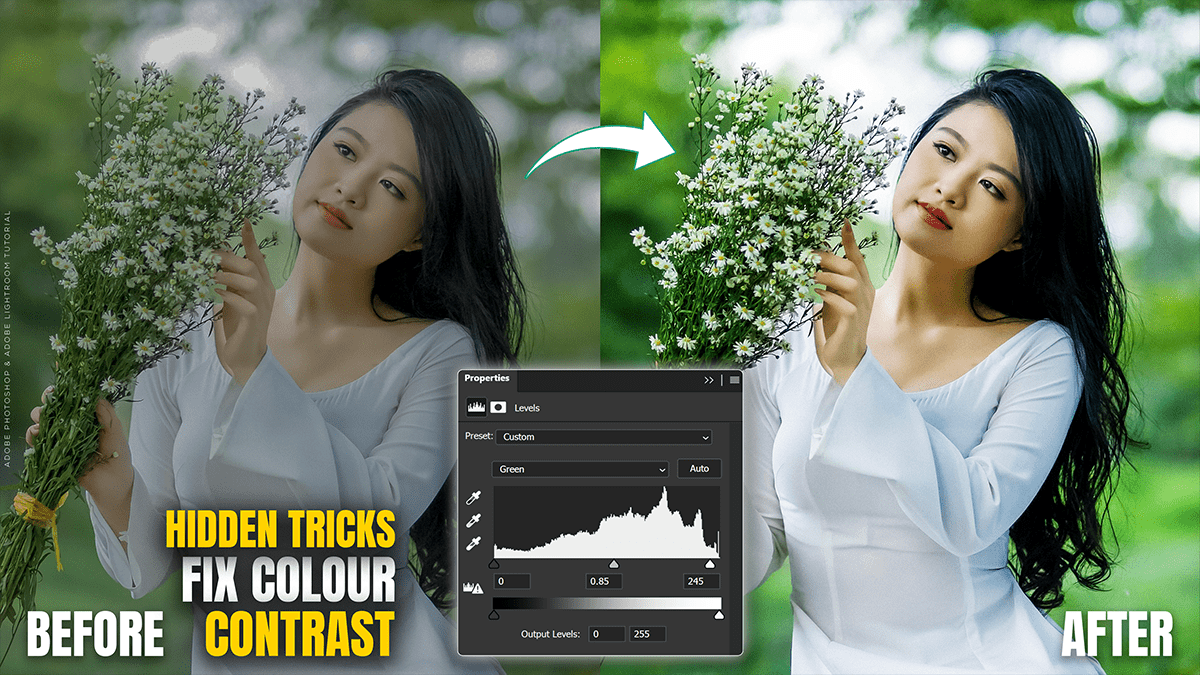
Fix Colour and Vibrance Photoshop Adjustment Layer 2026,

Therefore, to adjust color and vibrance in Photoshop, always use Adjustment Layers. Unlike standard image adjustments, these are “non-destructive,” meaning they live on a separate layer and can be toggled on/off or adjusted at any time without damaging your original pixels.
Fix Colour and Vibrance Photoshop Adjustment Layer 2026,
Therefore, depending on your version of Photoshop, you can use the classic Vibrance adjustment or the new Color and Vibrance tool.
1. The New “Color and Vibrance” Adjustment (Photoshop 2025/Beta)
Therefore, Adobe recently introduced an all-in-one adjustment layer that combines white balance and intensity.
How to add it: Go to the Adjustments panel and under Single Adjustments, click on Color and Vibrance.
Temperature & Tint: Use these sliders to fix “warm” (orange) or “cool” (blue) color casts.
White Balance Tool: Click the eyedropper icon within the Properties panel and then click on a neutral gray or white area in your photo to instantly adjust the color balance.
Vibrance/Saturation: Adjust these within the same panel to make the colors pop.
Fix Colour and Vibrance Photoshop Adjustment Layer 2026,
2. The Classic “Vibrance” Adjustment Layer
Therefore, if you are on an older version or prefer targeted control, use the dedicated Vibrance layer.
How to add it: Click the Circle icon (half black/half white) at the bottom of the Layers panel and select Vibrance.
The Difference between the Sliders:
Vibrance Slider: This is “smart” saturation. It boosts the muted colors in your image while ignoring colors that are already saturated. Most importantly, it protects skin tones so people don’t look orange.
Saturation Slider: This is a “silent” boost. It increases the intensity of every pixel equally. Use this sparingly, as it can quickly cause “clipping” (loss of detail in bright colors).
Fix Colour and Vibrance Photoshop Adjustment Layer 2026,
3. Best Practices for Color Correction
Therefore, to get the most natural result, follow this workflow:
Fix Tone First: Add a Levels or Curves adjustment layer to set your black and white points.
Correct Color Casts: Use Color Balance to remove unwanted tints (e.g., adding Cyan to remove Red).
Apply Vibrance: Use the Vibrance slider (usually between +20 and +40) to give the photo life without making it look “over-edited.”
Use the Mask: If the vibrance is too strong in one area (like a bright flower), select the white box (mask) on the adjustment layer and paint with a Black Brush to hide the effect in that spot.
Would you like me to explain how to use the “Curves” tool to fix more advanced color issues
