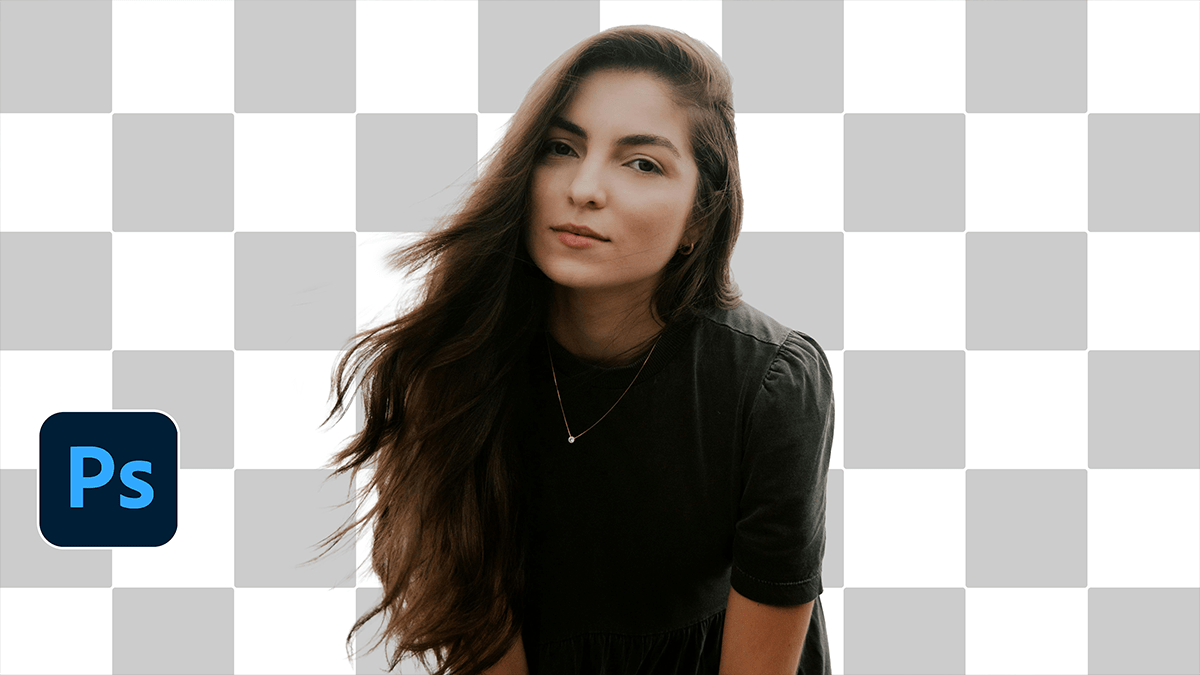
Adobe Photoshop 2026 Tips: How to Remove Background Hair,

Therefore, removing stray hairs or cleaning up a “frizzy” outline in Photoshop is a classic challenge. Depending on how messy the hair is and how complex the background looks, there are three main ways to tackle it.
Adobe Photoshop 2026 Tips: How to Remove Background Hair,
1. The “Select and Mask” Method (Best for General Use)
Therefore, this is the most professional way to handle fine details like flyaways while keeping the subject looking natural.
- Select your subject: Therefore, use the Quick Selection Tool (W) and click Select Subject at the top.
- Open the Masking Workspace: Click Select and Mask… in the top options bar.
- Use the Refine Edge Brush: However, pick the Refine Edge Brush Tool (the second one down on the left).
- Brush over the flyaways: Therefore, lightly paint over the messy hair edges where the background is peeking through. Photoshop will “math” the hair back in and the background out.
- Output: Therefore, Set “Output To” as Layer Mask and click OK.
Adobe Photoshop 2026 Tips: How to Remove Background Hair,
2. The “Decontaminate Colors” Trick
Therefore, if you see a weird “halo” or ghosting from the old background around the hair:
- In other words, go back into Select and Mask.
- However, Scroll down to Output Settings.
- In other words, check the box for Decontaminate Colors. This replaces the edge pixels with the actual color of the hair, making it look much sharper against a new background.
3. The “Quick & Dirty” Cleanup (Healing & Clone Stamp)
In other words, if you’ve already cut the subject out but have a few stray hairs sticking out like antennas:
- Spot Healing Brush (J): Great for small, single strands. Just “paint” over the hair you want gone.
- Clone Stamp (S): However, Best for cleaning up hair against a skin surface or a flat background. Hold
Alt/Optto sample a clean area, then paint over the stray hair.
Adobe Photoshop 2026 Tips: How to Remove Background Hair,
Comparison Table: Which tool should you use?
| Scenario | Recommended Tool | Why? |
| Fine, frizzy hair | Refine Edge Brush | Preserves transparency and individual strands. |
| Simple background | Select Subject | Fast and surprisingly accurate in newer versions. |
| Single stray hairs | Spot Healing Brush | Quickest way to “erase” a single rogue line. |
| Harsh halos | Decontaminate Colors | Fixes color bleeding from the old background. |
Pro Tip: However, When using the Refine Edge brush, less is more. If you brush too deep into the “solid” part of the hair, it might become translucent and look like a ghost.
In conclusion, would you like me to generate an image showing the “before and after” of a haircut so you can see the difference these settings make?
