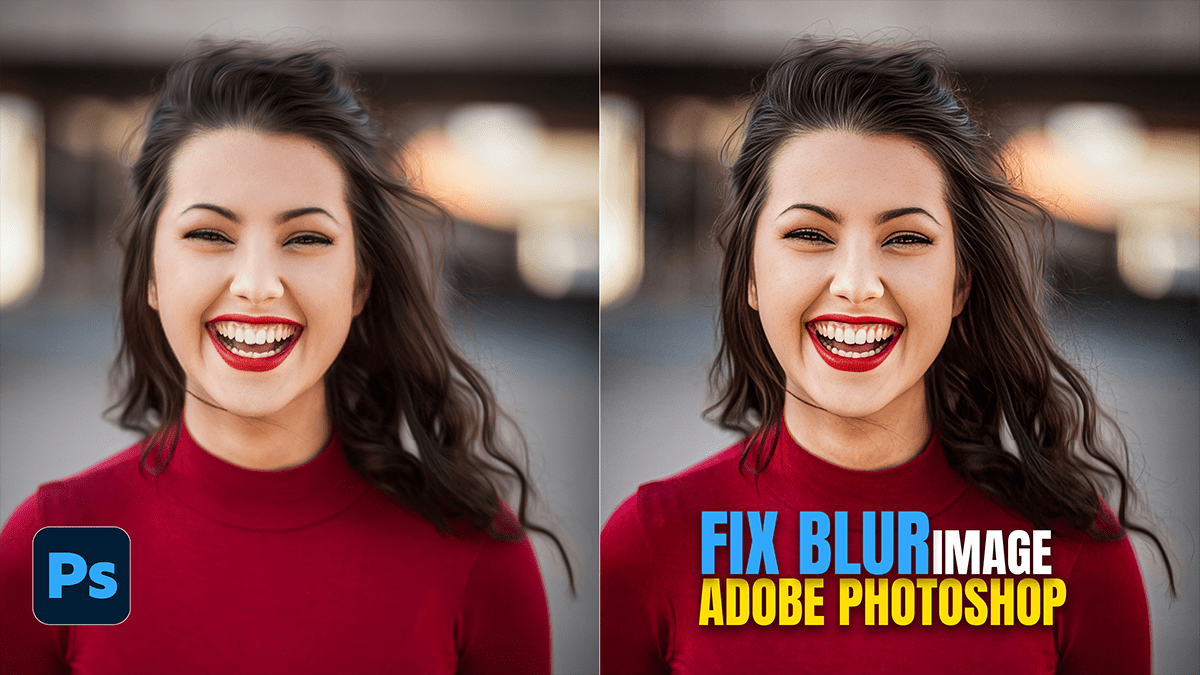
How to Fix Any Blur Image in Adobe Photoshop 2026,

Therefore, fixing a blurry image in Photoshop is a bit like digital surgery—success depends on whether the blur is caused by a shaky hand (camera shake) or a missed focus. Since you’re using the 2026 version, you have access to some pretty powerful AI-driven tools that make this much easier than it used to be.
How to Fix Any Blur Image in Adobe Photoshop 2026,
In other words, here are the best ways to sharpen things up, ranging from “one-click magic” to professional manual control.
1. The “Easy Button”: Camera Shake Reduction:
Therefore, if your image is blurry because the camera moved slightly while taking the photo, this filter is your best friend. It traces the path of the blur and “unmoves” it.
Go to: Filter > Sharpen > Shake Reduction.
The Process: Therefore, Photoshop will automatically analyze the image and apply a correction. You can use the Advanced panel to drag the focus area to the specific part of the photo that needs the most help (like a person’s eyes).
2. Best for Out-of-Focus: Smart Sharpen:
Therefore, this is the most versatile tool for general blur. It’s “smart” because it reduces noise while sharpening, so you don’t end up with a grainy mess.
Go to: In other words, Filter > Sharpen > Smart Sharpen.
Settings to tweak:
Amount: However, how much sharpening to apply?
Radius: In other words, how many pixels around the edges are affected (keep this low, usually between 1.0 and 3.0).
Remove: Set this to Lens Blur for the best results on out-of-focus shots.
How to Fix Any Blur Image in Adobe Photoshop 2026,
3. The AI Powerhouse: Neural Filters:
However, in the 2026 version, Adobe’s “Photo Restoration” and “Sharpen” AI models have become incredibly sophisticated. They don’t just shift pixels; they “re-imagine” missing detail.
Go to: Filter > Neural Filters.
Select: Photo Restoration (even for new photos) or the Sharpen AI toggle.
Why it works: In other words, these filters use machine learning to recognize faces and textures, often fixing blur that traditional filters can’t touch.
4. The Pro Method: High Pass Filter:
However, if you want total control without the “crunchy” look of AI, use the High Pass method. It targets only the edges of the image.
Duplicate your layer (Ctrl+J or Cmd+J).
Go to: Filter > Other > High Pass.
Adjust the Radius: Move the slider until you just barely see the outlines of your subject against a grey background. (Usually $1.5$ to $4.0$ pixels).
Change Blend Mode: Set the layer blend mode to Overlay or Linear Light.
Adjust Opacity: Lower the layer opacity until the sharpening looks natural.
How to Fix Any Blur Image in Adobe Photoshop 2026,
Quick Tips for Better Results:
Convert to Smart Objects: Before applying any filter, right-click your layer and select Convert to Smart Object. This allows you to go back and change your settings later without ruining the original pixels.
Don’t Overdo It: Sharpening can’t create detail that isn’t there. If you go too far, you’ll see “halos” (white outlines) around your subjects.
Masking: Use a Layer Mask to apply sharpening only to the subject and keep the background soft.
Would you like me to walk you through how to use Layer Masks to keep your background bokeh smooth while sharpening just the subject?
