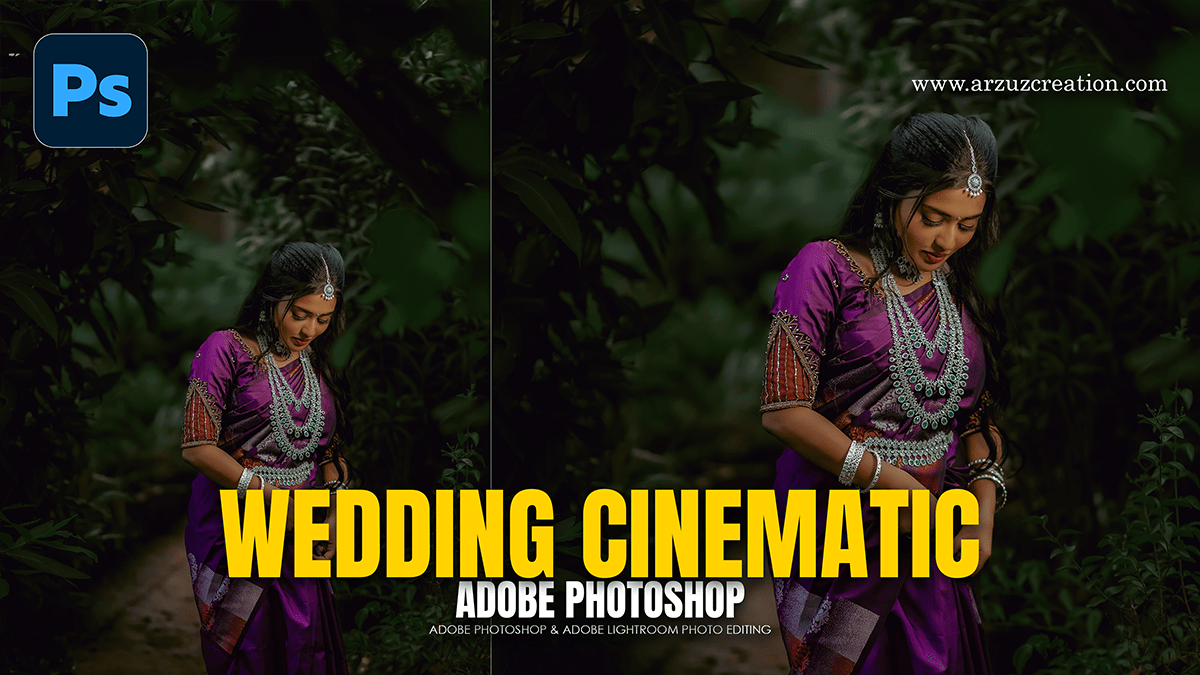
Professional Wedding Photo Edit in Adobe Photoshop 2026,

Therefore, editing a wedding gallery is a high-stakes process where consistency is as important as the fine details. In 2026, the workflow has shifted toward a “hybrid” approach: using AI to handle the heavy lifting of cleaning and denoising, while using manual precision for “hero” shots (the couple’s portraits).
Professional Wedding Photo Edit in Adobe Photoshop 2026,
1. The 2026 Professional Workflow:
Therefore, Most professionals don’t edit the entire wedding in Photoshop. Instead, they use a tiered system:
Culling: Use tools like Photo Mechanic or FilterPixel to quickly flag the best shots, closed eyes, and duplicates.
Lightroom / ACR: In other words, apply a base “Wedding Preset” to ensure the white balance and exposure are identical across the 400+ images.
Photoshop (The Finishing School): Therefore, Reserve Photoshop for the top 50–100 “hero shots” that need advanced retouching.
2. Essential Tools & Techniques:
Advanced Clean-Up & AI:
The Enhanced Remove Tool: Use this to instantly paint over distracting exit signs, photobombers, or stray power lines. The 2026 update fills the space with much higher environmental accuracy.
Generative Fill (Partner Models): In other words, you can now switch from Adobe Firefly to other models like Nano Banana or Flux directly within the Contextual Task Bar for more diverse creative textures when extending a landscape or “uncropping” a shot.
AI Denoise & Upscale: If you had to shoot at a high ISO (e.g., ISO 6400 during a dim reception), the new AI Denoise (powered by Topaz tech) cleans grain without turning skin into “plastic.”
Professional Wedding Photo Edit in Adobe Photoshop 2026,
Portrait Retouching:
Non-Destructive Skin Smoothing: Use Neural Filters > Skin Smoothing, but keep the “Blur” slider low (15–20%). This retains natural skin texture while removing blemishes.
Dodge & Burn: Create two Curves layers—one to brighten (Dodge) and one to darken (Burn). Use a soft brush with 1% flow to manually contour faces and make the subjects “pop.”
The “Clarity & Vibrance” Layer: In other words, A new 2026 adjustment layer allows you to tweak temperature, tint, and vibrance non-destructively, matching the sliders you’re used to in Lightroom without leaving Photoshop.
Atmosphere & Style:
AI Lens Blur: Therefore, for portraits shot at a high aperture (f/5.6), use Filter > Blur > Lens Blur. The 2026 AI depth-mapping is much better at distinguishing veils and fine hair from the background for a realistic bokeh.
Sky Replacement: For outdoor ceremonies with “blown-out” white skies, use Edit > Sky Replacement. Choose a soft, warm sunset or a clean blue sky to match the mood of the day.
Professional Wedding Photo Edit in Adobe Photoshop 2026,
3. Speeding Up the Process:
Photoshop Actions: Therefore, if you have 10 photos in the same lighting, record your edits as an Action. You can then run this action on the remaining photos to save hours.
Reference Images: Similarly, in the Generative Fill panel, you can now upload a “Reference Image” (like a Pinterest board). The AI will use that reference to ensure its generated content matches your specific “mood” or “lighting vibe.”
4. Final Export Settings:
Color Space: Similarly, always export as sRGB for web delivery to ensure colors look consistent on clients’ phones and laptops.
Resolution: 300 DPI for print-ready files; usually JPEG at 100% quality.
Pro Tip: If you’re building a composite, use the Harmonize tool in the Contextual Task Bar. It uses AI to automatically match the colors, lighting, and shadows of your subject to the new background in one click.
