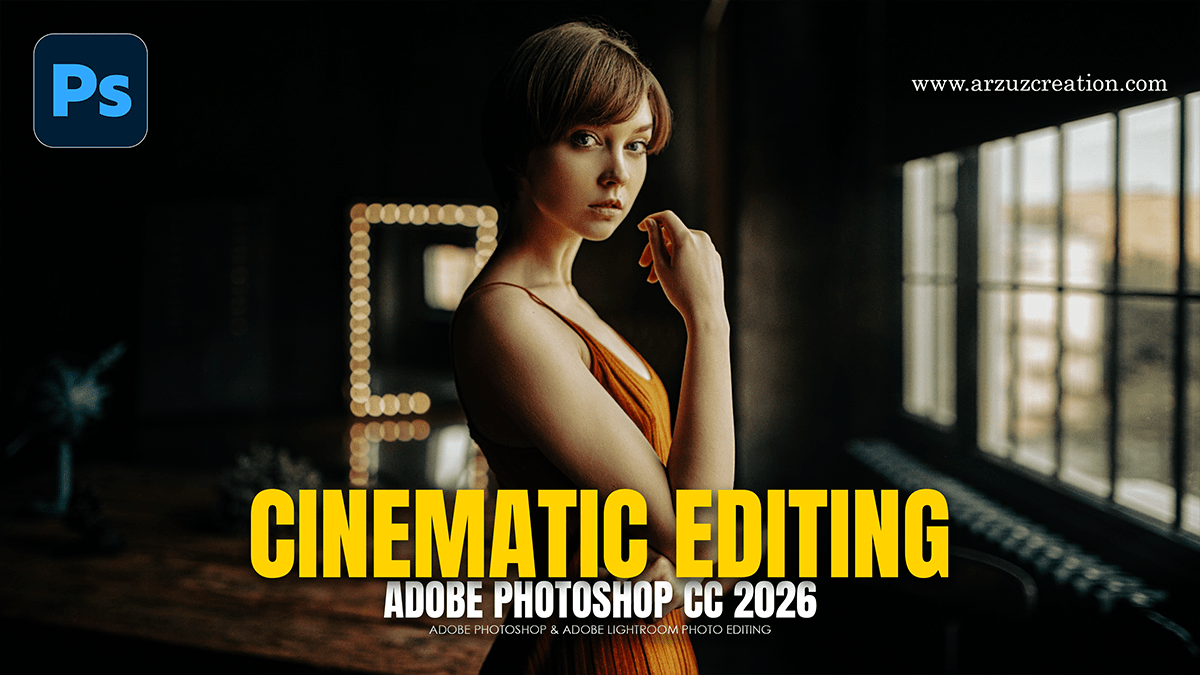
Adobe Photoshop Cinematic Photo Editing Guide For Beginners,

Therefore, achieving a “cinematic” look in Photoshop isn’t about applying a single filter; it’s about mimicking the characteristics of high-end movie film and professional anamorphic lenses. This means managing aspect ratios, manipulating depth of field, and utilizing intentional color harmonies like the classic orange-and-teal look.
In other words, to create a powerful cinematic style from scratch, the order of operations matters significantly.
Adobe Photoshop Cinematic Photo Editing Guide For Beginners,
The Cinematic Editing Workflow:
1. Aspect Ratio & Composition:2 minutes.
Therefore, unlocking the “movie feel” starts with standard cinema crops. Press C for the Crop tool and change the ratio to 2.35:1 or 16:9. Alternatively, keep your original image size and add black bars by going to Image > Canvas Size, checking Relative, and adding height to your canvas.
2. Camera Raw Base Adjustment:5 minutes.
In other words, convert your background layer into a Smart Object (Right-click > Convert to Smart Object) so your edits remain non-destructive. Open Filter > Camera Raw Filter. Lower the overall Contrast slightly to mimic the high dynamic range of film, boost Whites, and pull down Blacks to create depth without clipping details.
Adobe Photoshop Cinematic Photo Editing Guide For Beginners,
3. The Cinematic Color Grade:10 minutes.
Therefore, navigate to the Color Grading panel inside Camera Raw. Movies rely on complementary color harmonies.
In other words, Push Shadows toward Teal/Blue.
However, Push Midtones and Highlights toward warm Orange/Gold. Use the Balance slider to ensure the skin tones remain natural and don’t turn completely orange.
4.Atmosphere & Depth:5 minutes.
However, Cinema uses depth to focus attention. Use the Masking tool (M) in Camera Raw to select your subject. Invert the mask to select the background, then subtly lower the Texture and Clarity to create a soft, lens-like falloff. You can also add a subtle Radial Gradient vignette to draw the eye inward.
5. The Matte Film Finish:3 minutes.
For instance, Close Camera Raw and add a Curves Adjustment Layer on top of your Photoshop stack. Click the bottom-left point of the RGB curve (the absolute black point) and drag it straight up slightly. This lifts the deep shadows, giving them a faded, matte, cinematic look often found in modern film stocks.
Adobe Photoshop Cinematic Photo Editing Guide For Beginners,
Understanding Cinematic Color Theory:
For instance, the reason color grading works so effectively is rooted in color contrast. When you push shadows into cooler tones and highlights into warmer tones, you create an instantly recognizable cinematic mood.
Pro Tip: If you want a faster workflow, you can leverage Hollywood-style color tables directly inside Photoshop. Add a Color Lookup adjustment layer from the bottom of your Layers panel, and under the
3DLUT Filedropdown, experiment with presets like LateSunset, Crisp_Warm, or HorrorBlue to set an instant baseline mood.
