Learn Photoshop Professional Cinematic Photo Editing,

Therefore, to achieve a truly professional, “Hollywood-grade” cinematic look in Adobe Photoshop, you need to go beyond simply cranking up the contrast. Cinematic images tell a story through deliberate aspect ratios, moody atmospheric lighting, and strategic color harmonies—most notably the classic teal-and-orange or cyan-and-gold color palettes.
In other words, here is a step-by-step professional workflow to transform a standard photo into a movie frame.
Learn Photoshop Professional Cinematic Photo Editing,
The Professional Cinematic Workflow:
1. Shape the Narrative (Aspect Ratio & Composition)
Therefore, Cinema lives in widescreen formats. Before doing any color adjustments, set the physical boundaries of your “film frame.”
In other words, select the Crop Tool (C) and change the ratio to 16:9 or the more dramatic 2.39:1 (Anamorphic widescreen).
However, leave intentional space around your subject to provide environmental context.
2. Establish the Base Tone (Camera Raw Filter)
Therefore, convert your background layer into a Smart Object (Right Click > Convert to Smart Object) so your edits stay completely non-destructive. Then, go to Filter > Camera Raw Filter.
[Basic Panel Updates]
├── Exposure: Drop slightly to deepen the mood.
├── Highlights: Reduce to recover lost details in bright areas.
├── Shadows: Lift subtly to avoid completely muddy blacks.
└── Blacks: Pull down to introduce rich, deep contrast.
Learn Photoshop Professional Cinematic Photo Editing,
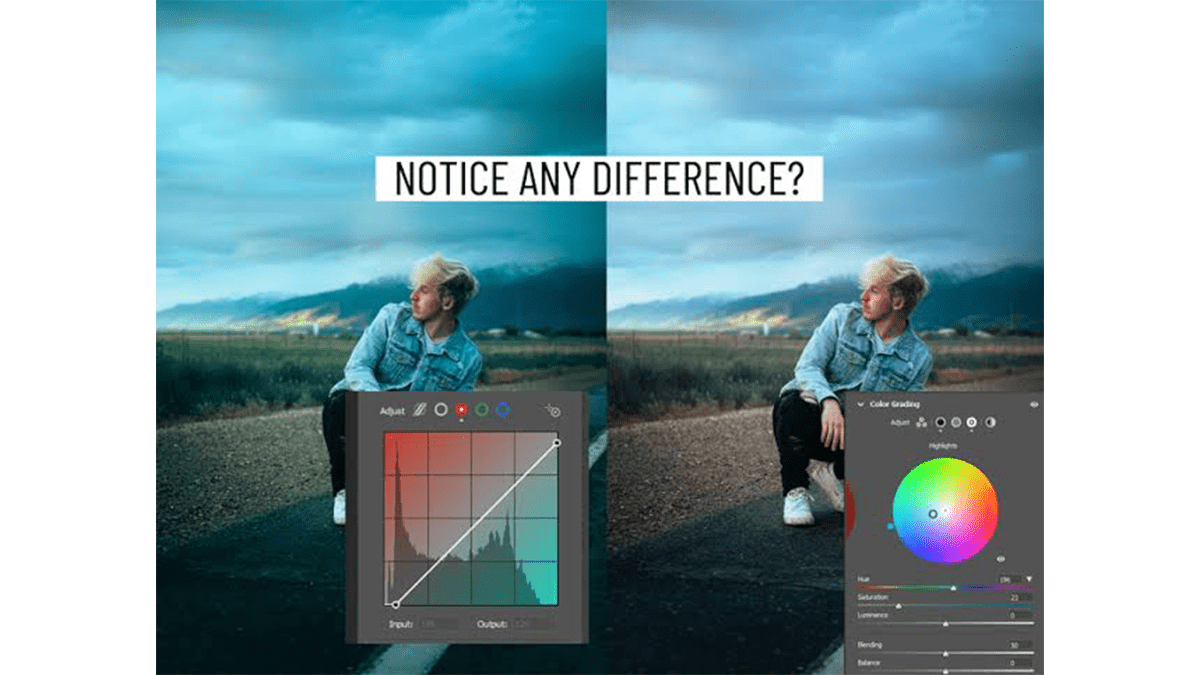
3. Apply Cinematic Color Grading:
In other words, still inside Camera Raw (or using an adjustment layer back in Photoshop), navigate to the Color Grading panel. This is where the cinematic mood is built by separating tones:
| Tone Section | Color Strategy | Purpose |
| Shadows | Push toward Teal / Cyan / Deep Blue | Above all, Creates a moody, cold environment and grounds the dark areas. |
| Midtones | Above all, Keep neutral or lean toward slight Orange | For instance, Protects natural skin tones and keeps them looking warm and alive. |
| Highlights | Push toward Warm Orange / Yellow | Replicates the glow of practical lights, sunlight, or city lamps. |
Pro Tip: In the Color Mixer, slightly desaturate greens and magentas, and shift your yellows toward orange. Movies rarely use vibrant, raw primary colors; they rely on muted, cohesive palettes.
4. Sculpt the Depth (Curves & Matte Film Look)
However, accept the changes in Camera Raw and head back to your main Photoshop workspace. Create a new Curves Adjustment Layer.
The Matte Shadows: For instance, click the bottom-left point of the RGB curve line (pure black) and drag it straight up slightly. This lifts the absolute blacks, turning them into a smoky, faded charcoal color typical of traditional film stock.
The S-Curve: Create a subtle “S” shape by placing a point in the shadows and pulling it down, and a point in the highlights and pushing it up.
Learn Photoshop Professional Cinematic Photo Editing,
5. Control the Focus (Lighting & Atmosphere)
However, Cinematographers use light to guide the viewer’s eye exactly where they want it.
Volumetric Light & Fog: Create a new blank layer, set the blend mode to Screen, and use a massive, very soft brush with low opacity (~10%) to paint soft, warm, or cool glows behind or over your subject.
Manual Vignette (Burn): Create a Curves layer, pull the middle of the curve down to darken the image, and invert the mask (Ctrl+I / Cmd+I). With a large, soft white brush at 20% opacity, paint around the edges of the frame to fall off into shadow.
6. The Final Film Elements:
However, to finish the illusion that this is a freeze-frame from a movie:
Cinematic Grain: Create a new layer filled with 50% Gray (Edit > Fill), set the Blend Mode to Overlay, and go to Filter > Noise > Add Noise (~3-5%, Uniform, Monochromatic). This breaks up the clean digital look.
The Letterbox (Optional): Add solid black bars at the top and bottom of the frame if you didn’t crop the underlying image canvas directly.
