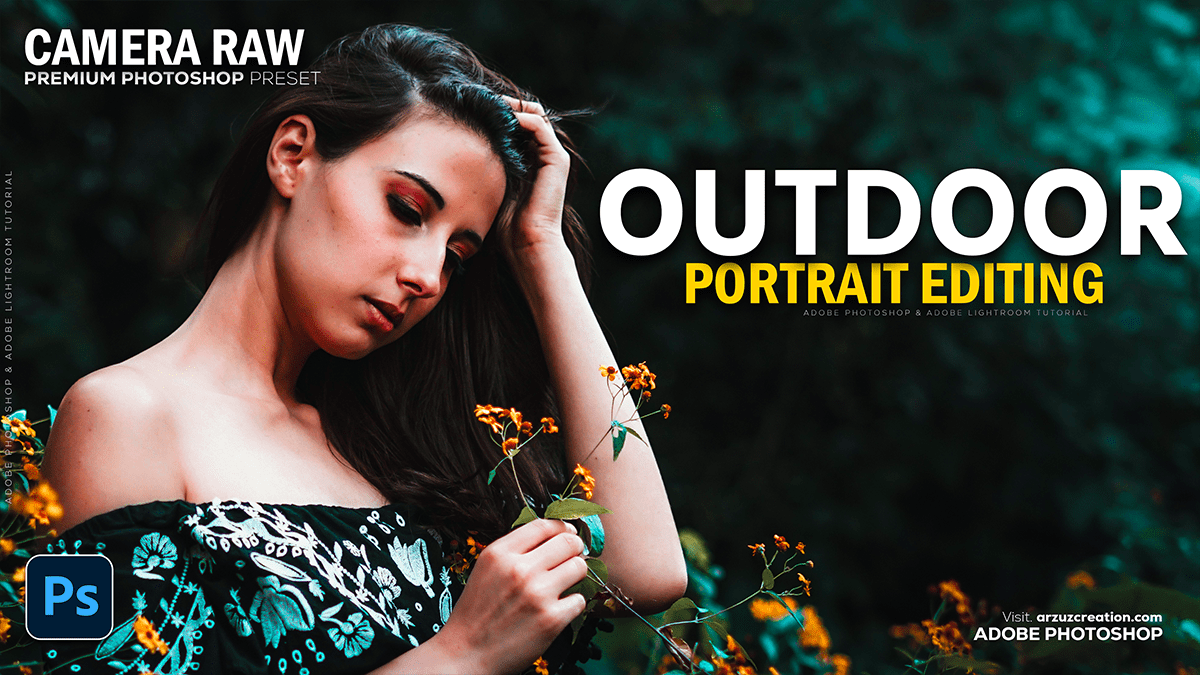
Adobe Photoshop 2025: Outdoor Portrait Photo Editing Tutorial,

Therefore, that’s a great area to focus on! Outdoor portrait editing in Photoshop often involves several key steps to enhance the subject, manage natural lighting, and perfect the colors.
In other words, here is a general workflow and some common techniques:
Adobe Photoshop 2025: Outdoor Portrait Photo Editing Tutorial:
📸 Outdoor Portrait Editing Workflow:

1. Initial Adjustments (Raw/Camera Raw Filter)
Therefore, if you start with a RAW file, the Camera Raw Filter (or Lightroom before Photoshop) is ideal for overall corrections.
- White Balance: In other words, adjust to correct color casts (e.g., too blue from shade, or too yellow/orange from sunset).
- Exposure & Contrast: Correct overall brightness. Be careful with blown-out highlights and crushed shadows, especially with bright sunlight.
- Highlights & Shadows: Recover detail in bright skies or dark shadows.
- Clarity & Vibrance: Add a bit of punch, but use sparingly on skin tones.
Adobe Photoshop 2025: Outdoor Portrait Photo Editing Tutorial,
2. Retouching (Focus on the Subject)
Therefore, this is where you refine the portrait itself.
- Blemish Removal: Use the Spot Healing Brush Tool or Clone Stamp Tool to remove distracting elements like blemishes, stray hairs, or sensor dust.
- Skin Smoothing/Frequency Separation: Use non-destructive techniques like Frequency Separation or the Mixer Brush Tool to smooth skin while retaining texture. Always aim for a natural look.
- Dodge and Burn: Use Curves Adjustment Layers with black masks to subtly brighten (dodge) the face and eyes, and darken (burn) areas to add contour and depth.
3. Enhancements and Local Adjustments:
- Sharpening: In other words, sharpen the subject’s eyes and details without over-sharpening the skin. Use a mask to apply sharpening selectively.
- Eye Enhancement: Brighten the whites of the eyes and subtly enhance the iris color and catchlights.
- Background Cleanup: Use the Content-Aware Fill or Clone Stamp Tool to remove distracting elements in the background (e.g., power lines, garbage).
Adobe Photoshop 2025: Outdoor Portrait Photo Editing Tutorial,
4. Color Grading & Mood:
Therefore, this sets the overall tone and feel of the photo.
- Curves Adjustment Layer: The most powerful tool. You can use it to:
- Add Contrast: Create an “S” curve.
- Create a “Matte” or “Faded” Look: Lift the black point on the tone curve (bottom-left corner).
- Color Tone: Adjust the Red, Green, and Blue channels individually to shift the mood (e.g., add warmth to shadows, or cool blues/cyans to highlights).
- Color Balance/Selective Color: In other words, Fine-tune specific color ranges. For outdoor shots, you might adjust the Greens and Yellows in the background, or the Red/Yellow/Orange tones in the skin.
- Vibrance/Hue/Saturation: Adjust saturation of specific colors. For example, reduce the saturation of distracting bright greens or blues in the background so the subject stands out.
Adobe Photoshop 2025: Outdoor Portrait Photo Editing Tutorial,
Pro Tip for Backlit Portraits:
Therefore, if your subject is backlit (sun behind them), you often get a beautiful rim light, but the face can be dark.
- In other words, use a Curves or Levels Adjustment Layer, and then use a soft brush on a layer mask to only brighten the subject’s face/body, leaving the bright background as is.
In conclusion, would you like a more in-depth guide on a specific technique, such as skin retouching or color grading?
