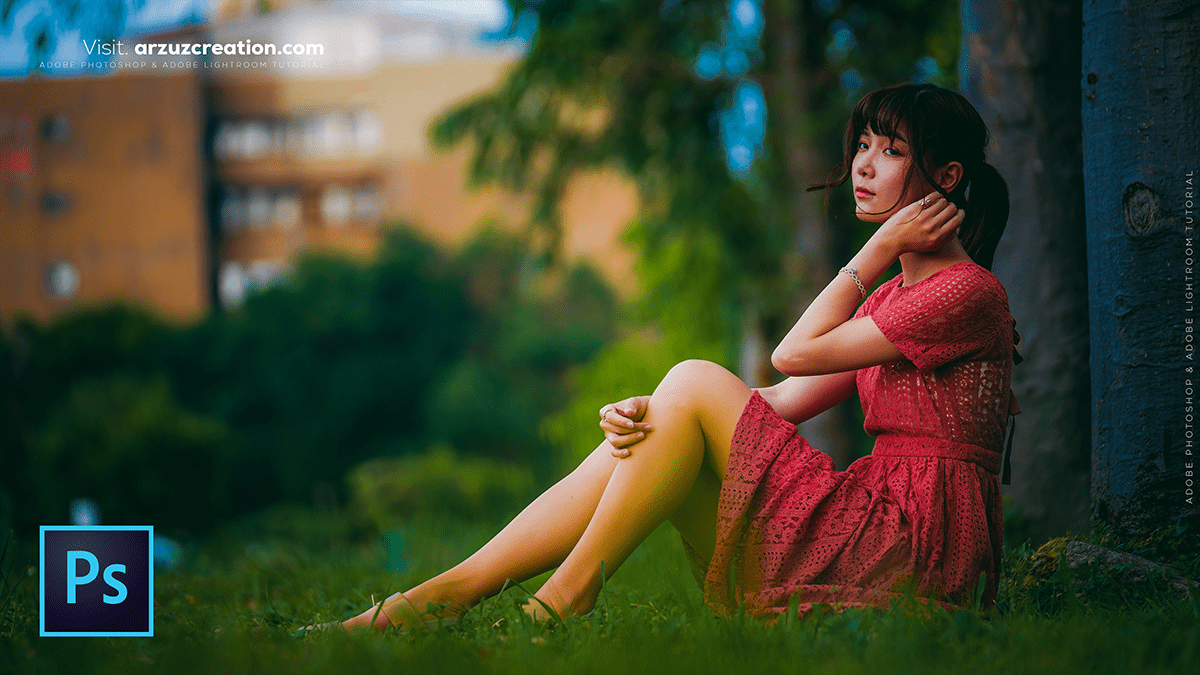
Cinematic Look: How to Edit a Cinematic Look Photo Editing 2025,
Therefore, creating a “cinematic effect” in Photoshop is less about a single filter and more about a specific workflow involving color grading, lighting control, and aspect ratio.

Therefore, here is a step-by-step guide to achieving that professional movie aesthetic.
Cinematic Look: How to Edit a Cinematic Effect Photo Editing 2025
1. The “Wide” Composition (Crop & Ratio)
Therefore, Cinema is defined by its wide aspect ratio. Most movies use 16:9 or the even wider 2.35:1 (Anamorphic).
- Action: Select the Crop Tool (C).
- Ratio: Set the ratio to 16:9 in the top bar.
- Tip: If you don’t want to lose parts of your image, you can add “Black Bars” (Letterboxing) by creating two black rectangles at the top and bottom of your canvas.
2. Base Color Correction (Camera RAW)
Therefore, before you get creative, you need a neutral base.
- For instance, go to Filter > Camera Raw Filter.
- Shadows/Highlights: Lift the shadows slightly and drop the highlights to ensure no detail is lost (mimicking high dynamic range film).
- Texture: Add a touch of Texture or Clarity to emphasize grit, but don’t overdo it, or it will look “digital.”
Cinematic Look: How to Edit a Cinematic Effect Photo Editing 2025
3. The Cinematic Color Grade (Teal & Orange)
In other words, Most modern films use a complementary color scheme where shadows are Teal (Cool) and skin tones/highlights are Orange (Warm).
- Curves Layer: In other words, create a New Adjustment Layer > Curves.
- Blue Channel: Pull the bottom-left point (Shadows) up to add blue. Pull the top-right point (Highlights) down to add yellow (warmth).
- Red Channel: Add a slight S-curve to increase contrast.
- Color Lookup (LUTs): This is the “secret sauce.”
- For instance, add a Color Lookup adjustment layer.
- In other words, in the dropdown, look for presets like “LateSunset,” “Crisp_Warm,” or “FoggyNight.” * Pro Tip: Set this layer’s Opacity to 30-50% so it doesn’t look too heavy.
4. Depth and Focus (Lens Blur)
In other words, Movies often have a “shallow depth of field” where the background is creamy and blurred.
- However, duplicate your layer (Ctrl/Cmd + J).
- For instance, go to Filter > Blur Gallery > Tilt-Shift or Field Blur.
- However, blur the background while keeping your subject sharp to draw the viewer’s eye exactly where the “director” wants it.
Cinematic Look: How to Edit a Cinematic Look Photo Editing 2025
5. Final Atmospheric Touches
- Film Grain: Create a new layer, fill it with 50% Gray (Shift + Backspace), go to Filter > Noise > Add Noise (3-5%), and set the Blend Mode to Overlay. This removes the “plastic” look of digital sensors.
- Vignette: Use a soft black brush on a new layer or the Vignette slider in Camera Raw to subtly darken the corners. This focuses the “story” on the center of the frame.
Quick Shortcut: For instance, If you want an instant result, try the “Exclusion” trick: Create a Solid Color adjustment layer (choose a dark Navy Blue), set the Blend Mode to Exclusion, and drop the Opacity to 10-15%. It instantly gives shadows that “filmic” faded lift.
Would you like me to explain how to specifically isolate and protect skin tones while applying these heavy color grades?
