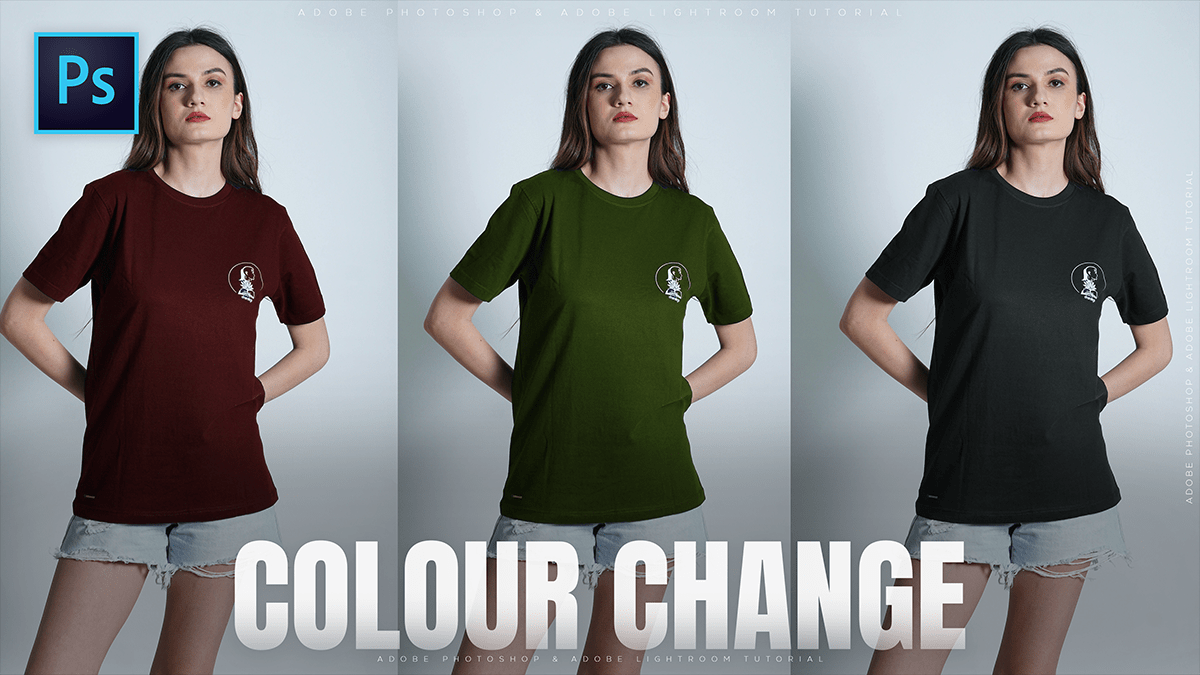
How to Change the Color of a Shirt in Photoshop 2026,

Therefore, changing the color of a shirt in Photoshop can be done in several ways, depending on the complexity of the original color. Here are the three most effective methods:
How to Change the Color of a Shirt in Photoshop 2026,
Method 1: The “Hue/Saturation” Method (Fastest)
Therefore, this is the best method for solid-colored shirts that aren’t pure white or pure black.
- Select the Shirt: Use the Object Selection Tool (W) or Quick Selection Tool to click and drag over the shirt.
- Add Adjustment Layer: With the selection active, go to the bottom of your Layers panel and click the “New Adjustment Layer” icon (the half-filled circle). Choose Hue/Saturation.
- Colorize: In the Properties panel that appears, check the Colorize box.
- Adjust: Move the Hue slider to change the color, Saturation to change the intensity, and Lightness to make it darker or brighter.
Step 2: The “Solid Color” Method (Best for Specific Colors)
Therefore, use this if you need to match a specific brand color or if the shirt is white/gray.
- Select the Shirt: Use the Object Selection Tool (W) to select the shirt.
- Create Fill Layer: Therefore, click the “New Adjustment Layer” icon and select Solid Color. Pick your desired color from the Color Picker.
- Change Blend Mode: Your shirt will look like a flat block of color at first. In the Layers panel, change the Blend Mode (the dropdown that says “Normal”) to Multiply or Linear Burn.
- Tip: Use Overlay or Soft Light if the shirt was originally white.
- Refine: Lower the Opacity of the layer if the color feels too “heavy.”
How to Change the Color of a Shirt in Photoshop 2026,
Method 3: Generative Fill (AI Method)
Therefore, if you want to change not just the color, but also the fabric or style (e.g., changing a cotton tee to a silk shirt).
- Select the Shirt: Make a loose selection around the shirt.
- Generative Fill: Click the Generative Fill button on the Contextual Task Bar (the floating bar).
- Prompt: Type a specific instruction like “Blue silk shirt” or “Red flannel shirt” and hit Generate.
- Choose: Therefore, Photoshop will give you three variations to choose from in the Properties panel.
How to Change the Color of a Shirt in Photoshop 2026
Pro Tips for Realism:
- Fixing Edges: Therefore, if you see a “halo” of the old color around the edges, select the Layer Mask (the black and white box next to your adjustment layer) and use a small, soft Brush (B) with white or black paint to clean up the edges.
- Texture Retention: If you lose the “wrinkles” and “shadows” of the shirt, ensure your Blend Mode is set to Multiply (for dark colors) or Color (to preserve original brightness).
Would you like me to explain how to specifically change a black shirt to a white one, which requires a slightly different approach with Curves?
