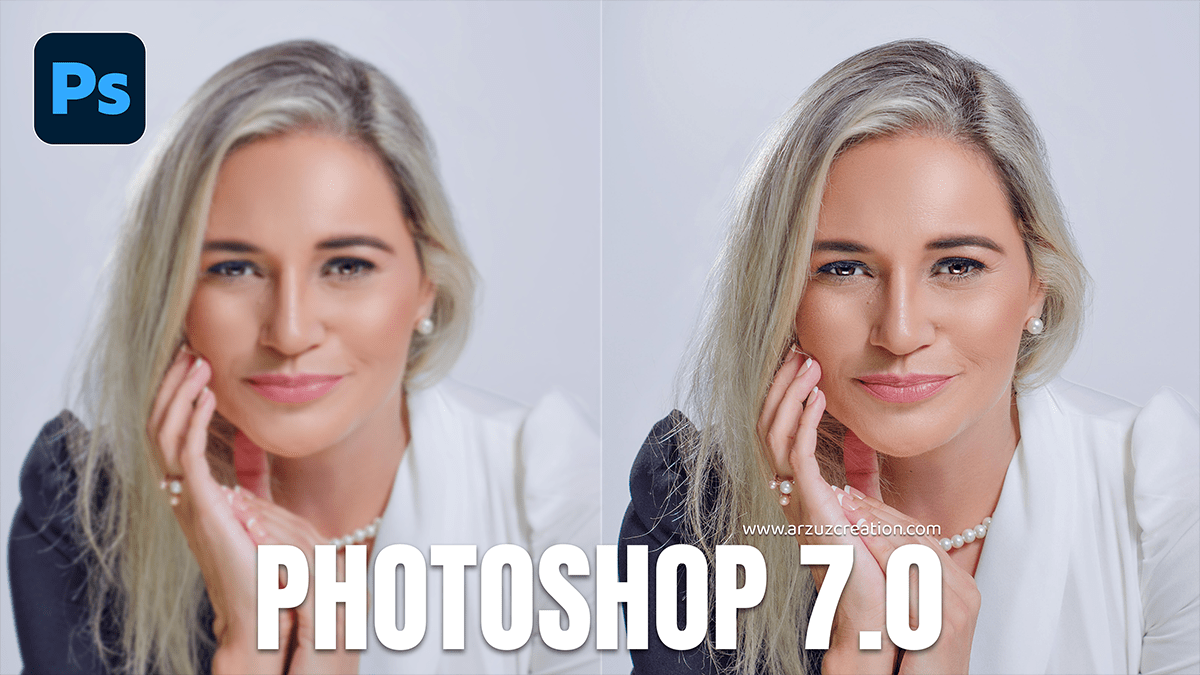
How to Increase Photo Quality in Photoshop 7.0,

Therefore, while Photoshop 7.0 (released in 2002) lacks the AI “Super Resolution” and “Preserve Details 2.0” found in modern versions, you can still significantly improve image quality using manual techniques like Bicubic interpolation, Unsharp Mask, and High Pass sharpening.
How to Increase Photo Quality in Photoshop 7.0,
Therefore, here is the best workflow for increasing photo quality in Photoshop 7.0.
1. Upscaling with “Bicubic” Interpolation:
Therefore, to make a small image larger without it becoming too “blocky,” you must use the correct resampling method.
Therefore, Go to Image > Image Size.
In other words, check the Resample Image box at the bottom.
However, in the dropdown menu, select Bicubic. (Note: In 7.0, “Bicubic” is the best option for smooth gradients; newer versions have “Bicubic Smoother,” but 7.0 users often upscale in small 10% increments to maintain quality).
Therefore, Increase the Width and Height.
Tip: If the image is for printing, ensure the Resolution is set to 300 pixels/inch.
2. Reduce “Grain” or Noise:
However, Old digital photos often have “noise” (colored speckles).
Therefore, Go to Filter > Blur > Gaussian Blur.
In other words, apply a very small radius (around 0.3 to 0.8 pixels). This softens the harsh pixel edges.
Alternatively, use Filter > Noise > Despeckle to automatically detect and blur noise while trying to keep edges intact.
How to Increase Photo Quality in Photoshop 7.0,
3. The “High Pass” Sharpening Technique:
In other words, this is the “secret weapon” for making photos look crisp without the halo effects of standard sharpening.
However, Press Ctrl + J (Windows) or Cmd + J (Mac) to duplicate your layer.
In other words, with the top layer selected, go to Filter > Other > High Pass.
However, adjust the slider until you see only the subject’s outlines against a gray background (usually a radius of 1.0 to 3.0). Click OK.
In other words, in the Layers Palette, change the Blend Mode of this gray layer from “Normal” to Overlay (or Hard Light for more intensity).
However, this adds sharp definition to edges while ignoring flat areas like skin or sky.
4. Fix Lighting and Contrast:
In other words, Quality often looks poor because the image is “flat” or dim.
Levels: Press Ctrl + L. Drag the black and white sliders toward the center to ensure your blacks are truly black and whites are truly white.
Saturation: Press Ctrl + U and slightly increase the Saturation (+5 to +10) to make the colors “pop.”
How to Increase Photo Quality in Photoshop 7.0
Comparison of Resampling Methods:
| Method | Best For… | Result |
| Nearest Neighbor | Pixel art/Hard edges | Jagged, pixelated |
| Bilinear | Quick previews | Average quality |
| Bicubic | Photos/Gradual Tones | Smoothest & Best for 7.0 |
Would you like me to explain how to use the “Unsharp Mask” tool specifically for printing?
