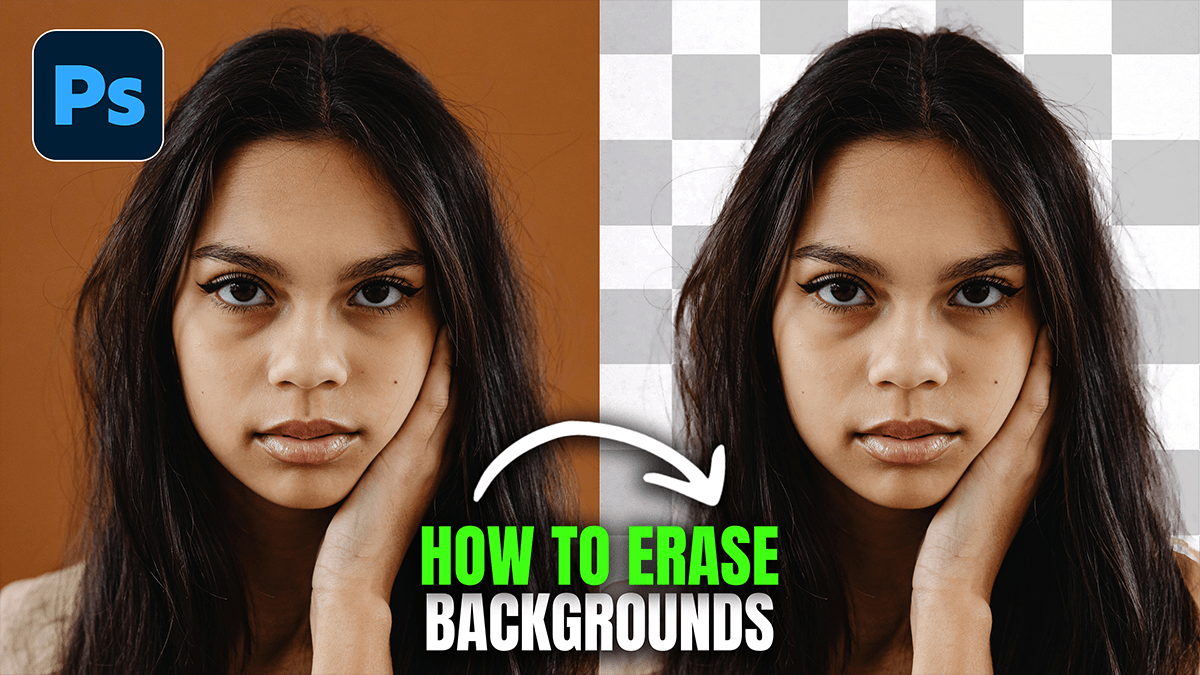
Remove Photo Background Object in Adobe Photoshop 2026,

Therefore, removing objects in Photoshop has become significantly easier with the introduction of AI-powered tools like Generative Fill and the Remove Tool. Depending on the complexity of your background, you can choose between a fully automated approach or a more manual, precise method.
Remove Photo Background Object in Adobe Photoshop 2026,
1. Using the Remove Tool (Best for Speed)
Therefore, the Remove Tool is an AI-powered brush that lets you simply “paint over” an object to make it disappear. It is ideal for small to medium-sized distractions.
Therefore, select the Remove Tool from the toolbar (it’s grouped with the Spot Healing Brush, shortcut: J).
In other words, in the top options bar, ensure “Remove after each stroke” is checked for instant removal, or uncheck it to brush over several areas first.
Paint over the object you want to remove. Ensure you cover the entire object and its shadow.
Therefore, release the mouse (or press Enter), and Photoshop will intelligently fill the area.
Remove Photo Background Object in Adobe Photoshop 2026,
2. Using Generative Fill (Best for Complex Backgrounds)
Therefore, for large objects or complex textures (like a person standing in front of a detailed building), Generative Fill is the most powerful option because it “understands” the scene.
In other words, use the Lasso Tool (L) to draw a loose selection around the object. Leave a little bit of space around the edges so the AI can blend the textures.
In other words, A Contextual Task Bar will appear below your selection. Click Generative Fill.
Leave the prompt box empty and click Generate.
In other words, Photoshop will provide three variations in the Properties Panel. Choose the one that looks most natural.
3. Using Content-Aware Fill (The Classic Method)
In other words, if you prefer not to use cloud-based AI or are working offline, Content-Aware Fill remains a reliable choice for simpler backgrounds.
However, select the object using the Object Selection Tool (W).
Above all, Go to Edit > Content-Aware Fill…
However, A new window will open. The green area shows what Photoshop is “sampling” to fill the hole. Use the brush to add or remove parts of the sampling area if the result looks “smudged.”
Above all, click OK to apply the changes to a new layer.
Remove Photo Background Object in Adobe Photoshop 2026,
4. Quick Comparison Table
| Tool | Best Used For… | AI Level |
| Remove Tool | Quick fixes, wires, small objects. | High (Local AI) |
| Generative Fill | Large objects, complex backgrounds, and replacing areas. | Advanced (Cloud AI) |
| Content-Aware Fill | Simple textures (grass, sky), offline work. | Standard (Pattern Matching) |
| Clone Stamp | High-precision manual retouching. | None (Manual) |
Pro Tip: Non-Destructive Editing
However, always create a new blank layer before using the Remove Tool and check “Sample All Layers” in the top bar. This way, your original photo remains untouched, and you can easily delete the “removal” layer if you change your mind later.
In conclusion, would you like me to explain how to use the Clone Stamp tool for those tricky areas where AI might struggle?
