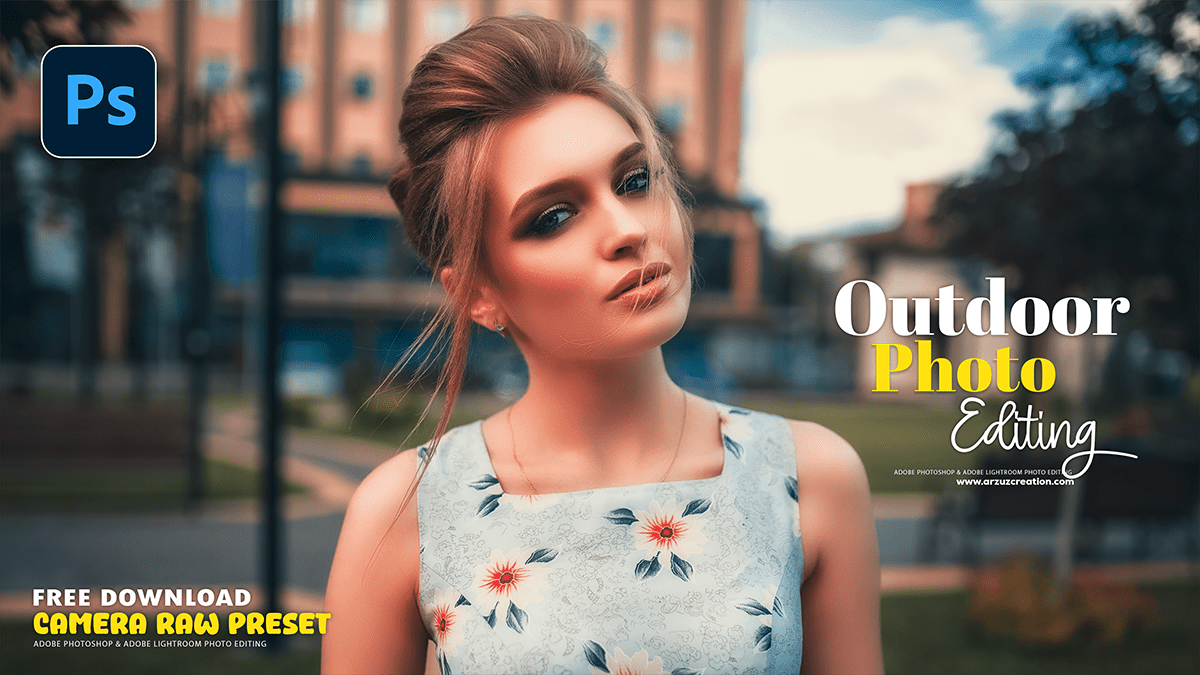
Color Correction: Professional Photo Editing in Adobe Photoshop,
Therefore, When editing outdoor portraits in Adobe Photoshop, color correction and color grading are two distinct but related processes. Color correction is the initial step, focusing on making the colors in your image appear accurate and natural. Color grading, on the other hand, is a more creative process used to stylize the image and give it a specific mood or feel.
Professional Photo Editing in Adobe Photoshop,

Photoshop Color Correction:
Therefore, The goal of color correction is to fix any issues with the image’s white balance and tone. Outdoor lighting can present challenges, such as a cool blue cast on a cloudy day or a warm, orange cast during the golden hour. To correct this, you can use the Camera Raw Filter in Photoshop. This powerful tool provides a variety of sliders to adjust temperature, tint, and exposure. A good starting point is to use the White Balance eyedropper tool to click on a neutral gray or white area in your photo. This will automatically adjust the overall color cast.
Camera Raw Presets Free Download 2025,
Camera Raw Filter Color Grading:
Therefore, Once your colors are corrected, you can move on to color grading to add a creative touch. Photoshop’s Color Grading tool, also found within the Camera Raw Filter, is an excellent place to start. It allows you to adjust the colors in the shadows, midtones, and highlights independently.
- Shadows: By shifting the color wheel for the shadows, you can introduce cooler tones like blues or magentas to create a moody, dramatic look.
- Midtones: Adjusting the midtones affects the overall color balance of the image, including the skin tones, so be subtle here.
- Highlights: You can add warmth to the highlights with yellows or oranges to enhance a sunrise or sunset feel, or add a slight cyan to create a more cinematic look.
Professional Photo Editing in Adobe Photoshop,
Therefore, Other tools like Selective Color and Curves adjustment layers are also useful. Selective Color lets you target specific color ranges (e.g., reds, yellows, blues) to fine-tune their hue, saturation, and lightness. The Curves tool can be used to alter contrast and make further color adjustments by manipulating the individual Red, Green, and Blue (RGB) channels.
