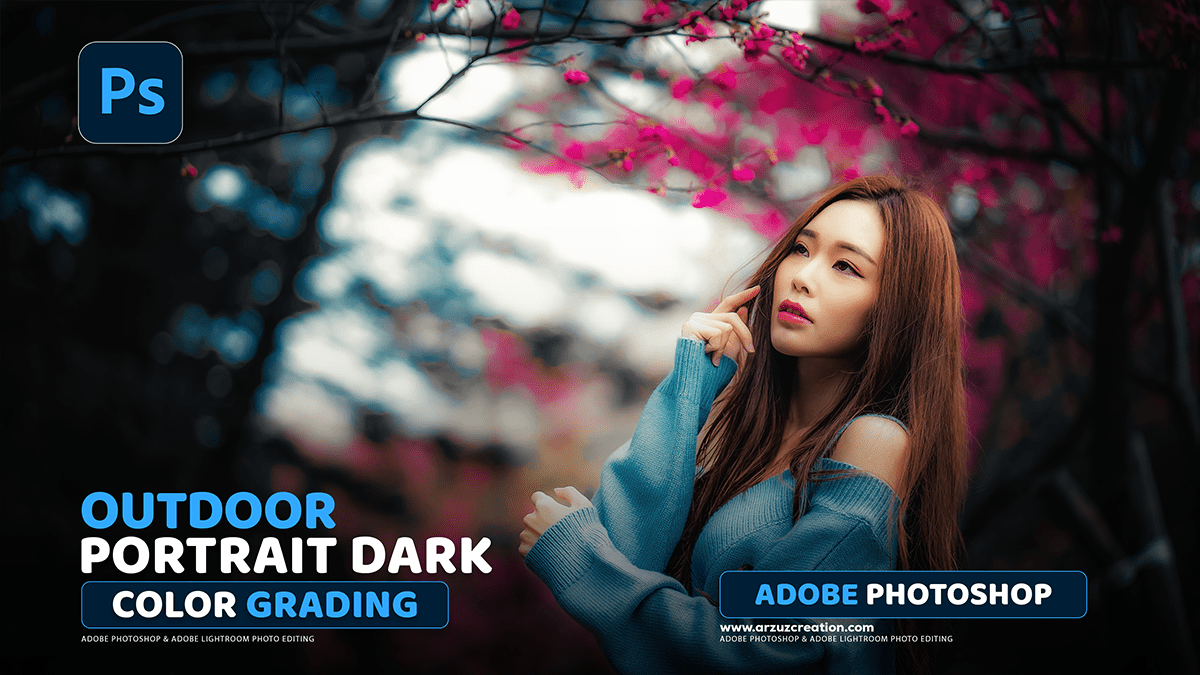
Color Grading: Adobe Camera Raw Filter 17.5,
Therefore, Color grading in Photoshop 2024 is primarily done using existing, powerful tools, including dedicated features within the Camera Raw Filter and various Adjustment Layers.

Therefore, the core methods and tools generally remain consistent across recent Photoshop versions:
Color Grading: Adobe Camera Raw Filter 17.5,
1. The Camera Raw Filter (Most Direct Color Grading Tool)
Therefore, this is often the go-to for professional-style color grading, as it includes dedicated Color Grading tools similar to those found in Lightroom.
- Access: Go to Filter > Camera Raw Filter…
- Color Grading Panel: Inside the Camera Raw dialog box, you’ll find a Color Grading panel (often represented by a set of three color wheels).
- Therefore, it allows you to independently adjust the Hue (color), Saturation (intensity), and Luminance (brightness) of the Shadows, Midtones, and Highlights using color wheels and sliders.
- In other words, there are also options for Blending and Balance to control how these adjustments interact.
2. Adjustment Layers (Non-Destructive and Versatile)
Color Grading: Adobe Camera Raw Filter 17.5,
Therefore, using Adjustment Layers is the preferred non-destructive method:
- Color Balance: In other words, Excellent for targeted color adjustments in the Shadows, Midtones, and Highlights.
- Curves: Used for fine-tuning contrast and color channels (Red, Green, Blue) to affect the overall tone and mood.
- Hue/Saturation: Good for broad color shifts or adjusting the saturation/lightness of specific colors.
- Selective Color: Allows for precise color adjustments based on existing colors in the image (e.g., modifying the reds without affecting the blues).
- Color Lookup (LUTs): In other words, you can apply pre-made Look Up Tables (LUTs) or custom ones you’ve saved to instantly achieve cinematic or stylized looks.
Color Grading: Adobe Camera Raw Filter 17.5,
New/Updated Feature to be aware of:
- Adjustment Presets: A newer feature in Photoshop allows you to save a group of adjustment layers as a single, customizable preset. This is a game-changer for consistently applying complex color grades and sharing them easily. You can create a unique style using multiple adjustment layers and then save the entire group as a reusable preset.
General Workflow:
- Start with Correction (Optional but Recommended): Use tools like Levels or Curves (or the basic panels in Camera Raw) to ensure your exposure and white balance are correct before you begin the creative color grading.
- Apply a Look: Use the Camera Raw Filter’s Color Grading tool or a combination of Adjustment Layers (like Color Balance, Curves, or a LUT) to establish the desired aesthetic.
- Refine: Make selective adjustments using Masks on the Adjustment Layers to control where the grade is applied, or use tools like Selective Color for precise color tweaks.
