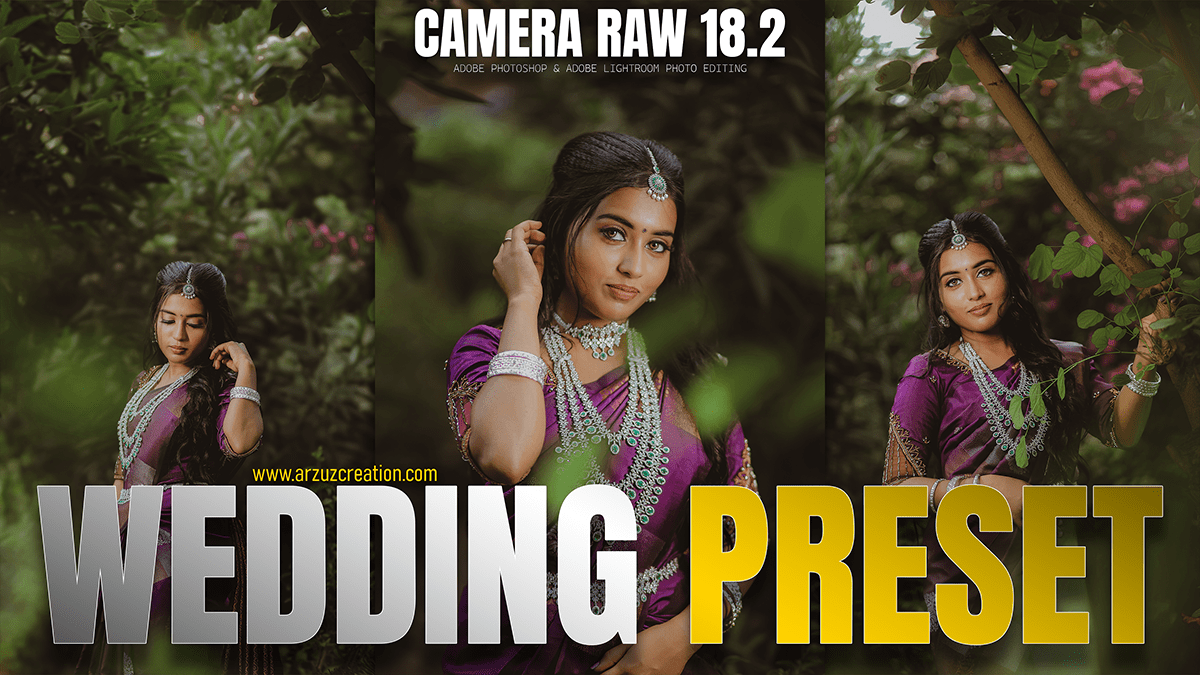
Wedding Photo Editing Presets Photoshop 2026

Therefore, Professional wedding photo editing in 2026 has shifted away from heavy, “one-size-fits-all” filters toward Authentic Realism and Cinematic Storytelling. While Lightroom handles the bulk of the work, Photoshop is reserved for “Hero Shots”—the top 5% of images intended for albums or large prints.
Wedding Photo Editing Presets Photoshop 2026

In other words, here is the professional workflow for high-end wedding editing in Photoshop.
1. The “Base Layer” Preparation:
Therefore, before diving into detailed retouching, establish a clean foundation.
Camera Raw Filter (Ctrl/Cmd + Shift + A): Even if you’ve already used Lightroom, use this for final “polishing.” Ensure the bride’s dress is a crisp white (not blue or yellow) using the White Balance eyedropper.
Dehaze & Clarity: Therefore, use the Dehaze slider sparingly to add “punch” to outdoor ceremonies, and use negative Clarity/Texture (around -10) for a soft, romantic glow on skin.
Generative Expand: However, if a composition is too tight (e.g., a cut-off veil), use the Crop tool with Generative Expand to intelligently fill in the missing fabric or background.
Professional Wedding Photo Editing Presets,

2. Advanced Skin & Portrait Retouching:
Therefore, the 2026 standard is “Perfectly Imperfect”—removing distractions while keeping skin texture intact.
Frequency Separation: In other words, this remains the gold standard. It splits the image into two layers: High Frequency (texture/pores) and Low Frequency (color/tones).
Tip: However, use the Lasso tool on the Low Frequency layer with a high feather to smooth out blotchy skin tones without losing skin texture.
Neural Filters (Portrait AI): In other words, use the “Skin Smoothing” neural filter for a fast base, but keep the strength below 50% to avoid a plastic look.
Eye & Jewelry Pop: Use a Radial Filter over the eyes or the wedding rings. Increase Exposure (+0.25) and Contrast to make them sparkle.
3. High-End Background Cleanup:
In other words, A wedding venue is often cluttered with distracting elements that “break” the romantic mood.
Generative Fill: This is the most powerful tool for professionals today. Use it to remove:
However, Exit signs and fire extinguishers.
Above all, Stray guests or “paparazzi” relatives in the background of the aisle walk.
However, Microphones and cables are near the altar.
Content-Aware Fill: Use this for smaller, simpler removals like flyaway hairs or small spots on the groom’s suit.
Wedding Photo Editing Presets Photoshop 2026,
4. Cinematic Color Grading (2026 Trends)
Above all, Today’s couples prefer “True-to-Life” or “Modern Cinematic” looks.
Wedding Presets 2026 (Download)
Color Balance Adjustment Layer: After that, add warmth to highlights (yellow/red) and coolness to shadows (blue/cyan) for a classic cinematic “teal and orange” split, but keep it subtle.
Selective Color: After that, Professionals use this to target the “Greens.” In 2026, the trend is shifting away from desaturated, “muddy” greens toward vibrant, natural forest tones.
Gradient Maps: In addition, apply a “Black to White” gradient map at 10% Opacity on “Soft Light” blend mode. This adds a sophisticated, film-like contrast that presets often miss.
5. Finishing Touches:
Dodge & Burn: In addition, use a 50% Gray layer on “Overlay” mode. “Dodge” (lighten) the highlights of the wedding dress to show detail and “Burn” (darken) the edges of the frame to create a natural vignette.
Smart Sharpening: Above all, apply sharpening only to the “Red Channel” in the Channels panel. This sharpens details like eyelashes and lace without exaggerating skin imperfections.
Wedding Photo Editing Presets Photoshop 2026,
Comparison of Key Tools:
| Task | Best Tool | Why? |
| Object Removal | Generative Fill | Best for complex backgrounds. |
| Skin Smoothing | Frequency Separation | Preserves natural skin texture. |
| Atmosphere | Dehaze (Camera Raw) | Adds or removes “dreamy” haze. |
| Composition | Generative Expand | Fixes “cut-off” limbs or veils. |
Would you like me to walk you through the specific steps for setting up a Frequency Separation action to speed up your workflow?
