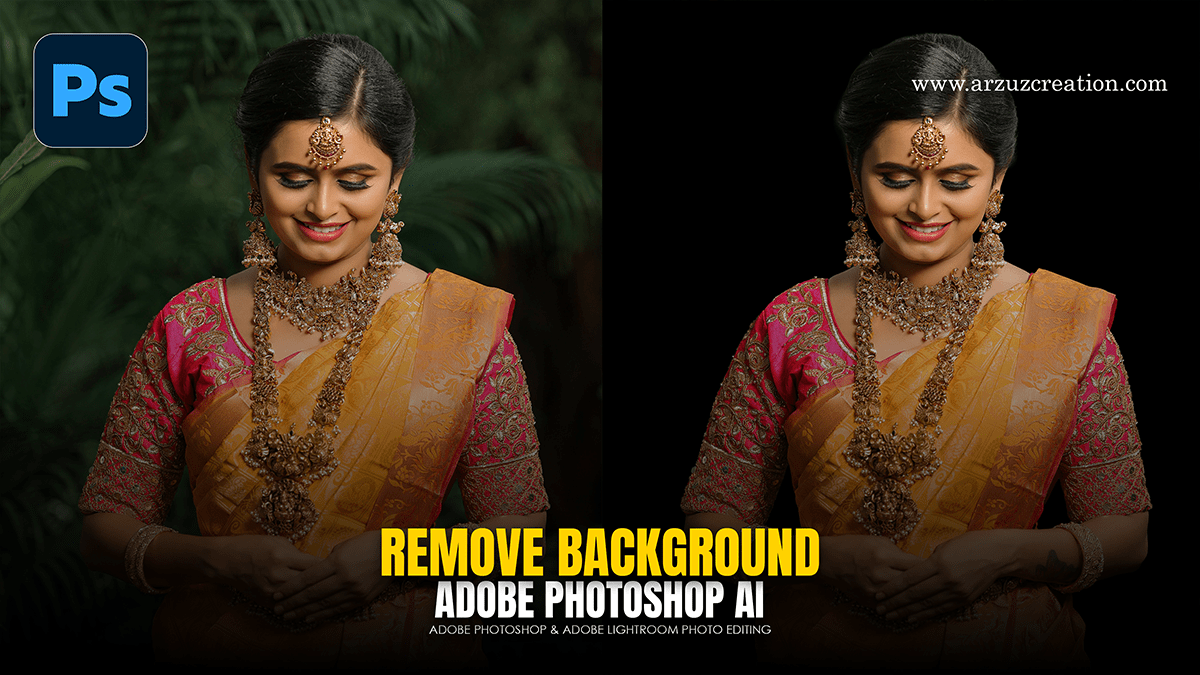
Adobe Photoshop AI: Remove Photo Background,

Therefore, Adobe Photoshop offers a few different AI-powered ways to remove backgrounds, ranging from one-click solutions to more refined selections.
Adobe Photoshop AI: Remove Photo Background,
In other words, here is how to do it using the latest AI tools:
1. The “Quick Action” Method (Fastest)
In other words, this is the most direct way to use Adobe Sensei (Photoshop’s AI) to identify a subject and mask the background instantly.
Open your image in Photoshop.
Unlock the layer by clicking the lock icon in the Layers panel.
In other words, go to the Properties Panel (if you don’t see it, go to Window > Properties).
However, under Quick Actions, click the Remove Background button.
In other words, Photoshop will automatically create a layer mask, hiding the background.
Adobe Photoshop AI: Remove Photo Background,
2. Generative Fill (Best for Complex Edges)
However, if you want to remove the background and potentially replace it with something else using Firefly AI:
However, select the Contextual Task Bar (the floating bar that appears near your image).
Above all, Click Select Subject.
Above all, once the subject is marching ants, click the Invert Selection icon on the taskbar (or press Ctrl+Shift+I / Cmd+Shift+I).
However, Click Generative Fill.
For instance, leave the prompt box empty and click Generate to let the AI intelligently fill the space, or type a description (e.g., “blurry office background”) to replace it.
3. “Select and Mask” (Best for Hair/Fur)
However, if the AI missed some fine details like wisps of hair:
However, choose any selection tool (like the Quick Selection Tool).
For instance, click Select Subject at the top.
Above all, click Select and Mask… in the top options bar.
However, use the Refine Edge Brush (the second brush down on the left) to paint over tricky areas like hair.
For instance, on the right-hand panel, under “Output Settings,” select Output to: Layer Mask and click OK.
Adobe Photoshop AI: Remove Photo Background,
Quick Tips for Better Results:
Contrast is Key: Above all, AI works best when there is a clear color difference between the subject and the background.
High Resolution: Lower-quality images make it harder for the AI to “see” the edges correctly.
The “Remove Background” tool is non-destructive, meaning you can always click on the black-and-white mask in your layers panel and use a white brush to bring back anything the AI accidentally deleted.
Would you like me to walk you through how to use the “Generative Expand” feature to grow the background instead of removing it?
