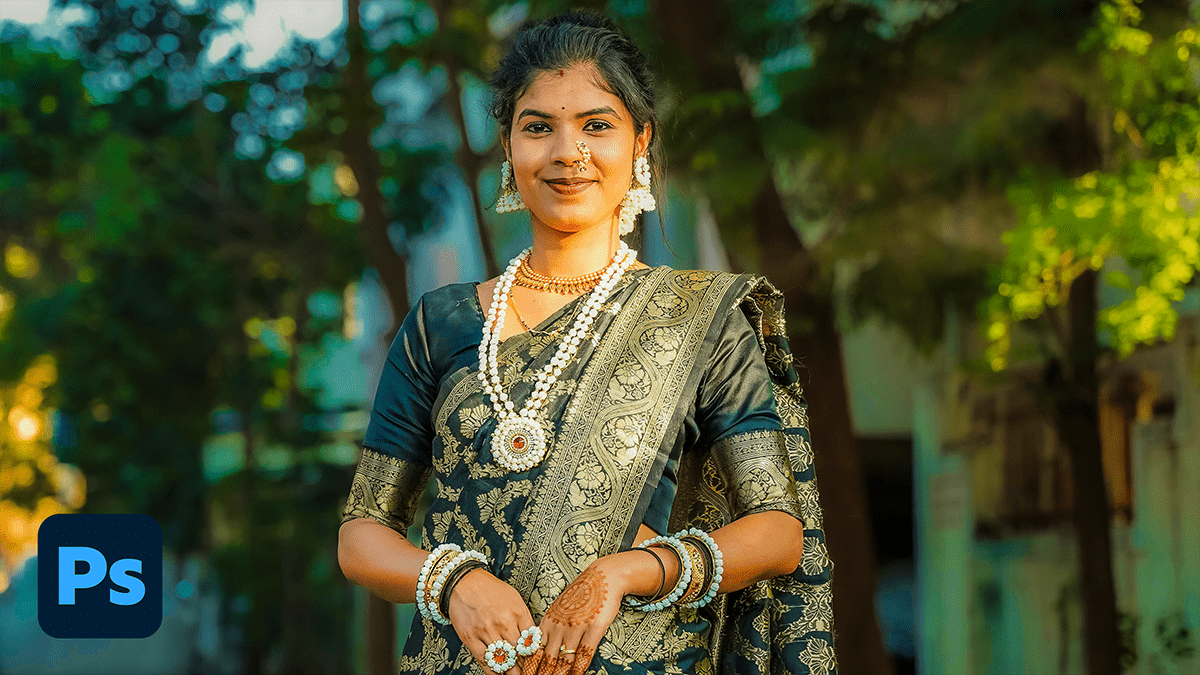
Professional Wedding Photo Editing in Adobe Photoshop 2026,

Therefore, to get that high-end, professional wedding look in Adobe Photoshop, you need a workflow that balances efficiency with artistic flair. Since a wedding can involve thousands of shots, the “professional” approach usually involves a mix of batch processing in Camera Raw and surgical retouching in Photoshop.
Professional Wedding Photo Editing in Adobe Photoshop 2026,
In other words, here is a breakdown of the industry-standard workflow for wedding editing.
1. The Foundation: Adobe Camera Raw (ACR)
Therefore, before you even touch a layer mask, you must nail the “Clean Edit.” Open your RAW files to adjust the basics:
- White Balance: Therefore, Consistency is key. Use the eyedropper tool on the bride’s dress or a neutral gray to ensure skin tones look natural across the set.
- The “S-Curve”: In the Point Curve tab, create a subtle S-shape to add depth and contrast without losing detail in the shadows.
- HSL/Color Mixer:
- Oranges: Therefore, Lower saturation/increase luminance for glowing skin.
- Greens: In other words, Desaturate and shift the hue toward yellow/brown for a “moody/fine art” look, or brighten them for “light and airy.”
2. Professional Retouching Techniques
Therefore, once the color is set, move the “hero” shots into Photoshop for detailed work.
Frequency Separation:
In other words, this is the secret to perfect skin that doesn’t look like plastic. It splits the image into two layers:
- High Frequency: Contains the texture (pores, fine lines, fabric detail).
- Low Frequency: Contains the colors and tones (shadows, highlights, skin redness).
- Why it works: You can smooth out a blotchy tan on the Low layer without blurring the skin’s natural texture on the High layer.
Professional Wedding Photo Editing in Adobe Photoshop 2026,
Dodge & Burn:
In other words, instead of using the default tools, use Curves adjustment layers:
- Dodge: Brighten the peaks of the hair, the bridge of the nose, and the iris of the eyes.
- Burn: Subtly darken the edges of the frame (vignetting) or the contours of the face to add dimension.
3. High-End Finishing Touches:
- The Content-Aware Fill: However, use this to remove “distractions” like exit signs, stray power lines, or that one guest’s phone peeking into the aisle.
- Generative Fill: If the bride’s veil got cut off by the frame, or you need to extend a beautiful landscape background, this AI-powered tool is a lifesaver.
- Selective Sharpening: Apply a High Pass filter (around 1.5–2.0 radius) set to Overlay blending mode, but mask it so it only affects the eyes, jewelry, and lace.
Professional Wedding Photo Editing in Adobe Photoshop 2026,
Professional Styles Comparison:
| Style | Key Characteristics | Photoshop Goal |
| Light & Airy | Pastel tones, overexposed look, soft contrast. | Boost shadows, drop blacks, pinkish tints. |
| Dark & Moody | Deep shadows, warm highlights, desaturated greens. | Heavy vignette, crushed blacks, warm split toning. |
| True to Life | Vibrant colors, high clarity, accurate skin. | Balanced HSL, moderate sharpening, neutral WB. |
A Quick Tip on Ethics:
However, in professional wedding editing, the “Two-Week Rule” is a good guide: Remove things that won’t be there in two weeks (pimples, bruises, stray hairs). Keep things that are permanent (moles, birthmarks, body shape) unless the client specifically asks otherwise.
Would you like me to walk you through the specific steps for setting up a Frequency Separation action to save you time?
