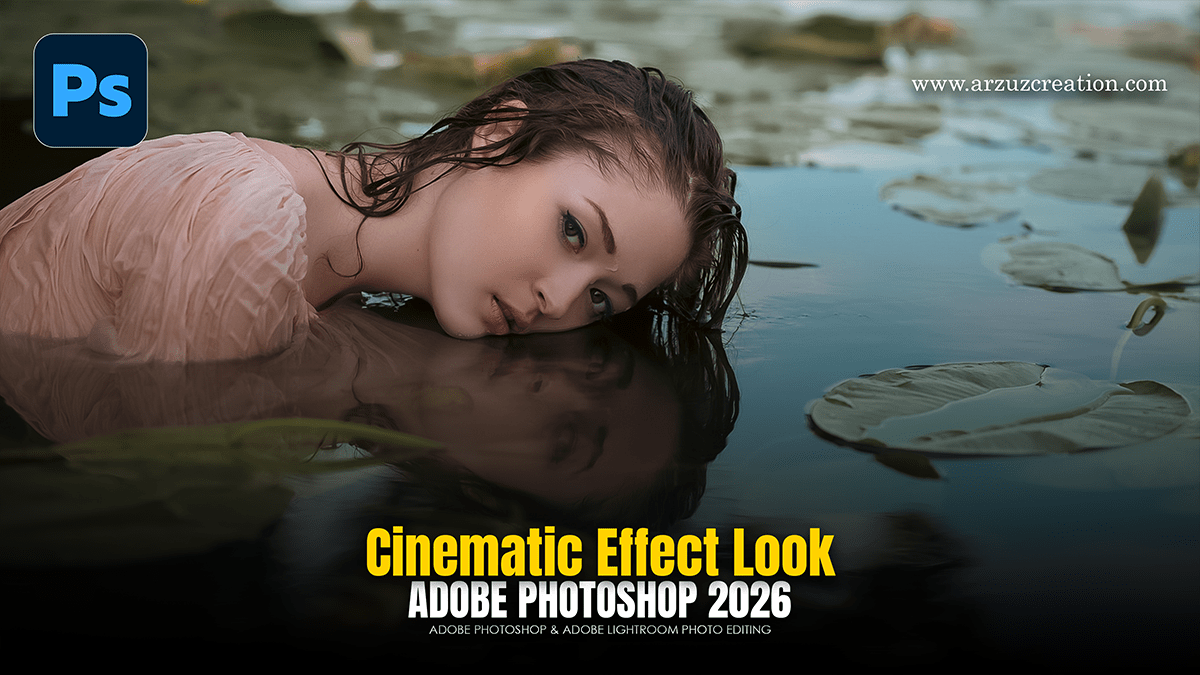
Cinematic Effect Look in Adobe Photoshop 2026

Therefore, to give any ordinary image a Cinematic Look in Photoshop, you need to focus on color grading and lighting. Below is a professional and easy workflow:
Cinematic Effect Look in Adobe Photoshop 2026:
1. Color Grading (Camera Raw Filter)
Therefore, first, select your layer and go to Filter > Camera Raw Filter. You can try the following changes to bring a movie-like vibe:
Temperature & Tint: In other words, add some blue or cyan tone if you want a serious or dramatic look. You can increase the yellow tone for a warm or golden look.
Contrast & Clarity: Therefore, increase the contrast a little and increase the ‘Clarity’ to sharpen the details.
Dehaze: In other words, this removes the hazy look of the image and gives the image more cinematic depth.
2. Color Wheel (Color Mixer/Grading)
In other words, the biggest secret to cinematic editing is the Teal and Orange effect:
Shadows: For instance, add a slight blue or cyan tone to the shadows.
Highlights: However, add a slight orange or golden tone to the highlights.
For instance, this will give the image a professional movie poster look.
Cinematic Effect Look in Adobe Photoshop 2026:
3. Curves – Matte Look
However, Open Curves to give a Faded or Matte effect.
For instance, raise the lower left part (Black point) slightly. This will make the blacks turn a light gray, which is very visible in movie shots.
4. Lighting and Vignette
Vignette: In addition, darken the edges of the image slightly (from the Effects tab). This will draw the viewer’s eye directly to the center of the image or to the subject.
Lens Flare: Above all, if you have the sun or a light source, you can add a light glow using Filter > Render > Lens Flare.
Cinematic Effect Look in Adobe Photoshop 2026:
5. Aspect Ratio
Above all, finally, add black bars (Letterboxing) at the top and bottom of the image to complete the movie-like look.
In addition, you can crop to a 2.35:1 (CinemaScope) ratio with the Crop Tool or manually add a black shape border.
After that, are you looking to create a look like a specific movie (e.g., Nolan or Wes Anderson style)? Then I can color-code it accordingly.
Cinematic Effect Look in Adobe Photoshop 2026:
অ্যাডোবি ফটোশপ ২০২৬-এ সিনেম্যাটিক এফেক্ট লুক,
Similarly, Photoshop-এ যেকোনো সাধারণ ছবিকে Cinematic Look দিতে হলে মূলত কালার গ্রেডিং এবং লাইটিংয়ের ওপর জোর দিতে হয়। নিচে একটি প্রফেশনাল এবং সহজ ওয়ার্কফ্লো দেওয়া হলো:
১. কালার গ্রেডিং (Camera Raw Filter)
প্রথমে আপনার লেয়ারটি সিলেক্ট করে Filter > Camera Raw Filter-এ যান। মুভির মতো ভাইব আনতে নিচের পরিবর্তনগুলো ট্রাই করতে পারেন:
Temperature & Tint: কিছুটা নীল বা সায়ান (Cyan) টোন যোগ করুন যদি গম্ভীর বা ড্রামাটিক লুক চান। ওয়ার্ম (Warm) বা গোল্ডেন লুকের জন্য হলুদ টোন বাড়াতে পারেন।
Contrast & Clarity: কনট্রাস্ট একটু বাড়িয়ে দিন এবং ‘Clarity’ বাড়িয়ে ডিটেইলস শার্প করুন।
Dehaze: এটি ছবির কুয়াশাটে ভাব দূর করে ছবিকে আরও সিনেম্যাটিক গভীরতা দেয়।
অ্যাডোবি ফটোশপ ২০২৬-এ সিনেম্যাটিক এফেক্ট লুক,
Cinematic Effect Look in Adobe Photoshop 2026:
২. কালার হুইল (Color Mixer/Grading)
সিনেম্যাটিক এডিটিংয়ের সবচেয়ে বড় সিক্রেট হলো Teal and Orange ইফেক্ট:
Shadows: শ্যাডোতে কিছুটা নীল বা সায়ান টোন দিন।
Highlights: হাইলাইটস-এ হালকা কমলা বা গোল্ডেন টোন যোগ করুন।
এটি ছবিতে একটি প্রফেশনাল মুভি পোস্টারের মতো লুক তৈরি করবে।
৩. কার্ভস (Curves) – Matte Look
একটি Faded বা Matte ইফেক্ট দিতে Curves ওপেন করুন।
নিচের বাম দিকের অংশটি (Black point) সামান্য উপরে তুলে দিন। এতে কালোগুলো হালকা ধূসর হয়ে যাবে, যা সিনেমার শটগুলোতে খুব দেখা যায়।
Cinematic Effect Look in Adobe Photoshop 2026:
৪. লাইটিং এবং ভিনিয়েট (Vignette)
Vignette: ছবির চারপাশ কিছুটা অন্ধকার করে দিন (Effects ট্যাব থেকে)। এতে দর্শকের চোখ সরাসরি ছবির মাঝখানে বা সাবজেক্টের ওপর পড়ে।
Lens Flare: সূর্য বা আলোর সোর্স থাকলে Filter > Render > Lens Flare ব্যবহার করে হালকা গ্লো যোগ করতে পারেন।
৫. অ্যাসপেক্ট রেশিও (Aspect Ratio)
সবশেষে, মুভির মতো লুক পূর্ণ করতে ছবির উপরে ও নিচে কালো বার (Letterboxing) যোগ করুন।
Crop Tool দিয়ে ২.৩৫:১ (CinemaScope) রেশিওতে ক্রপ করতে পারেন অথবা ম্যানুয়ালি কালো শেপ দিয়ে বর্ডার দিতে পারেন।
আপনি কি নির্দিষ্ট কোনো মুভির মতো (যেমন: নোলান বা ওয়েস অ্যান্ডারসন স্টাইল) লুক তৈরি করতে চাচ্ছেন? তাহলে আমি সেই অনুযায়ী কালার কোড বলে দিতে পারি।
