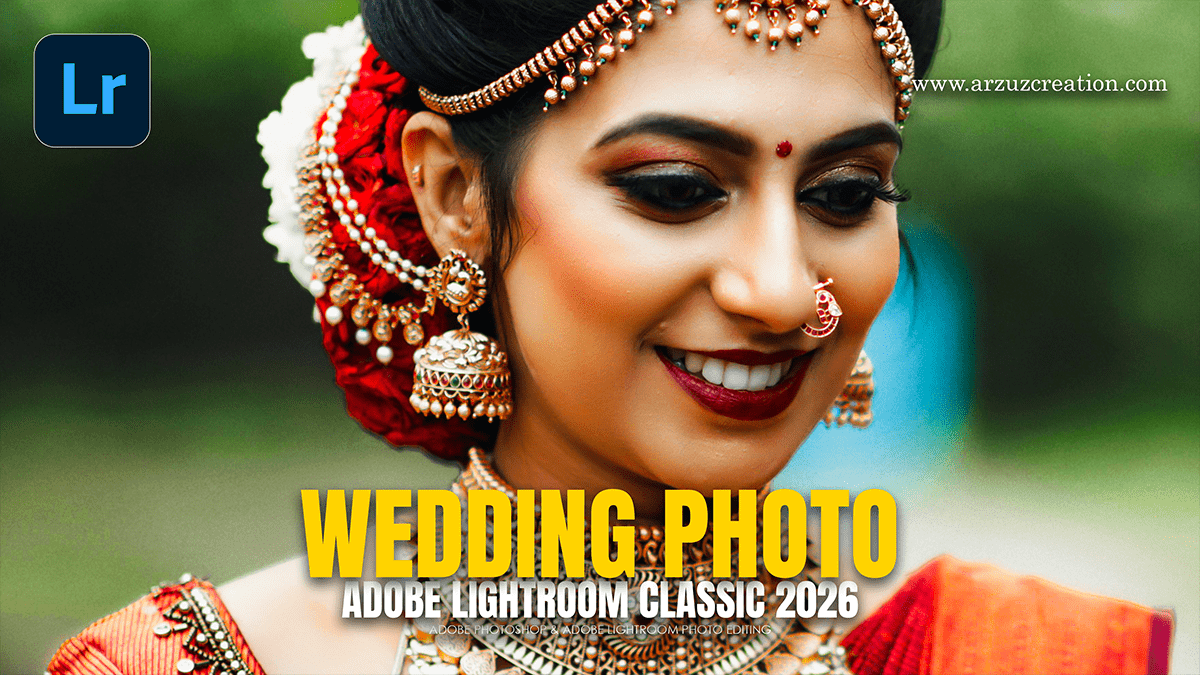
2026 Wedding Photo Editing Workflow in Adobe Lightroom Classic

Therefore, for professional wedding photography in 2026, the standard workflow leverages Lightroom for high-volume management and Photoshop for high-end “hero” shots. In other words, Modern updates have introduced powerful AI tools that significantly reduce the time spent on manual retouching.
2026 Wedding Photo Editing Workflow in Adobe Lightroom Classic
The 2026 Efficiency Workflow:
Ingestion & Culling (Lightroom)
Therefore, with 2,000+ RAW files per wedding, culling is the biggest bottleneck.
AI Culling: In other words, use Lightroom’s new Assisted Culling to automatically group and rank photos. You can set parameters (e.g., “keep the best 600”) and the AI will filter based on focus, closed eyes, and composition.
Preview Rendering: Select 1:1 Previews during import so you can zoom in instantly to check focus without lag.
The “P/X” Method: Therefore, use the P key to flag “Keepers” and X to “Reject.” Activating Caps Lock enables “Auto Advance,” moving to the next photo automatically after each rating.
2026 Wedding Photo Editing Workflow in Adobe Lightroom Classic
Batch Editing & Color (Lightroom)
The Hero Shot Strategy: In other words, edit one photo from a specific lighting scene (e.g., the ceremony). Once the “vibe” is set, select all images from that scene and hit Sync (or Auto Sync) to apply the settings across hundreds of photos instantly.
Adaptive Presets: However, use AI-powered “Adaptive Presets” that can automatically detect and enhance the subject or sky without affecting the rest of the image.
White Balance: In other words, Crucial for weddings—ensure the bride’s dress is a true white. Use the eyedropper tool on a neutral white/gray area of the dress or a groomsman’s shirt.
Precision Retouching (Photoshop)
However, Export only your 20–50 “hero” shots (portraits, cake, rings) to Photoshop for pixel-level work.
Generative Remove 3: This 2026 update allows you to remove distracting guests, exit signs, or background clutter. It now uses improved “Auto” generative filling that doesn’t always require cloud credits.
Frequency Separation: However, use this for skin retouching. It splits the photo into two layers: one for Color/Tone and one for Texture. This allows you to smooth skin blotchiness while keeping natural skin pores intact.
AI Upscaling: If you need to crop heavily for a large print, use Image > Generative Upscale (featuring Topaz integration) to maintain detail at higher resolutions.
2026 Wedding Photo Editing Workflow in Adobe Lightroom Classic
Key Tool Comparison:
| Feature | Lightroom (Best for Volume) | Photoshop (Best for Detail) |
| Primary Use | Organizing & Batch Processing | Compositing & Complex Retouching |
| Editing Style | Non-destructive (Slider-based) | Pixel-based (Layer-based) |
| AI Strength | Subject/Sky Masking, Lens Blur | Generative Fill, Harmonize, Upscaling |
| 2026 Highlight | Assisted Culling & Color Point tool | Partner AI Models (Nano Banana/Flux) |
Professional Tips for 2026:
Color Space: Work in ProPhoto RGB while editing, but always export as sRGB for digital galleries to ensure colors look consistent on clients’ phones and laptops.
Harmonize Tool: If you are compositing a couple into a different background, use the Harmonize button in the Photoshop Contextual Task Bar. It uses AI to automatically match the lighting and color of the subject to the new background.
Local Storage: Even with cloud features, follow the 3-2-1 backup rule: 3 copies of the data, on 2 different media types, with 1 copy off-site.
In conclusion, would you like a more detailed breakdown of a specific technique, such as the Frequency Separation steps for skin?
