Adobe Photoshop 2024 Beginner Tutorial
Adobe Photoshop 2024 Beginner Tutorial,
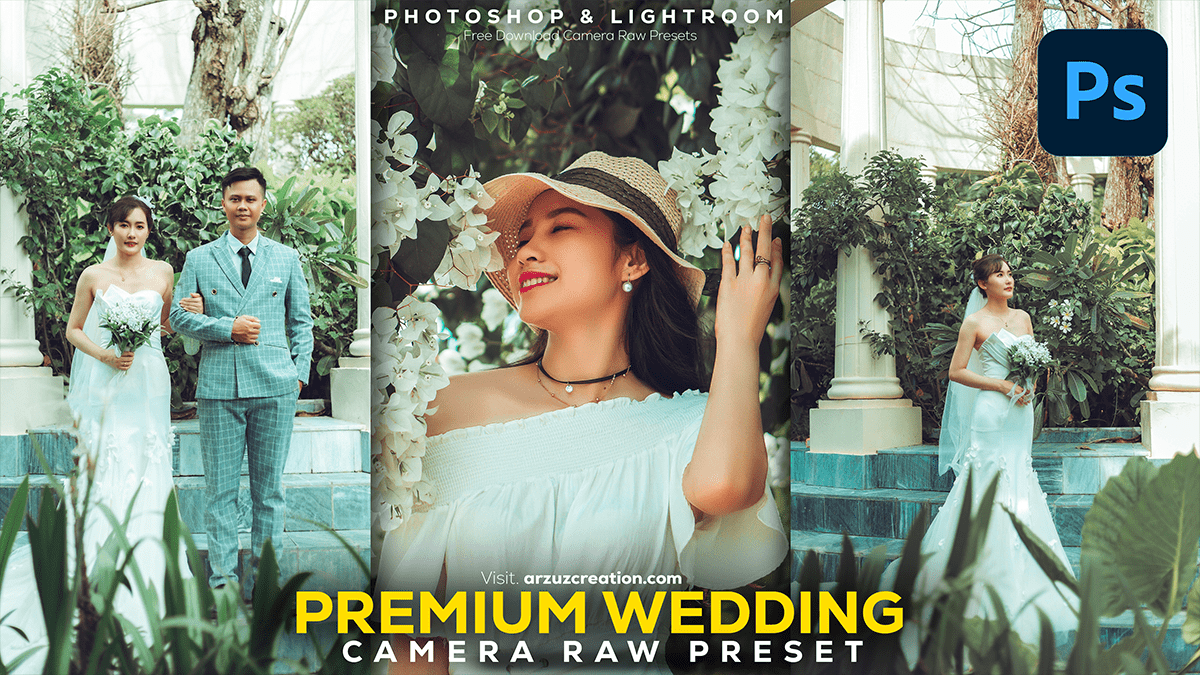
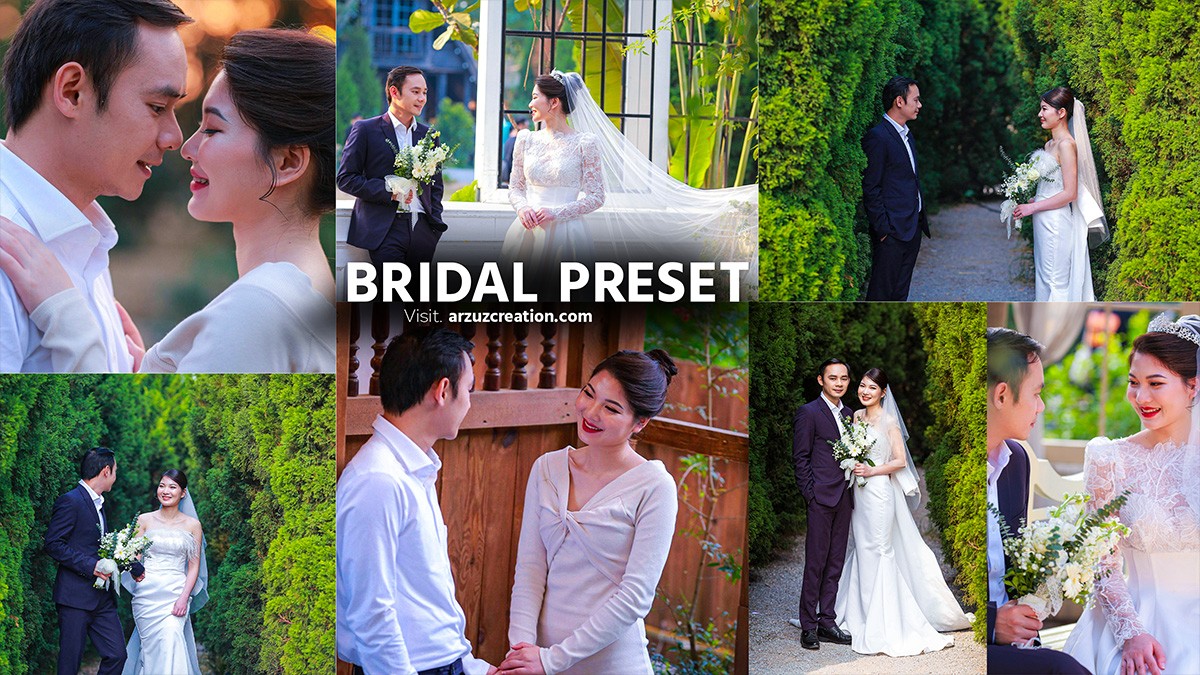
Here’s a comprehensive guide to editing wedding portrait photos in Photoshop, covering various essential techniques to enhance and refine your images.
Graphic Design & Professional Photo Editing
Adobe Photoshop 2024 Beginner Tutorial,
Here’s a comprehensive guide to editing wedding portrait photos in Photoshop, covering various essential techniques to enhance and refine your images.
Learning Adobe Photoshop can be a rewarding experience, whether you’re aiming to enhance your photography, create digital art, or design graphics. Here’s a structured approach to help you get started and advance your skills in Adobe Photoshop.
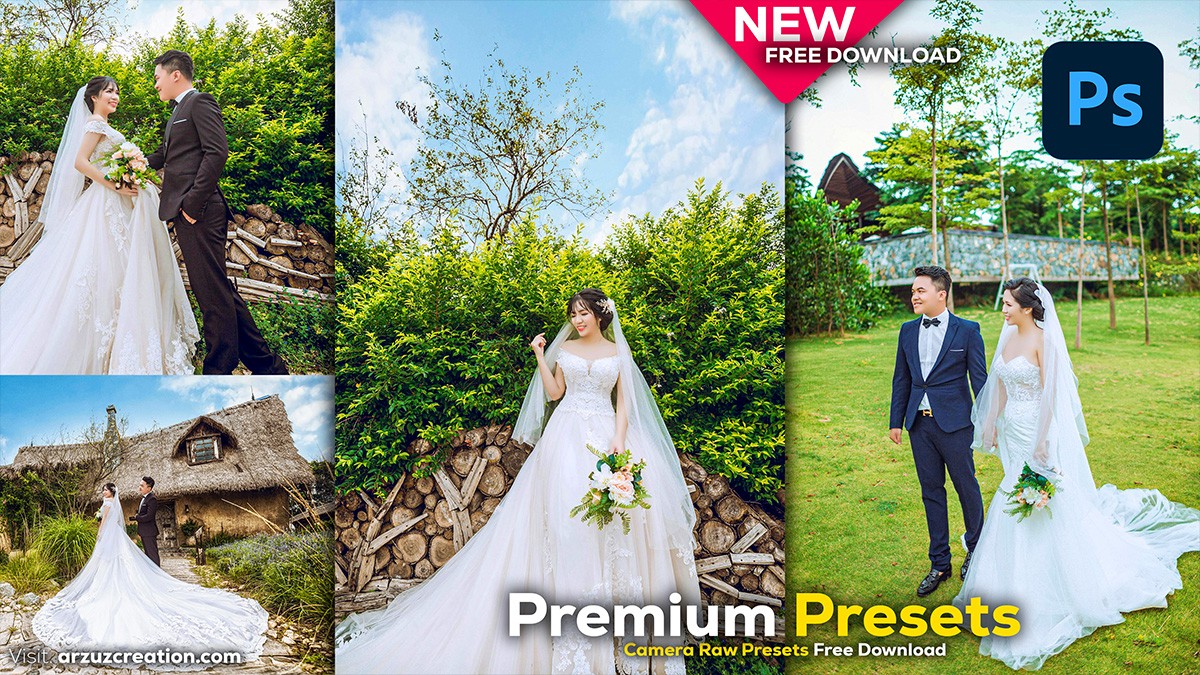
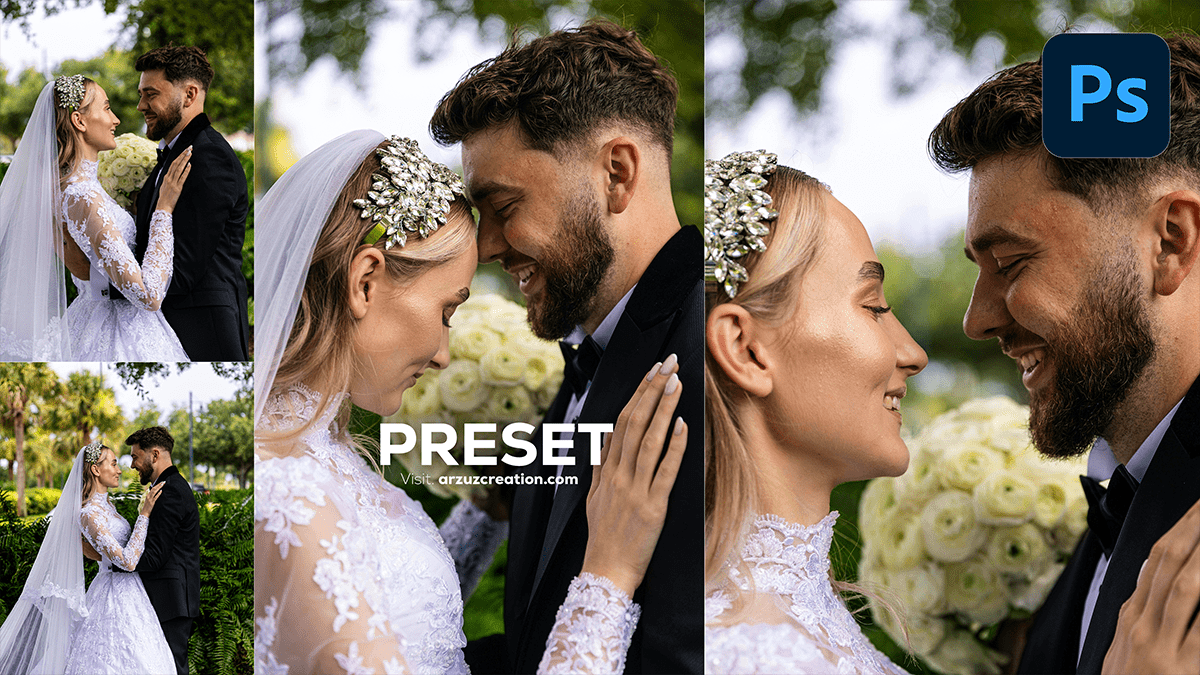
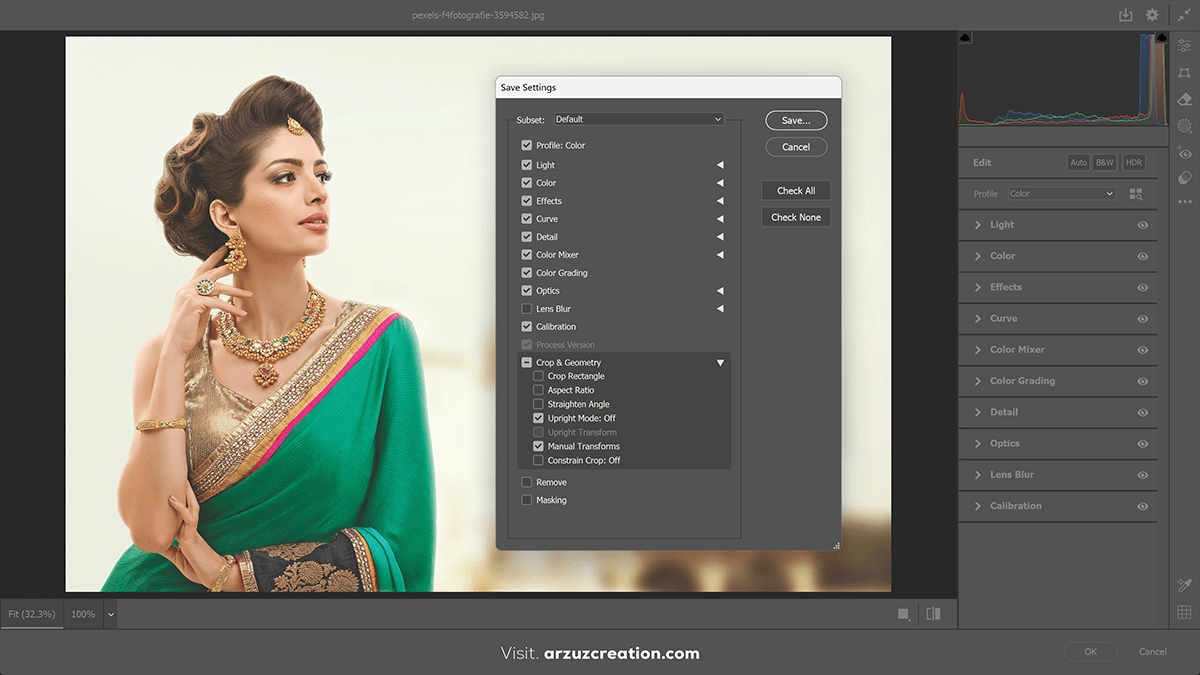
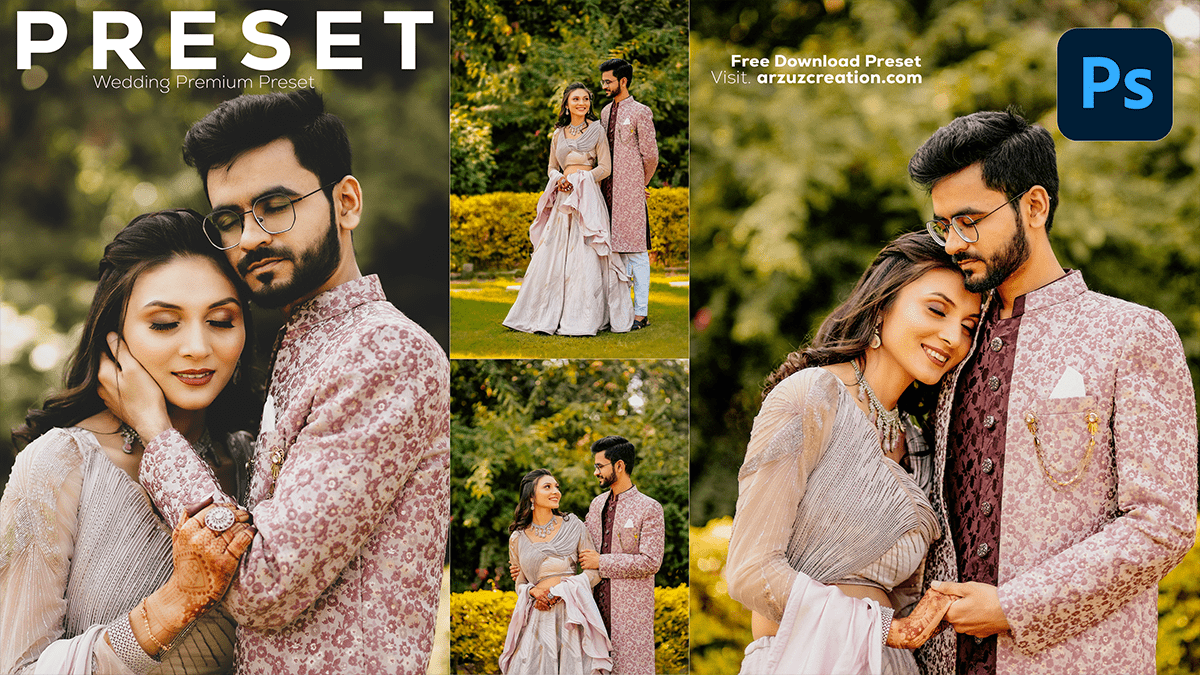
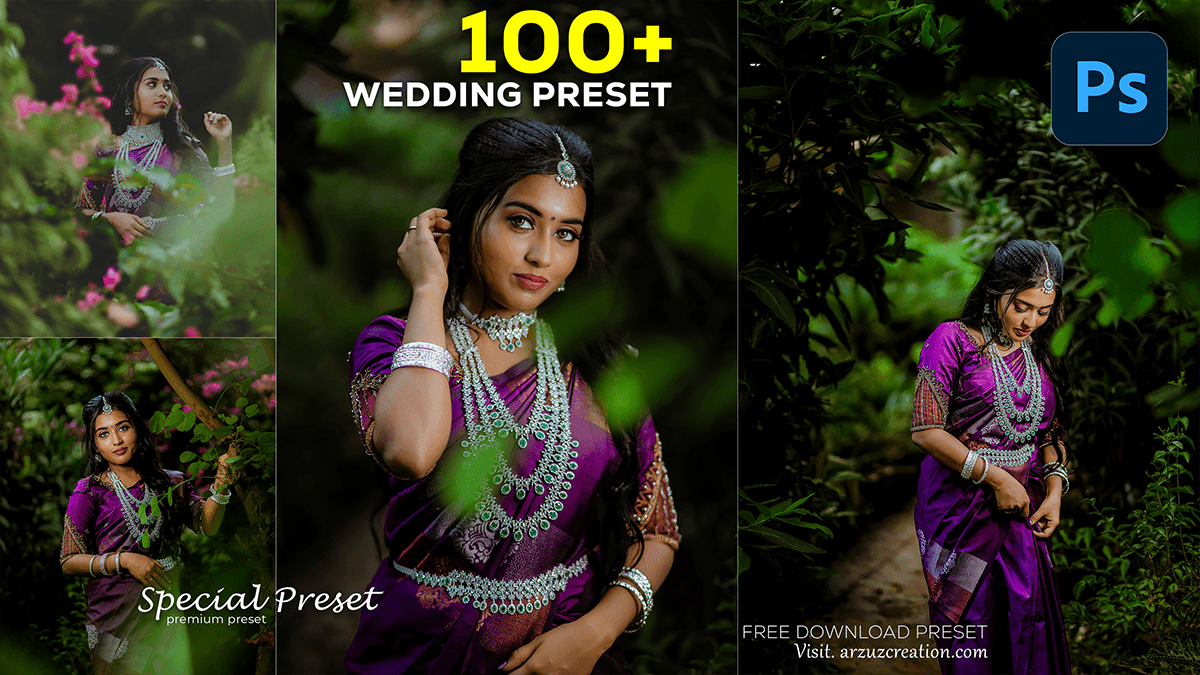
Photoshop Photo Editing Presets refer to a collection of pre-designed settings, effects, and adjustments that can be applied to images within Adobe Photoshop. These presets help users quickly enhance the appearance of their photos by applying specific filters, color corrections, and styling options with just a single click. They can save time and effort for photographers, designers, and enthusiasts by providing a starting point for editing and allowing them to experiment with different looks and styles.
The Rectangular Marquee Tool is one of the most fundamental and widely used tools in Adobe Photoshop. It allows users to make selections in the shape of rectangles and squares, enabling precise editing and manipulation of specific areas within an image.
Adobe Photoshop is a powerful tool for creating and editing images, widely used by designers, photographers, and artists. Among its numerous features, the Gradient Tool stands out as a versatile option for adding smooth transitions between colors. This guide will provide an in-depth look at the Gradient Tool, its features, and practical applications.
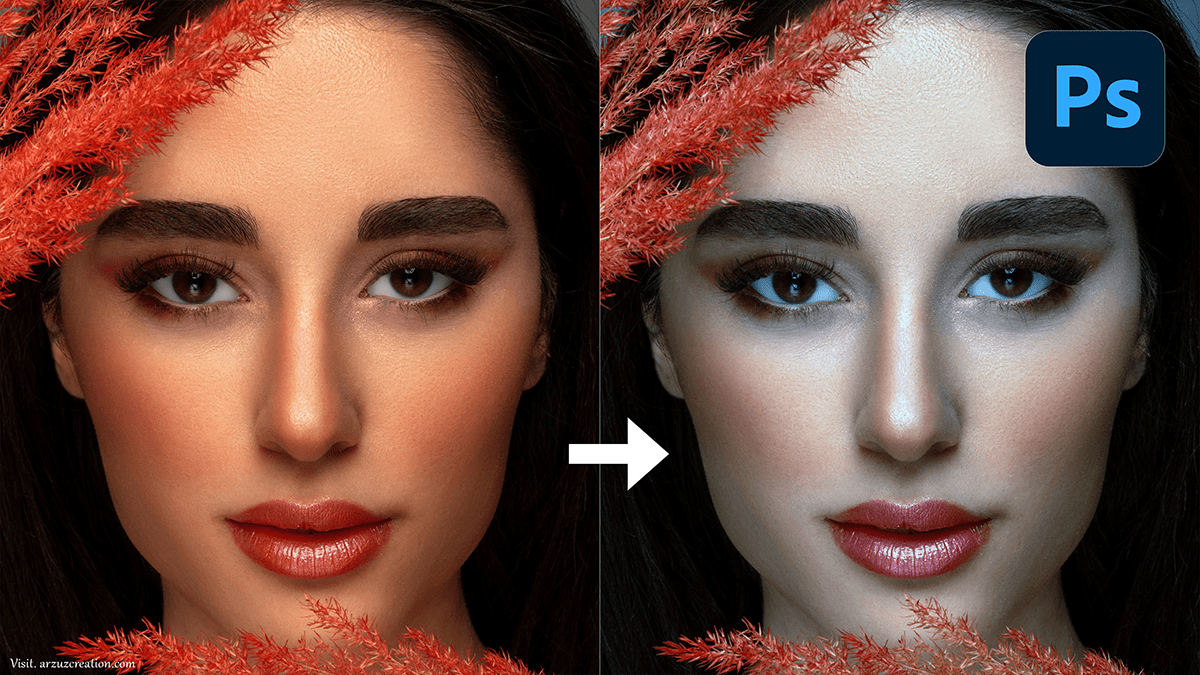
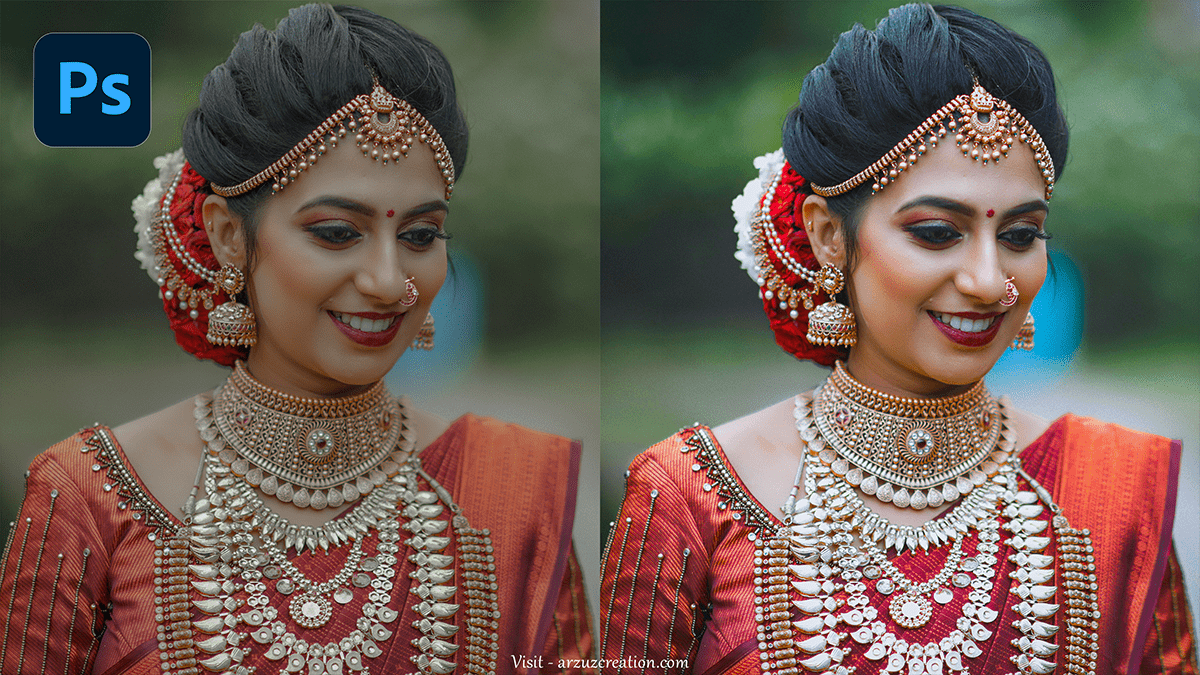
Wedding Photo Editing Photoshop Tutorial,
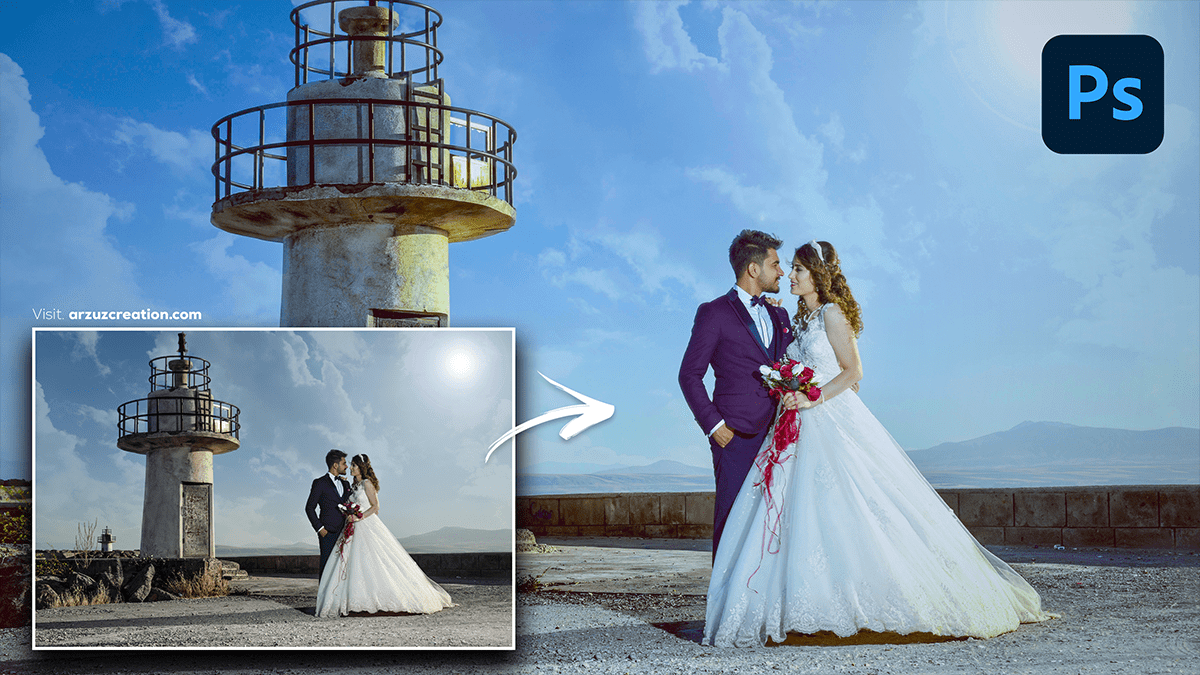
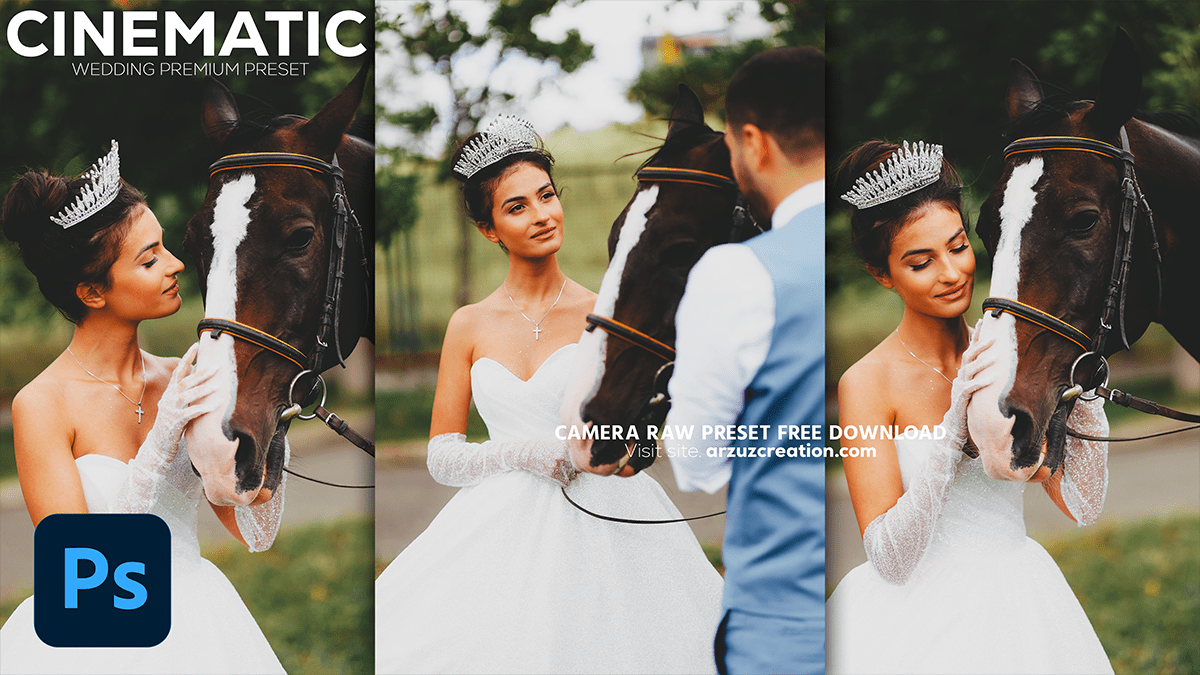
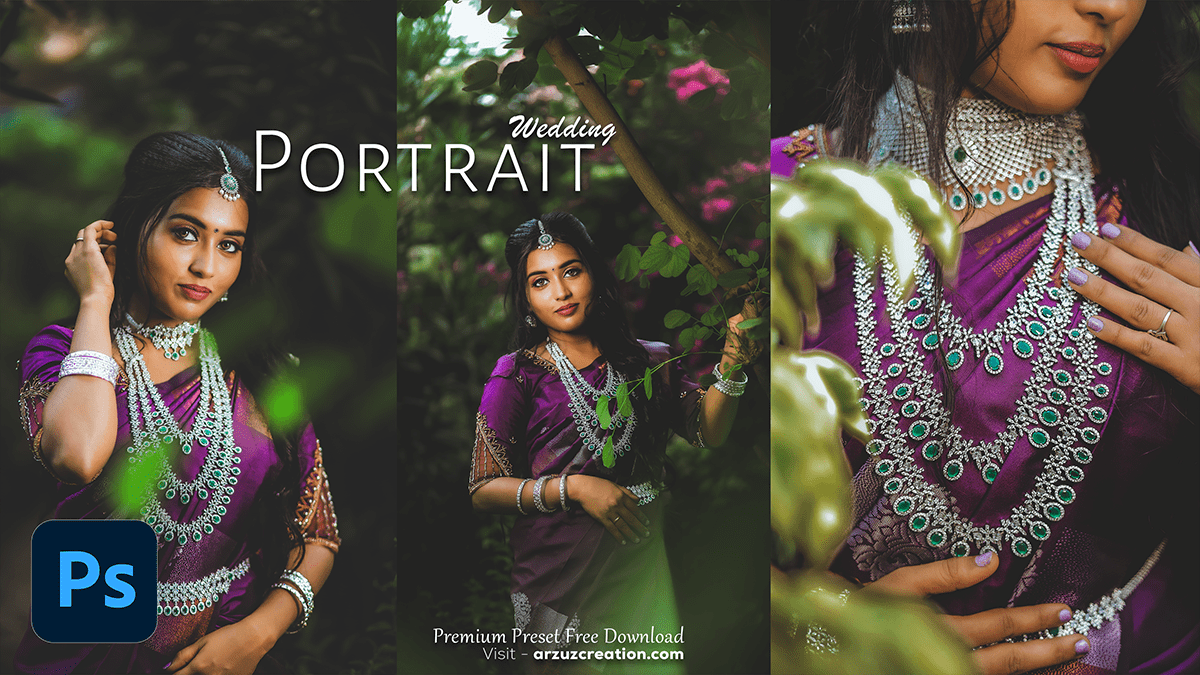
Editing wedding photos in Photoshop can enhance the overall quality and appearance of the images. Here are some steps and tips to help you get started with wedding photo editing in Photoshop.
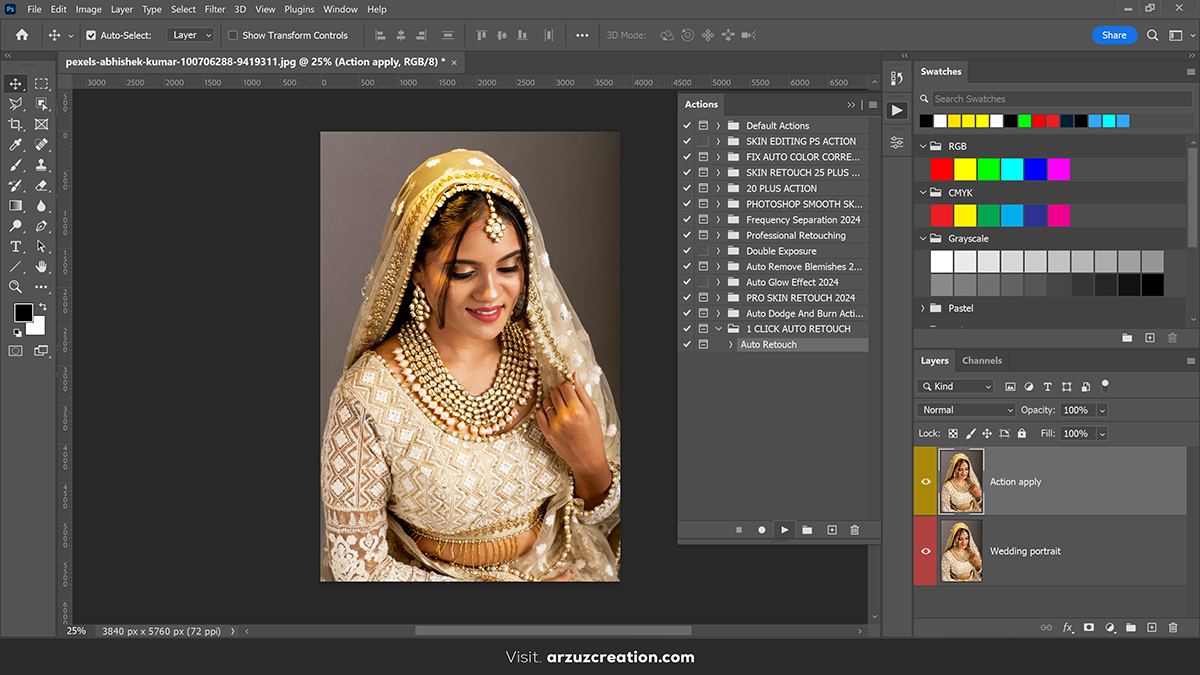
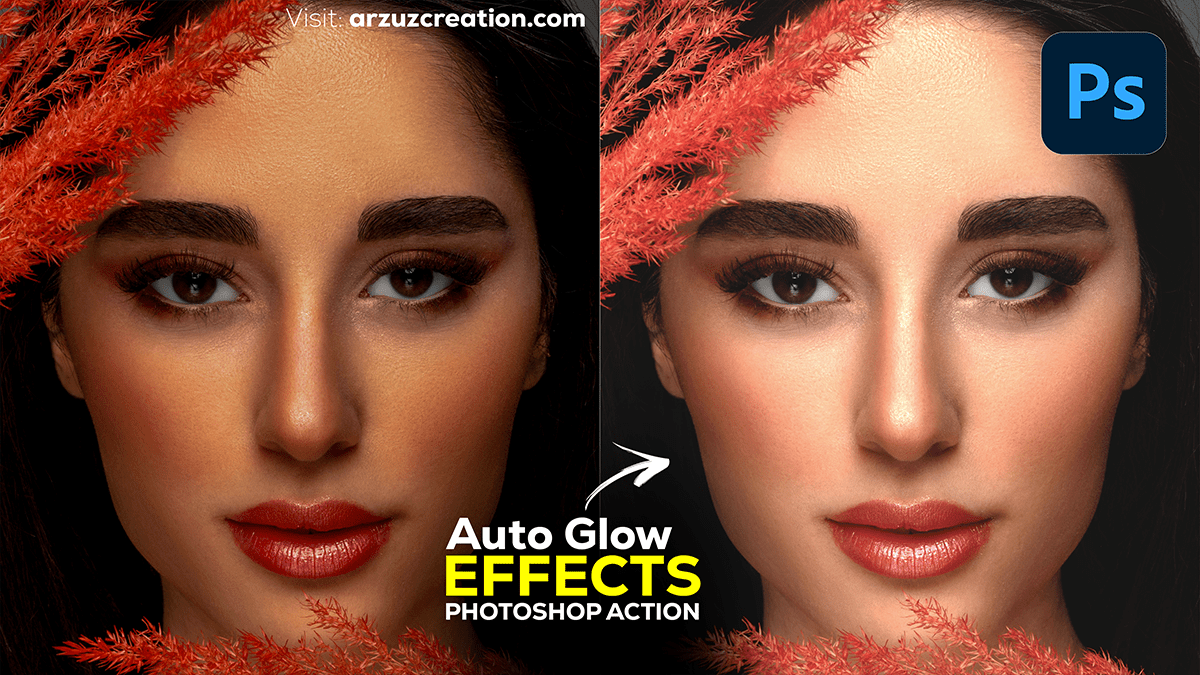
Photoshop Action Skin Retouching For Beginners,
Creating a Photoshop action for skin retouching can streamline the editing process and ensure consistency across multiple photos. Here’s a step-by-step guide on how to create and use a Photoshop action for basic skin retouching.
The Clone Stamp tool in Photoshop is a powerful feature used for duplicating parts of an image. It allows you to sample pixels from one part of an image and paint them onto another part. This is especially useful for removing unwanted elements, repairing damaged areas, or creating seamless textures.
The Patch Tool in Photoshop is versatile and powerful for retouching and repairing photos. It allows you to remove unwanted elements from an image by replacing them with pixels from another part or a different image altogether. Here’s a detailed guide on how to use the Patch Tool effectively:
How to Create a Passport Size Photo in Adobe Photoshop 2024,
Creating a passport-size photo in Photoshop is a straightforward process that involves setting up the correct dimensions, cropping the photo, and ensuring it meets the required specifications. Here’s a detailed guide to help you create a passport-size photo.
Passport Size Photo in Adobe Photoshop 2024,
Creating a passport size photo in Photoshop involves several steps to ensure it meets the required specifications. Here’s a step-by-step guide to help you create a passport size photo.
The Eraser tool in Photoshop is used to remove parts of an image or layer, effectively erasing pixels to reveal the underlying layer or transparency. Here’s how to use the Eraser tool effectively.
The Object Selection Tool in Adobe Photoshop is a powerful feature that allows users to quickly and accurately select objects within an image. It simplifies the process of isolating subjects from their backgrounds, making it easier for users to perform detailed edits and adjustments. This guide will cover the basics of the Object Selection Tool, its functionalities, and tips for efficient usage.
The Crop Tool in Adobe Photoshop is an essential feature for photographers and designers. It allows users to trim, straighten, and change the composition of images quickly and efficiently. This guide will provide a comprehensive overview of the Crop Tool, its functionalities, and practical tips for its effective use.
The Eyedropper Tool in Photoshop is a powerful utility for selecting and sampling colors from your images. Here’s a guide on how to use it effectively.
By mastering the Eyedropper Tool, you can significantly enhance your workflow in Photoshop, ensuring that you have precise control over the colors in your images.
The Healing Brush Tool in Adobe Photoshop is a powerful tool used for retouching and repairing images. It works by blending sampled pixels from a source area with the pixels in the area being repaired, effectively removing blemishes, imperfections, and other unwanted elements from a photo while preserving texture, lighting, and shading.
The Frame Tool in Adobe Photoshop is a powerful feature designed to streamline the process of masking images with frames or placeholders. It is particularly useful for creating mockups, design layouts, and other projects where you need to easily insert and swap out images. Here’s a quick guide on how to use the Frame Tool effectively.
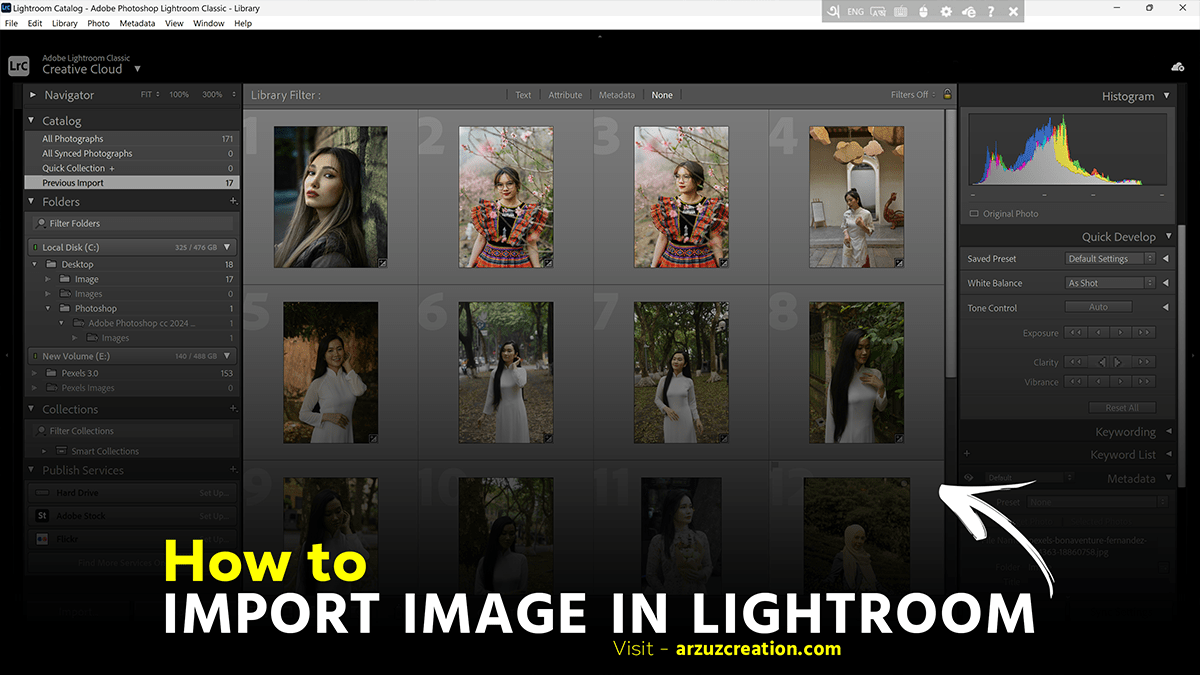
I’ll provide a detailed guide to help you get started with Lightroom, covering importing photos, basic and advanced editing techniques, and exporting your final images.
Adobe Photoshop Spot Healing Brush Tool: A Comprehensive Guide
The Spot Healing Brush Tool in Adobe Photoshop is an essential feature designed for quick and easy removal of blemishes, spots, and other imperfections in images. Its intelligent technology blends the correction seamlessly with the surrounding pixels, making it a favorite among photographers and digital artists for retouching photos.
Adobe Photoshop Paint Bucket Tool: A Comprehensive Guide,
The Paint Bucket Tool in Adobe Photoshop is a fundamental feature that allows users to fill an area of an image with a single color or pattern. It’s particularly useful for quick and effective coloring of large sections, making it a staple in both beginner and advanced photo editing.
What is the Brush Tool?
The Brush Tool in Adobe Photoshop is a versatile feature that allows users to paint, draw, and edit images with various brush strokes. It is essential for digital artists and photo editors, to provide a range of options to create and modify visuals with precision and creativity.
Adobe Photoshop’s Color Balance feature is a powerful tool for adjusting the colors in an image. It allows you to change the overall mixture of colors, which can help correct color imbalances, enhance certain hues, or create artistic effects. Here’s a detailed guide on how to use the Color Balance feature in Photoshop.
Selective color photo editing in Photoshop allows you to emphasize a specific color or object in a photo while converting the rest of the image to black and white. Here’s a step-by-step guide on how to achieve this effect.
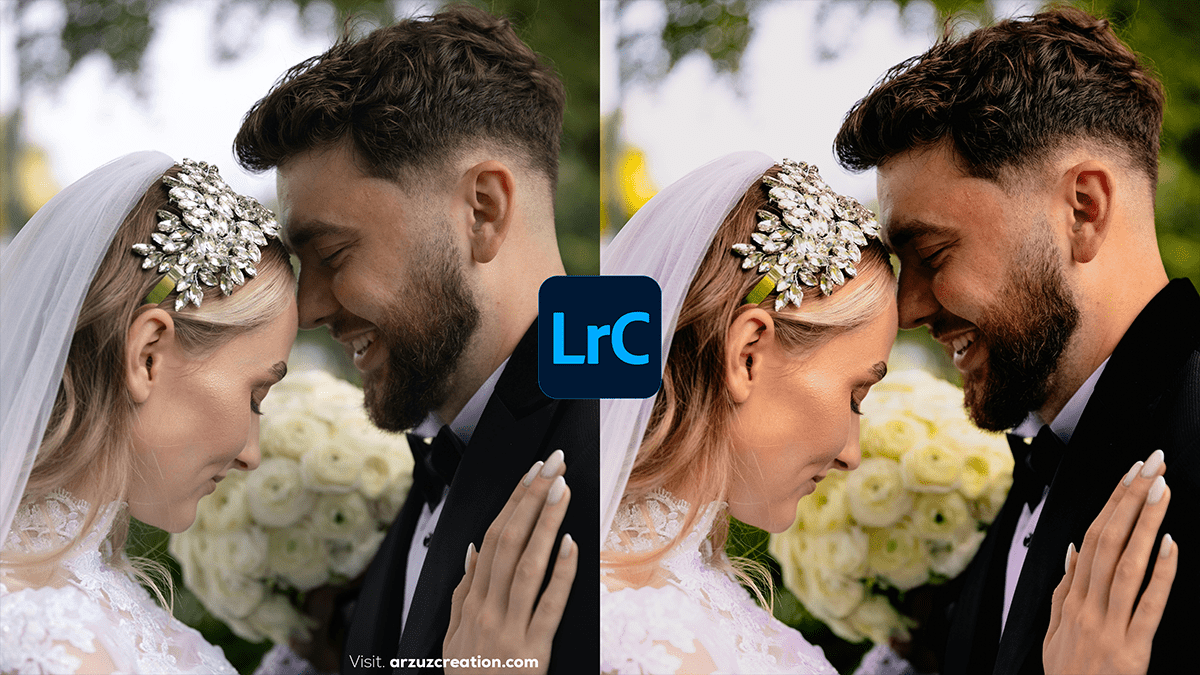
Adobe Lightroom is a versatile and powerful photo editing software used by photographers and enthusiasts to organize, edit, and enhance their images. Below, I’ll provide a detailed guide to help you get started with Lightroom, covering importing photos, basic and advanced editing techniques, and exporting your final images.
Adobe Lightroom is a powerful tool for professional photo editing and management. It offers a comprehensive suite of features designed to streamline the workflow for photographers, from importing and organizing photos to editing and sharing them. Here’s a detailed overview of some of the key features and how to use them effectively.
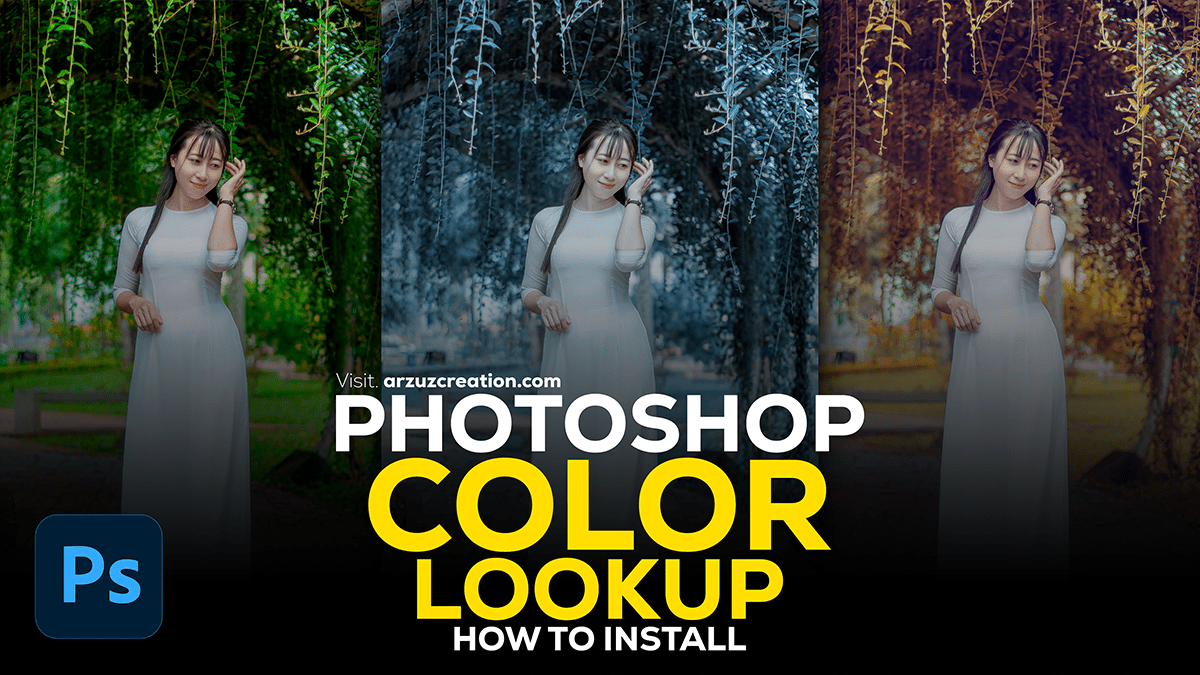
Color correction is a crucial step in the photo editing process that helps you achieve the perfect balance of colors in your images. Whether you’re working on professional photography or personal projects, mastering color correction can make a significant difference in the quality of your work. In this tutorial, you’ll learn various techniques and tools available in Photoshop to correct colors effectively.
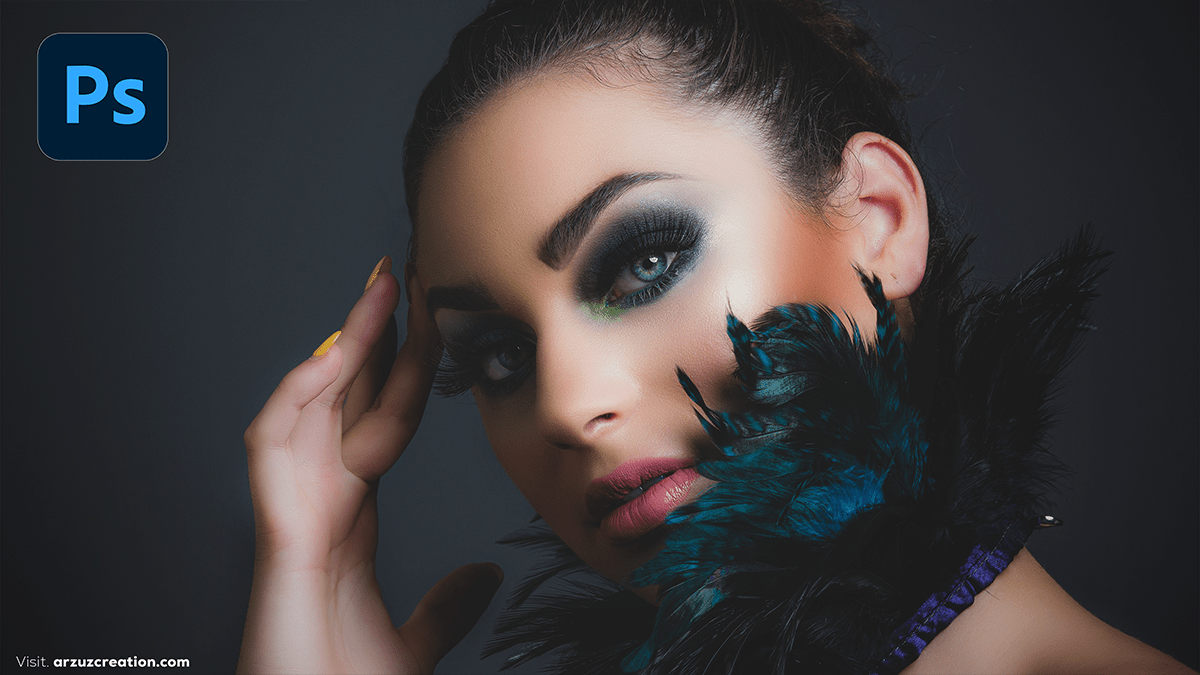
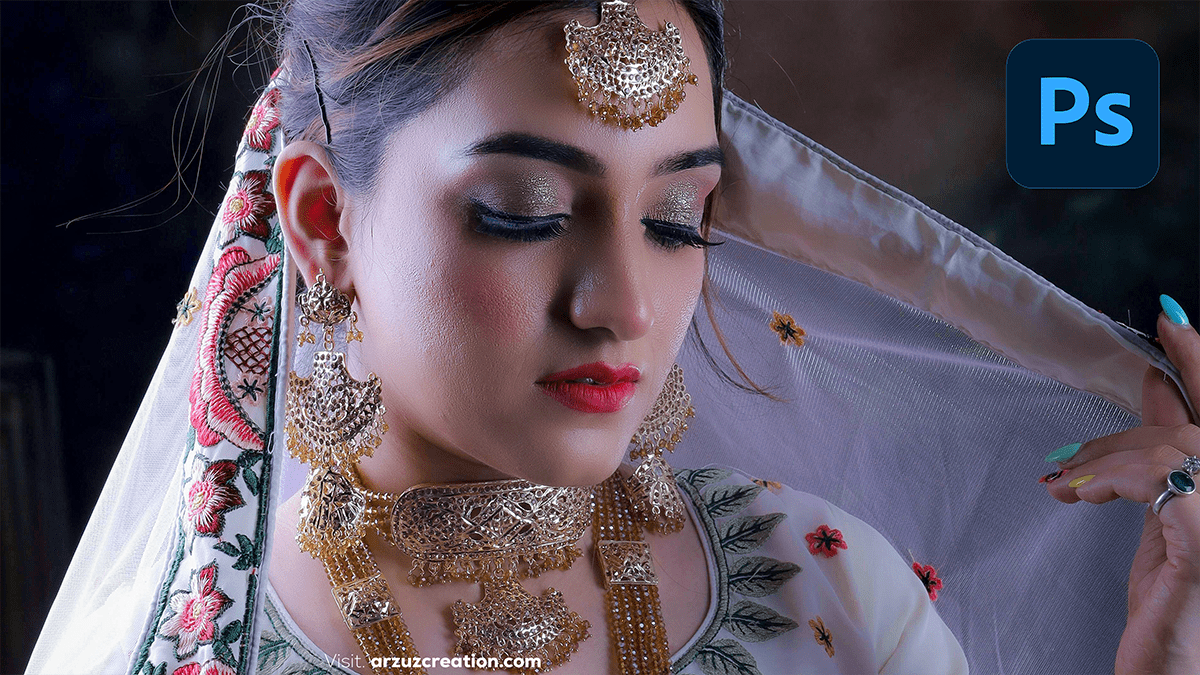
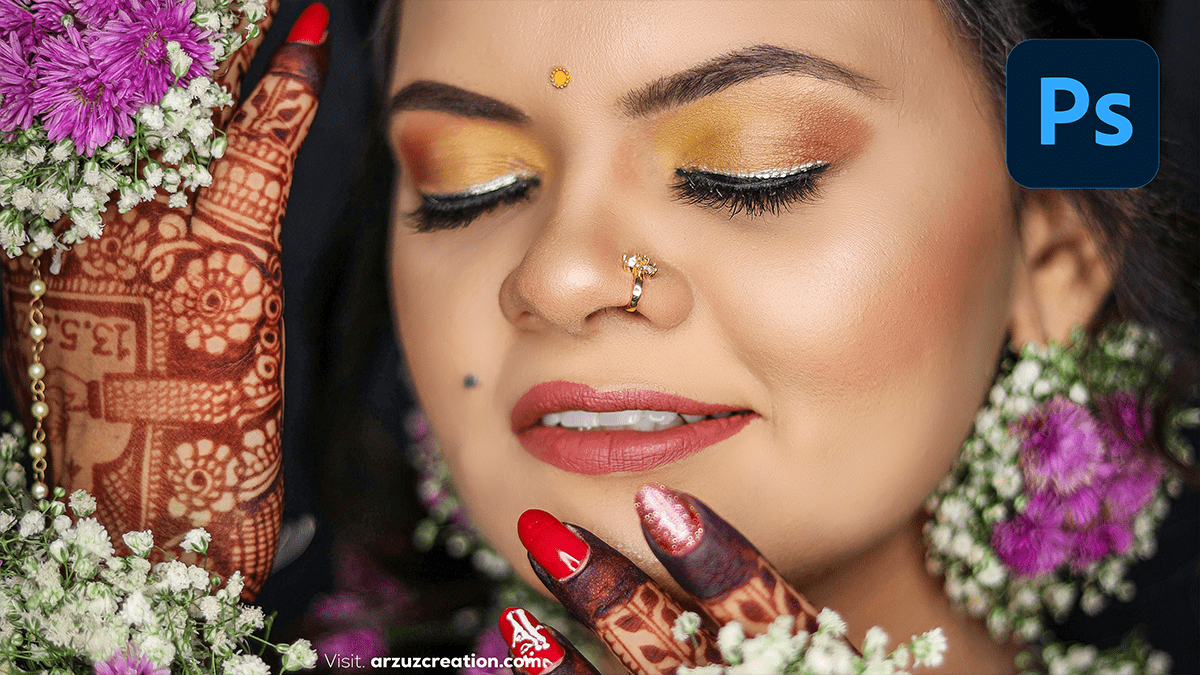
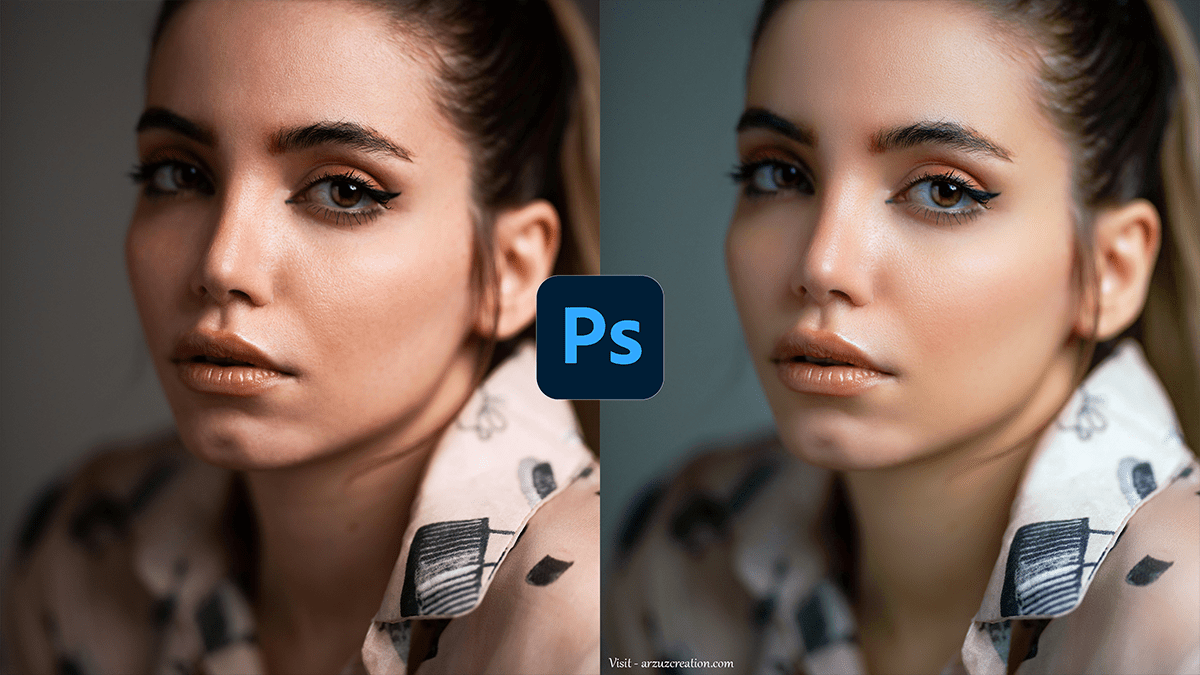
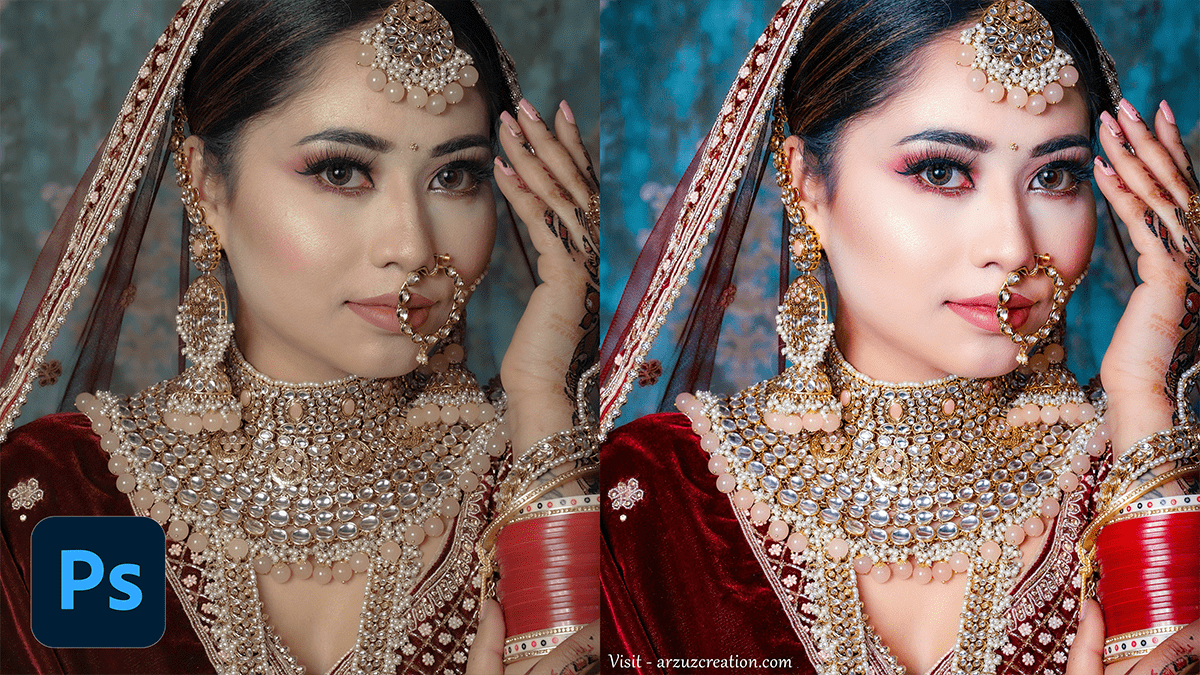
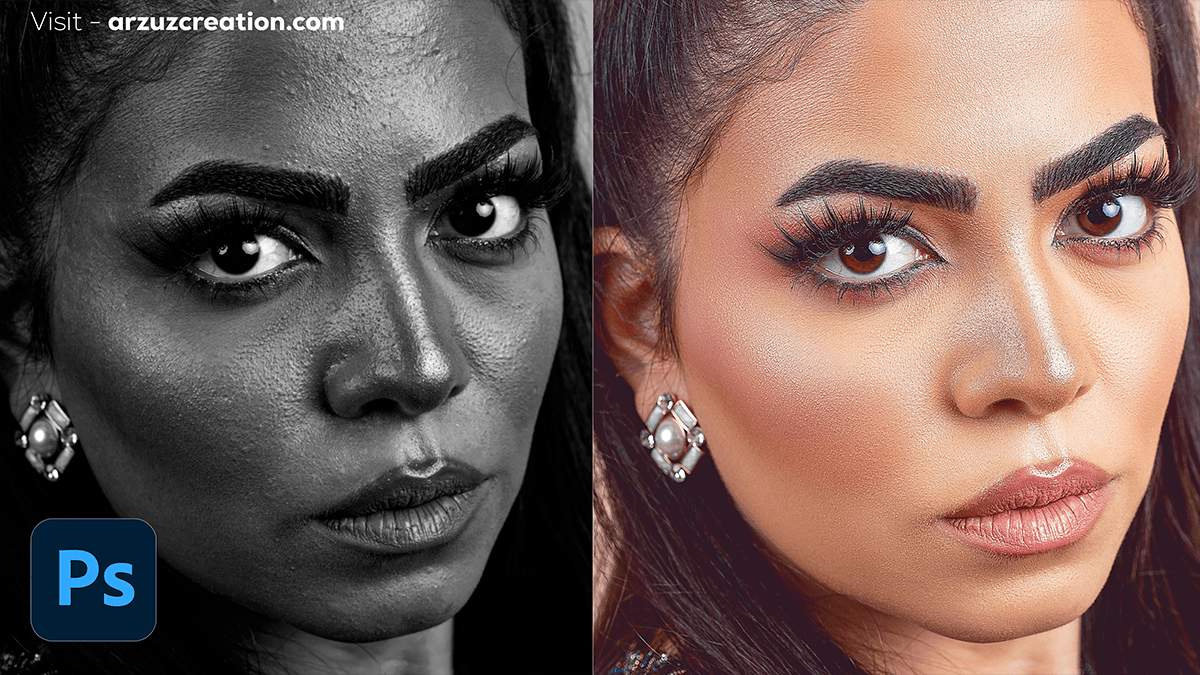
Portrait editing in Photoshop can transform a standard photo into a stunning image, highlighting the subject’s best features. Below is a step-by-step guide to help you achieve professional-quality edits.
Professional photo editing in Photoshop involves several advanced techniques to enhance the quality, aesthetics, and overall impact of an image. Here are some key steps and tips for professional photo editing using Adobe Photoshop.
Color correction is a crucial step in the photo editing process that enhances the overall quality of an image. This tutorial will guide you through the basics of color correction in Adobe Photoshop, providing you with essential techniques to adjust colors, improve contrast, and achieve a balanced look. Whether you’re a beginner or looking to refine your skills, this guide will help you master the art of color correction.
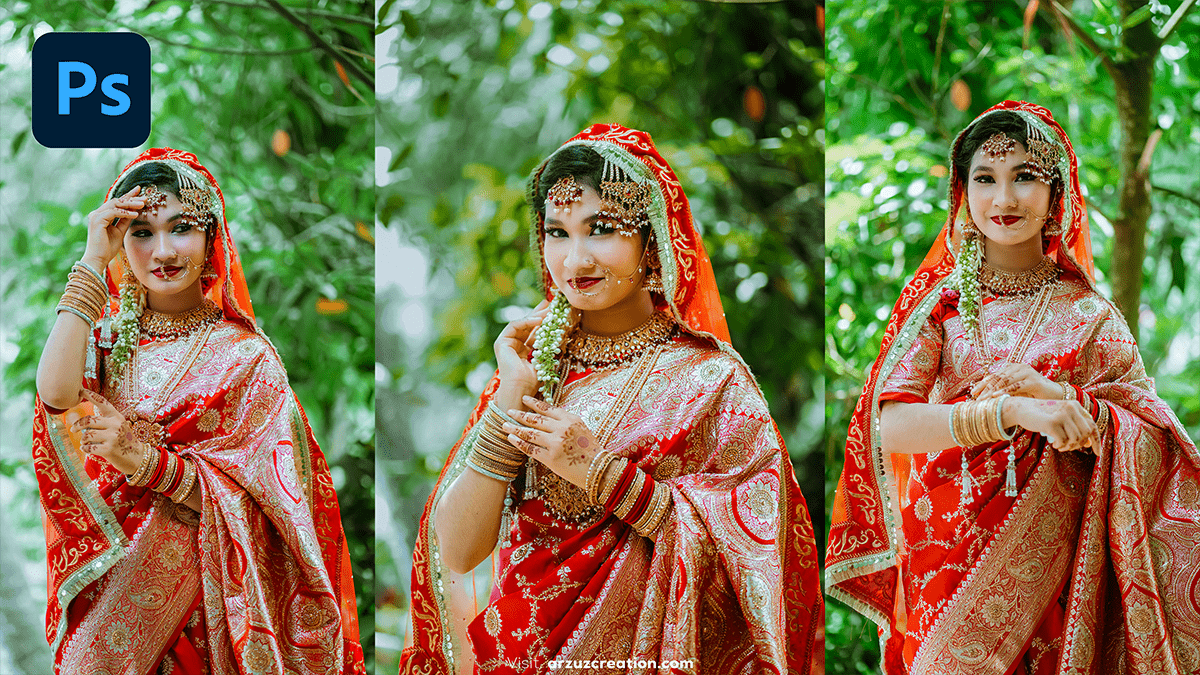
Outdoor Portrait Professional Color Grading,
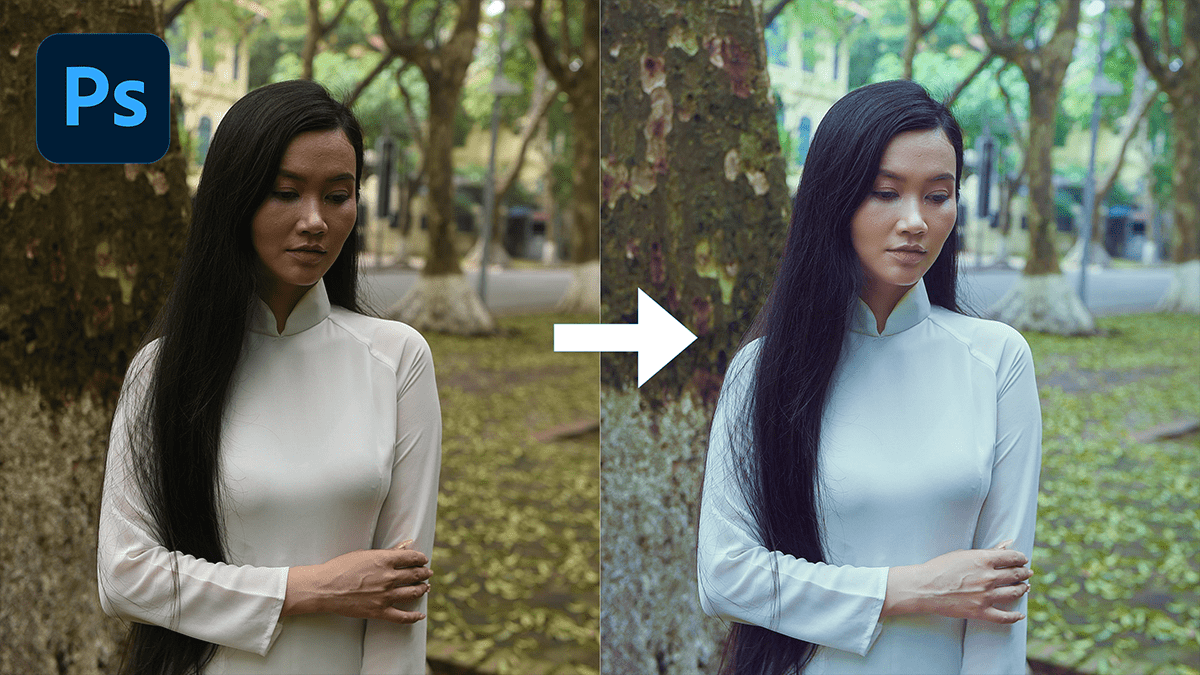
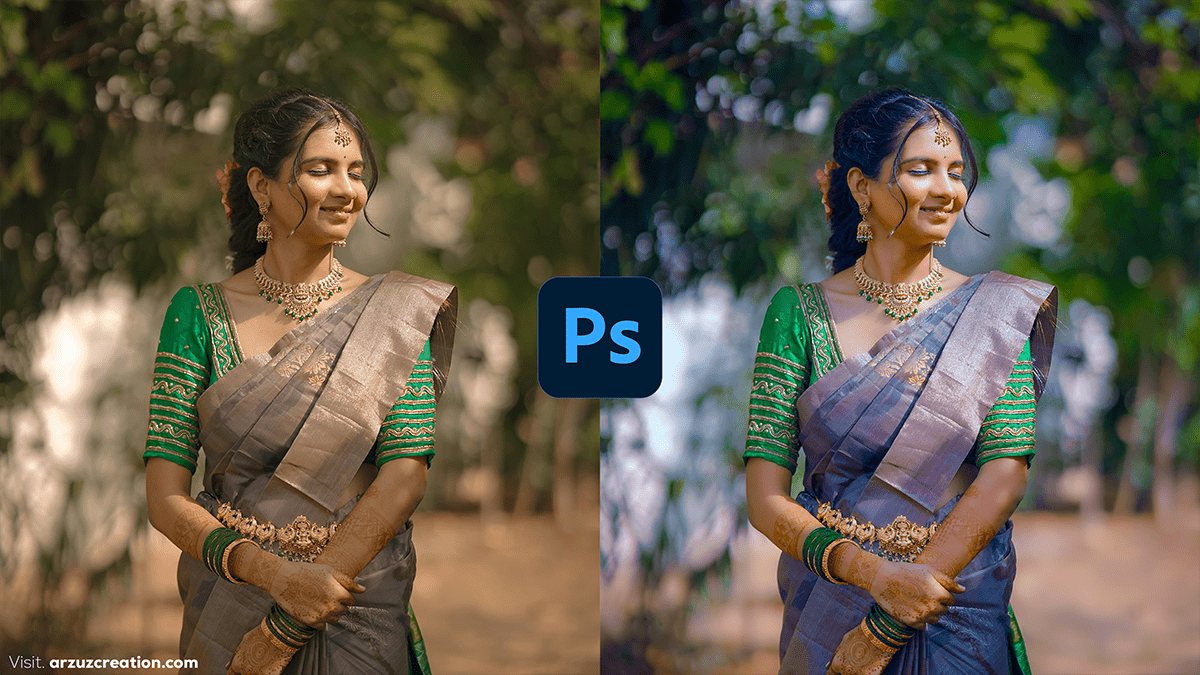
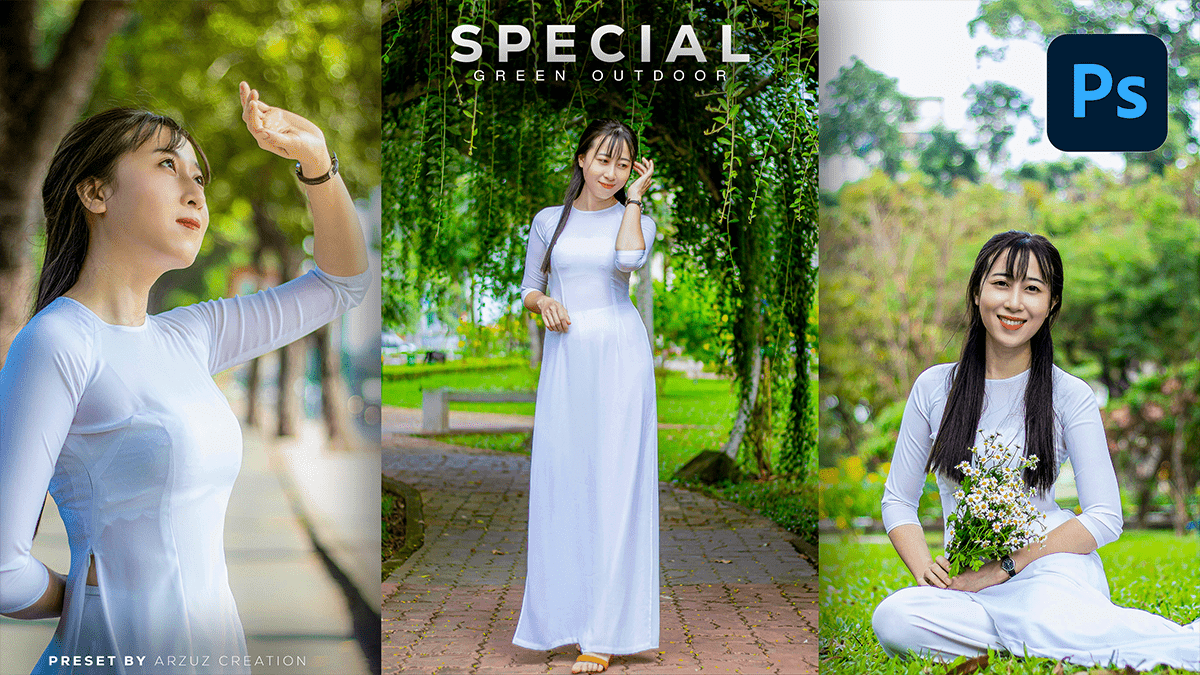
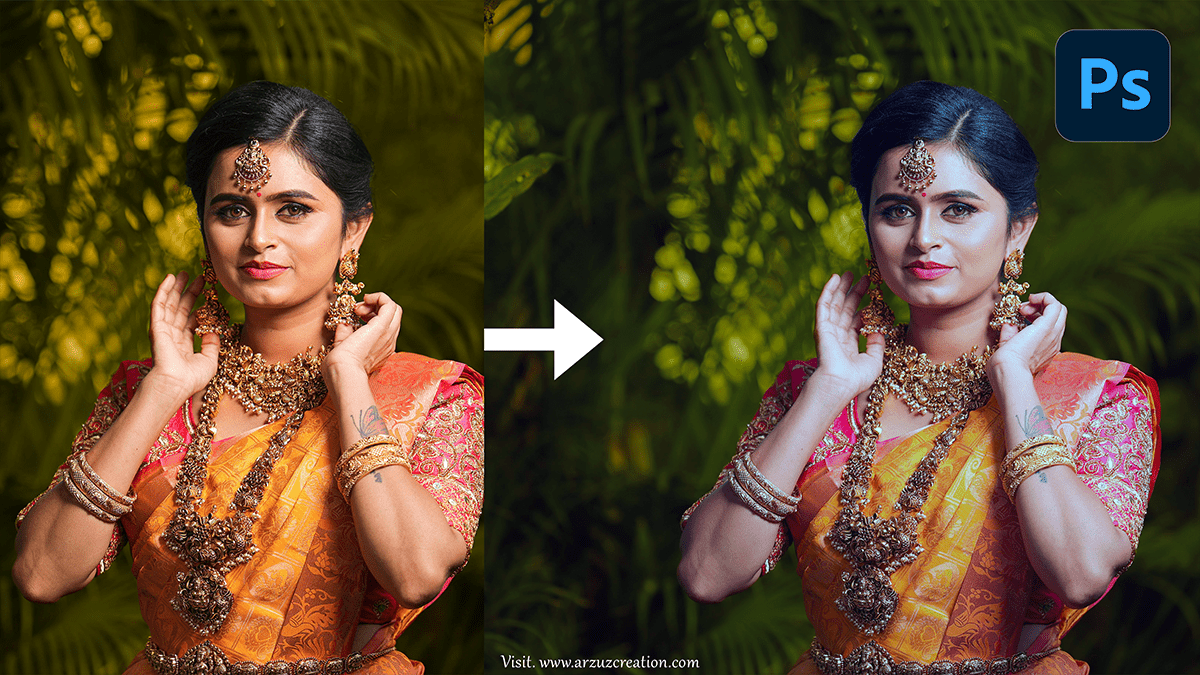
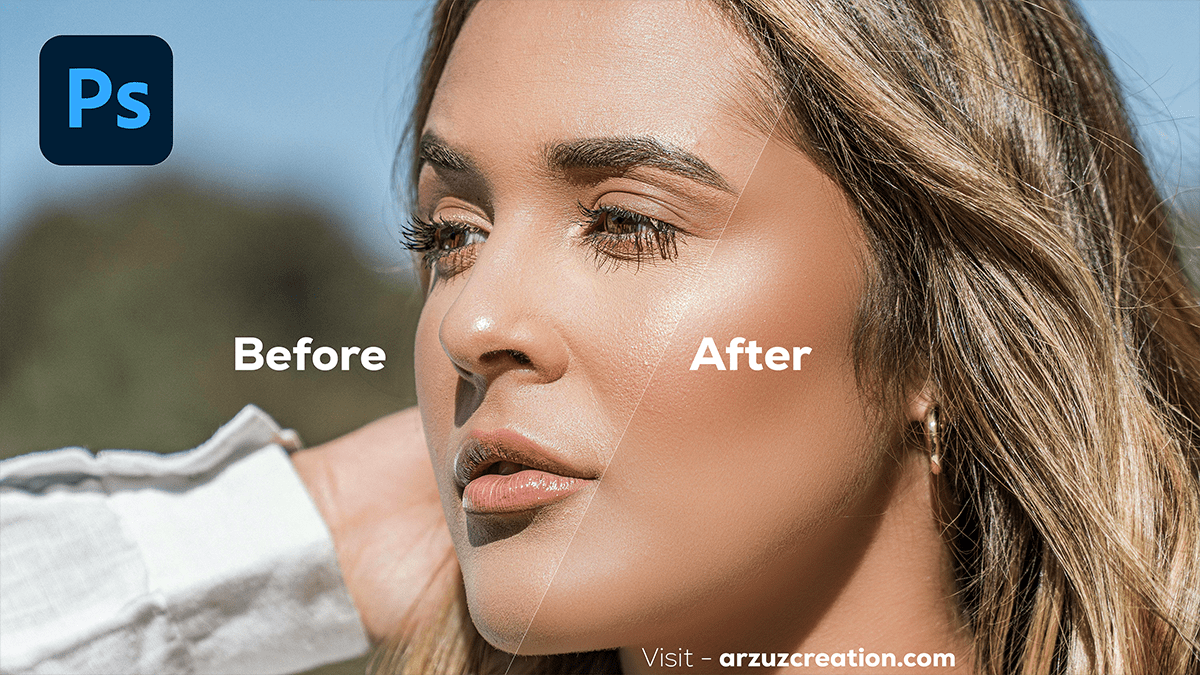
Color grading outdoor portrait photos in Photoshop can significantly enhance your images’ visual appeal and mood. Here’s a step-by-step guide to help you achieve a polished, professional look.
Outdoor photography captures the natural beauty of landscapes, wildlife, and the dynamic interplay of light and shadow. However, even the best outdoor photos can benefit from editing to enhance colors, correct lighting, and highlight key elements. This guide will walk you through essential Photoshop techniques for editing outdoor photos.
Adobe Photoshop is a popular image editing and manipulation software developed by Adobe Systems. It is widely used by professionals and hobbyists alike to create, edit, and enhance digital images.
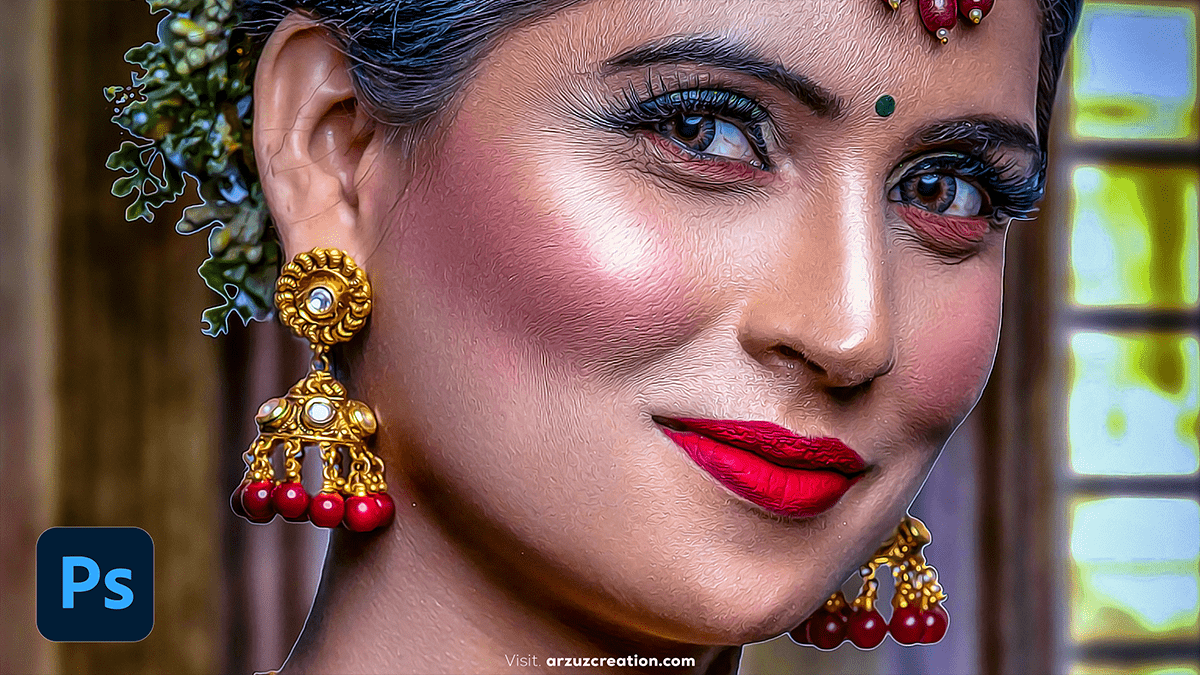
Face Smooth Plugin Photoshop 2024 Tutorial, There are many Photoshop plugins for photo editing. Skins are retouched with some plugins. Which makes photo editing and skin retouching very easy.
For smoothing faces in Photoshop, there are several plugins available that can help achieve a professional look with minimal effort. Here are some popular ones.
Adobe Photoshop 2024 Plugin Tutorial,
In this Photoshop tutorial, you learn, the Adobe Photoshop plugin basic. Professional photo editing Photoshop plugin tutorial. Step by step you learn plugin editing work. Photoshop plugins! Here are some popular ones.
Quick Retouch Face Photoshop Tutorial 2024,
In this Photoshop tutorial, you learn, How to Quickly retouch a face in Adobe Photoshop 2024. To quickly retouch a face in Photoshop, you can follow these simple steps.
In this Adobe Photoshop tutorial, you learn, How to edit portrait photos in Photoshop. Easy way to advance color correction in Camera Raw Filter Photoshop Plugin. I hope you learn the best photo editing here.
Advanced color correction in Photoshop involves a variety of techniques and tools to fine-tune and enhance the colors in your images. Below are some key methods and tools to achieve professional-level color correction.
In this Photoshop tutorial, you learn, How to Create Smooth Skin in Adobe Photoshop 2024. Step by step you learn this skin smooth process. This skin retouching tutorial is for beginners.
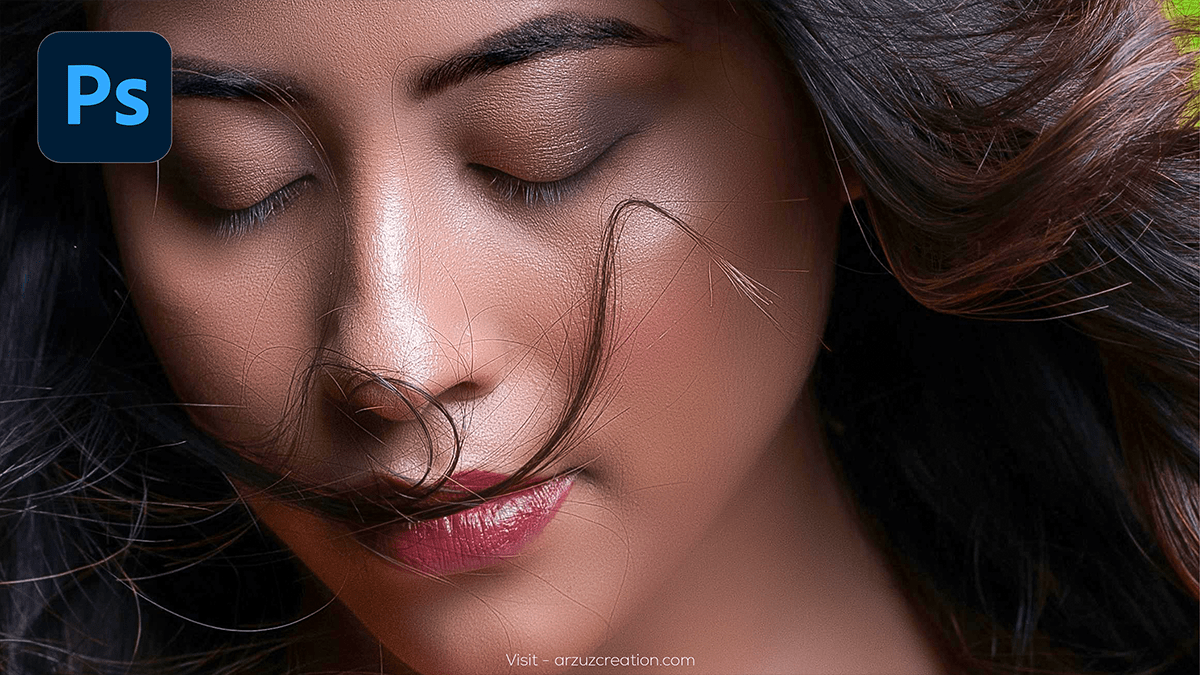
Creating smooth skin in Photoshop involves several steps to ensure it retains its natural texture while reducing imperfections. Here’s a step-by-step guide.
Adobe Photoshop Tutorial 2024 For Beginners,
Adobe Photoshop is a powerful and widely used software application for image editing, graphic design, and digital art. It is part of the Adobe Creative Cloud suite of tools and offers a vast array of features and tools for professionals and hobbyists alike.
Portrait Color Grading Adobe Photoshop 2024,
Color grading a portrait in Photoshop to achieve a cinematic look involves a series of adjustments that enhance the mood, tone, and overall aesthetics of the image. Here’s a detailed guide on how to achieve this.
How to Edit Normal Photo to Cinematic in Photoshop 2024,
Creating a cinematic look for your photos involves a combination of techniques related to color grading, aspect ratio, lighting adjustments, and overall styling. Here’s a step-by-step guide on how to edit a normal photo to achieve a cinematic look.
Yellow And Teal Photoshop Photo Editing 2024,
Creating a yellow and teal color scheme in Photoshop can give your photos a vibrant, cinematic look. Here’s a step-by-step guide to achieve this effect.
Urban Moody Color Tone,
Creating an urban moody color tone in Photoshop involves adjusting various elements like exposure, contrast, and color balance, and applying selective color adjustments to give the image a dramatic and cinematic feel. Here’s a step-by-step guide to achieve this effect.
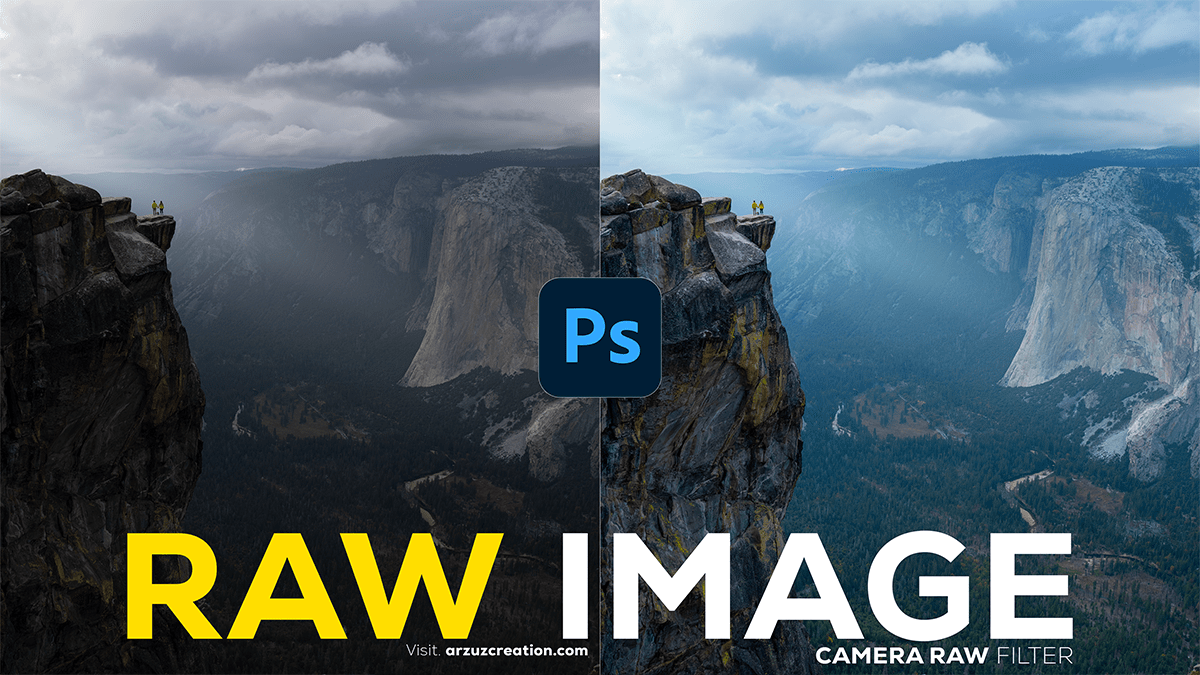
In this Photoshop tutorial, you learn, How to do professional photo editing and color grading in Adobe Photoshop Camera Raw Filter. Outdoor or, Indoor portrait photo editing in Photoshop.
Color grading using the Camera Raw Filter in Photoshop is a powerful way to enhance the mood and tone of your images. Here’s a step-by-step guide to help you get started.
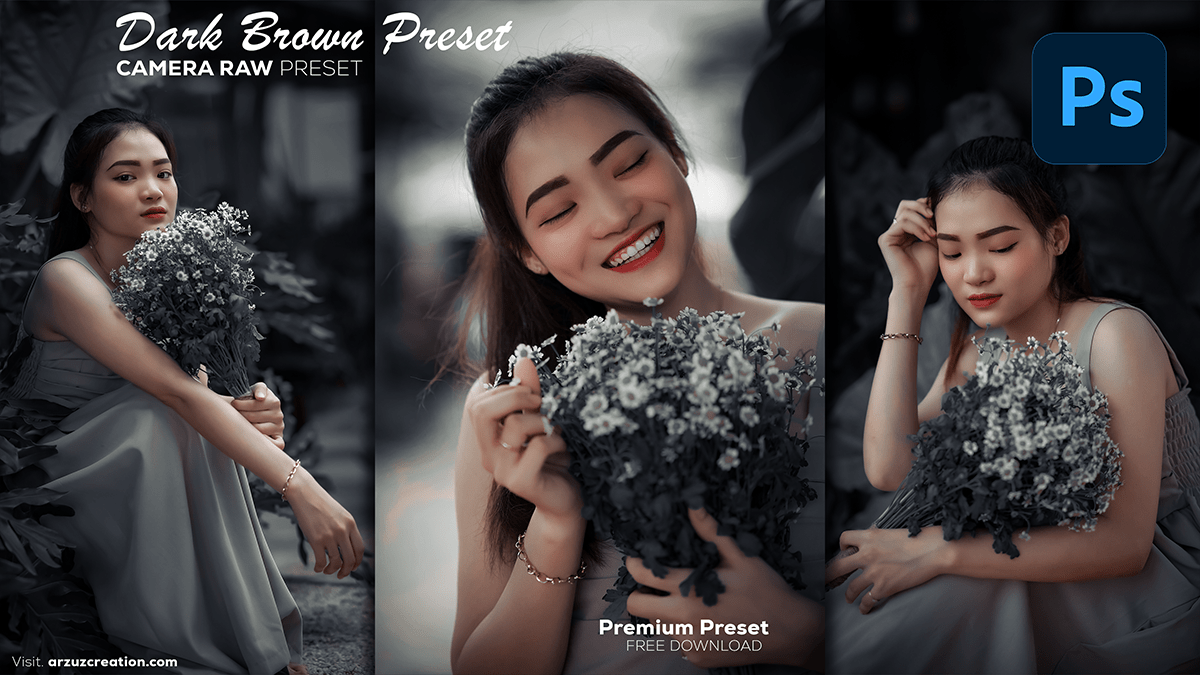
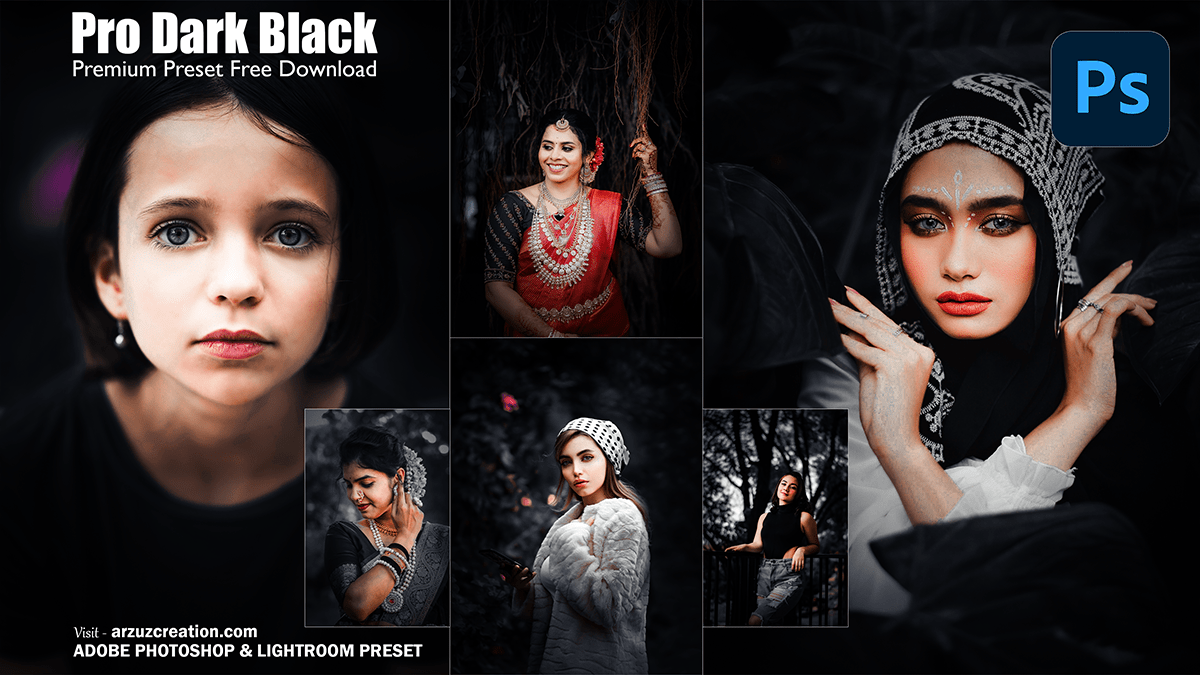
In this Photoshop tutorial, you learn, How to create a black-tone color grading portrait look in Adobe Photoshop. This black color tone is a premium photo editing look. Photoshop presets are free to download.
Color grading in Photoshop can add a dramatic and cinematic quality to your photos, especially with a black tone effect. Here’s a step-by-step guide to achieving this look.
In this Photoshop tutorial, you learn, How to use the move tool in Adobe Photoshop. Professional editing and design work on how to use the move tool. Step by step you learn this tool work.
The Move Tool in Adobe Photoshop is one of the most fundamental tools used for manipulating images. Here’s a detailed overview of its features and how to use it.
The Spot Healing Brush Tool in Photoshop is a powerful and user-friendly tool designed for retouching and repairing photos. It is particularly effective for removing small blemishes, imperfections, or unwanted objects from an image with minimal effort. Here’s a detailed overview of how to use the Spot Healing Brush Tool and some tips to get the best results.
In this Photoshop tutorial, you learn, How to use the pen tool in Adobe Photoshop. Remove the photo background in Photoshop using the pen tool. Step by step remove background by pen tool.
The Pen Tool in Adobe Photoshop is a powerful and versatile feature used for creating precise paths, selections, and shapes. Here’s a comprehensive guide on how to use the Pen Tool effectively.
Lightroom’s Tone Curve is a powerful tool for photo editing that allows you to make precise adjustments to the tonal range of your image. Here’s a step-by-step guide on how to use the Tone Curve in Lightroom.
Retouching skin in Lightroom involves a combination of techniques to smooth out skin tones, reduce blemishes, and enhance natural features without making the skin look overly processed. Here’s a step-by-step guide to achieve professional-looking skin retouching in Lightroom.
In this Photoshop Lightroom tutorial, you learn, How to create a Dramatic color grading look in Adobe Lightroom. Step by step you learn this dramatic color grading look photo editing. LR presets are free to download.