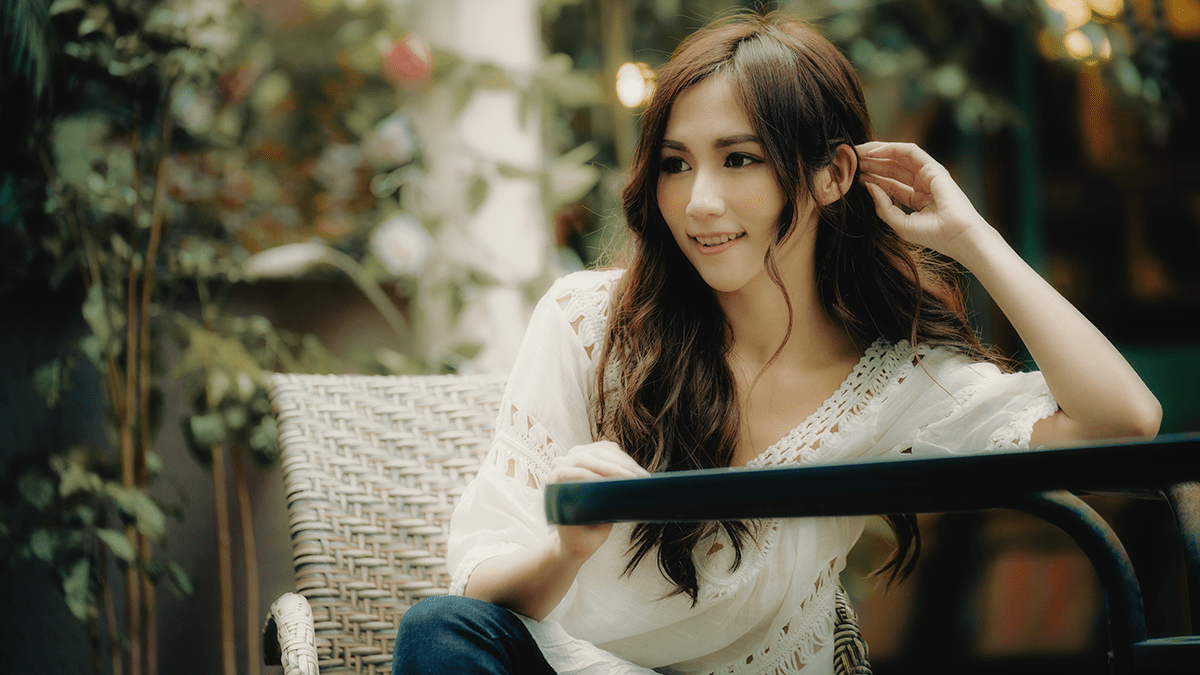
Cinematic Effect Colour Grading in Adobe Photoshop 2025,

Therefore, Cinematic color grading in Adobe Photoshop is a popular technique that uses various tools to create a dramatic, film-like aesthetic. It often involves:
Cinematic Effect Colour Grading in Adobe Photoshop 2025,
Key Cinematic Color Grading Concepts:
- Teal and Orange (or Complementary Colors): This is one of the most recognizable cinematic looks. It involves pushing the shadows/cooler areas toward teal/blue and the highlights/warmer areas (especially skin tones) toward orange/yellow. This complementary contrast makes subjects “pop.”
- High Contrast: Often a slightly darker or moodier feel with deep shadows and controlled highlights.
- Film Grain/Texture: Therefore, Digital images can sometimes look too clean, so adding subtle noise or grain mimics the texture of film stock.
Cinematic Effect Colour Grading in Adobe Photoshop 2025,
Common Photoshop Tools and Techniques:
Therefore, you can achieve this effect using a combination of Adjustment Layers for a non-destructive workflow:
- Camera Raw Filter (or Lightroom Panel):
- Color Grading Panel: Therefore, the most direct tool. It uses color wheels to selectively add color tints to your Shadows, Midtones, and Highlights independently. For a classic look, you can add blue/cyan to shadows and orange/yellow to highlights.
- Basic Panel: Adjust exposure, contrast, highlights, and shadows for the desired mood. Reducing Whites and increasing Blacks can create a matte, deep contrast.
- Color Lookup Adjustment Layer (LUTs):
- In other words, A LUT (Look-Up Table) is a pre-made color profile that instantly transforms all the colors and tones of your image.
- Therefore, Photoshop includes several built-in cinematic LUTs (often found under the 3DLUT File dropdown, such as Filmstock or Fuji looks).
- You can also download and install custom cinematic LUTs (usually
.cubeor.3dlfiles) and load them here. - Pro Tip: However, always reduce the Opacity of the Color Lookup layer (often to 30-70%) to make the effect more subtle.
Camera Raw Presets Free Download,
- Curves Adjustment Layer:
- Contrast (S-Curve): Therefore, create a shallow “S-curve” to deepen shadows and brighten highlights, enhancing contrast. You can also lift the bottom point of the curve slightly to “crush” the blacks, giving a faded or matte look.
- Color Channel Adjustments: Select the Blue channel and drag the bottom-left point down (adds yellow to shadows) and the top-right point down (adds blue/cyan to highlights) to fine-tune the blue/yellow balance.
- Color Balance Adjustment Layer:
- In other words, directly adjust the color balance in Shadows, Midtones, and Highlights using the Cyan/Red, Magenta/Green, and Yellow/Blue sliders.
- However, for a cinematic look, you would often add Cyan or Blue to the Shadows and Red or Yellow to the Highlights.
- Adding Film Grain:
- However, create a new layer and fill it with 50% Gray (Edit > Fill).
- Go to Filter > Noise > Add Noise. Choose a small amount (around 5-10%) and set the Distribution to Gaussian and check Monochromatic.
- In other words, change the layer’s Blend Mode to Overlay and adjust the Opacity to a low level (e.g., 20-40%).
