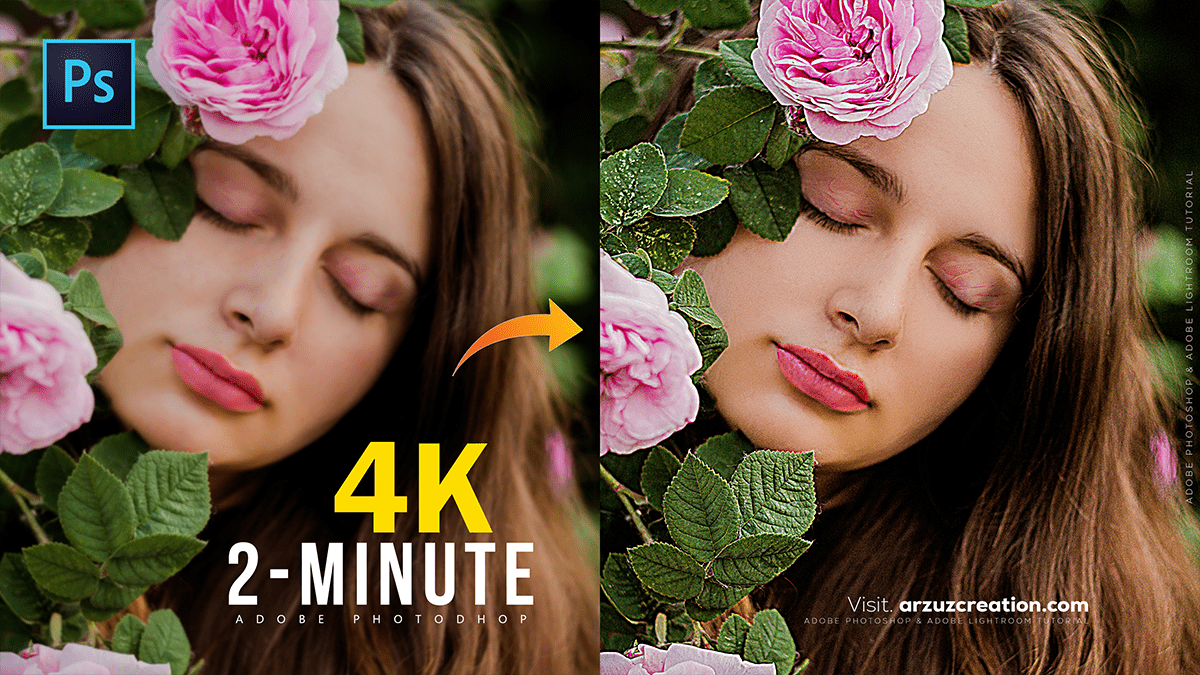
Increasing the Resolution Upscaling Picture in Photoshop,

Therefore, increasing the quality of a picture in Photoshop, especially a low-resolution one, often involves two main steps: increasing the resolution (upscaling) and fine-tuning the details (sharpening and noise reduction).
In other words, here are the key methods and techniques in Photoshop:
Increasing the Resolution Upscaling Picture in Photoshop,
1. Increase Resolution (Upscaling)
Therefore, Upscaling is the process of adding pixels to an image, which is necessary if you need to print a low-resolution image large or display it on a high-resolution screen.
Generative Upscale / Super Resolution (AI-Powered):
In other words, for the best and most modern results, especially on low-resolution photos, use Adobe’s AI-powered tools.
However, in recent versions of Photoshop/Camera Raw, you can use Super Resolution (found under the Enhance option by right-clicking the image or from the Detail tab in Camera Raw) or the Generative Upscale (beta) feature. These tools use AI to double or quadruple the resolution and enhance details intelligently.
Increasing the Resolution Upscaling Picture in Photoshop,
Traditional Resampling:
In other words, go to Image > Image Size (Ctrl+Alt+I or Cmd+Option+I).
However, make sure Resample is checked. This tells Photoshop to add new pixels.
In addition, enter your desired new Width and Height or increase the Resolution (e.g., to 300 pixels/inch for high-quality printing).
In other words, Crucially, select an appropriate resampling method:
Preserve Details (2.0): An advanced algorithm good for general upscaling, often with a Noise Reduction slider.
Bicubic Smoother: Good for enlarging images, designed to produce smoother results.
Resolution Upscaling Picture in Photoshop
2. Fine-Tuning and Restoration:
However, after upscaling, you will need to clean up and enhance the image, as resampling can sometimes introduce noise or blurriness.
Sharpening: Sharpening enhances edge contrast, making details look crisper.
Smart Sharpen: Go to Filter > Sharpen > Smart Sharpen. This gives you more control than the basic ‘Sharpen’ filter, allowing you to adjust Amount, Radius, and specifically reduce noise.
High Pass Filter: This is an advanced, non-destructive sharpening technique:
However, duplicate your image layer (Ctrl+J or Cmd+J).
In addition, go to Filter > Other > High Pass.
Above all, adjust the Radius until you only see the edges and details of the image.
In addition, change the layer’s Blend Mode to Overlay or Linear Light.
Increasing the Resolution Upscaling Picture in Photoshop,
Adobe Photoshop:
Noise Reduction: If your image is grainy (noisy), you can reduce it.
Above all, go to Filter > Noise > Reduce Noise. Adjust the Strength and Preserve Details sliders to find a balance.
In addition, use the Noise Reduction slider in the Camera Raw Filter (Filter > Camera Raw Filter > Detail tab) for a more refined result.
Photo Restoration (Neural Filter):
Above all, for old or heavily damaged photos, the Photo Restoration Neural Filter (Filter > Neural Filters) uses AI to automatically enhance faces, remove scratches, and colorize images.
