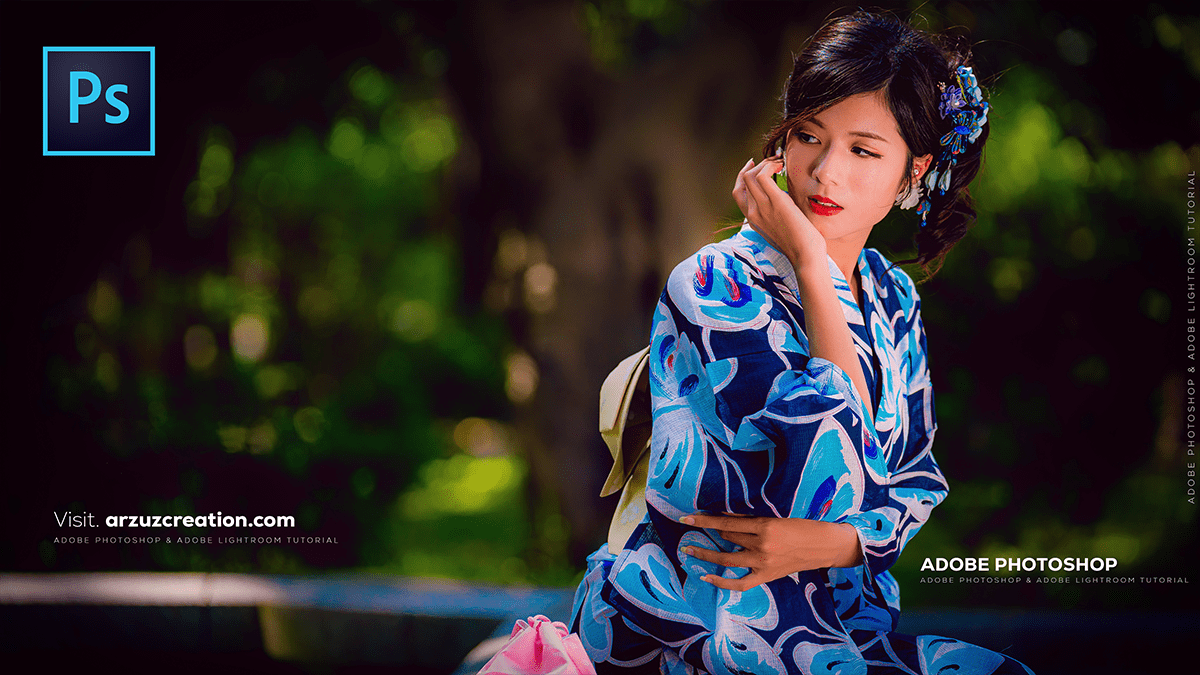
Beautiful Outdoor Portrait Colour Grading in Photoshop 2025,

Therefore, Colour grading in Photoshop involves manipulating the colours and tones of an image to create a specific style or mood, going beyond simple colour correction. Photoshop offers several powerful tools and techniques for this:
Beautiful Outdoor Portrait Colour Grading in Photoshop 2025,
🎨 Colour Grading in Photoshop:
Therefore, Colour grading in Photoshop is the process of stylising your image’s colours to create a specific mood or aesthetic, moving beyond basic colour correction.
Primary Tools and Methods:
Therefore, the most powerful and recommended tool for non-destructive colour grading is the Camera Raw Filter applied as a Smart Filter, or using Adjustment Layers.
1. Camera Raw Filter (For a powerful, centralised tool)
Therefore, you can access the dedicated Colour Grading section by going to Filter > Camera Raw Filter (ensure your layer is converted to a Smart Object first for non-destructive editing).
Beautiful Outdoor Portrait Colour Grading in Photoshop 2025,
- Location: Inside the Camera Raw Filter window, you will find a Colour Grading section.
- The Three Wheels: This tool uses three main colour wheels :
- Shadows: Adjusts the colour in the darkest parts of your image.
- Midtones: Adjusts the colour in the middle range of tones.
- Highlights: Adjusts the colour in the brightest parts of your image.
- Controls: In other words, for each wheel, you can drag the central point to select a Hue (colour) and adjust the distance from the centre for Saturation (intensity). A slider below the wheel controls Luminance (brightness).
- Blending and Balance: In other words, Additional sliders let you control how the colour effects overlap (Blending) and where the transition points between shadows, midtones, and highlights occur (Balance).
Beautiful Outdoor Portrait Colour Grading in Photoshop 2025,
2. Adjustment Layers (For maximum control and flexibility)
In other words, using Adjustment Layers is a core Photoshop workflow for non-destructive grading:
- Curves: A highly versatile tool for adjusting both tone (luminosity/contrast) and colour balance. You can select individual Red, Green, and Blue channels to add or subtract complementary colours to the shadows, midtones, and highlights by shaping the curve.
- Colour Balance: Use simple sliders to add or subtract Red/Cyan, Green/Magenta, or Blue/Yellow for Shadows, Midtones, and Highlights separately.
- Selective Colour: In other words, it allows for precise adjustments to the Cyan, Magenta, Yellow, and Black components within specific colour ranges (e.g., selectively altering only the reds in your image).
- Gradient Map: A powerful way to map the entire tonal range (shadows to highlights) to a custom gradient of colours, creating very unique looks.
Beautiful Outdoor Portrait Colour Grading in Photoshop 2025,
Tips for a Great Colour Grade:
- Start with a Neutral Image: In other words, perform basic Colour Correction (White Balance, Exposure, Contrast) first to get a balanced starting point. Grading is adding style, and correction is fixing flaws.
- Work Non-Destructively: Always use Adjustment Layers or Smart Filters so you can easily modify or remove the effect later.
- Warm Highlights / Cool Shadows: In other words, A common and pleasing technique is to add warm colours (yellows/oranges) to the highlights and cool colours (blues/cyans) to the shadows, creating visual depth.
- Use Layer Masks: Apply a mask to your Adjustment Layer to restrict the colour grade to specific parts of your image (e.g., protecting skin tones).
