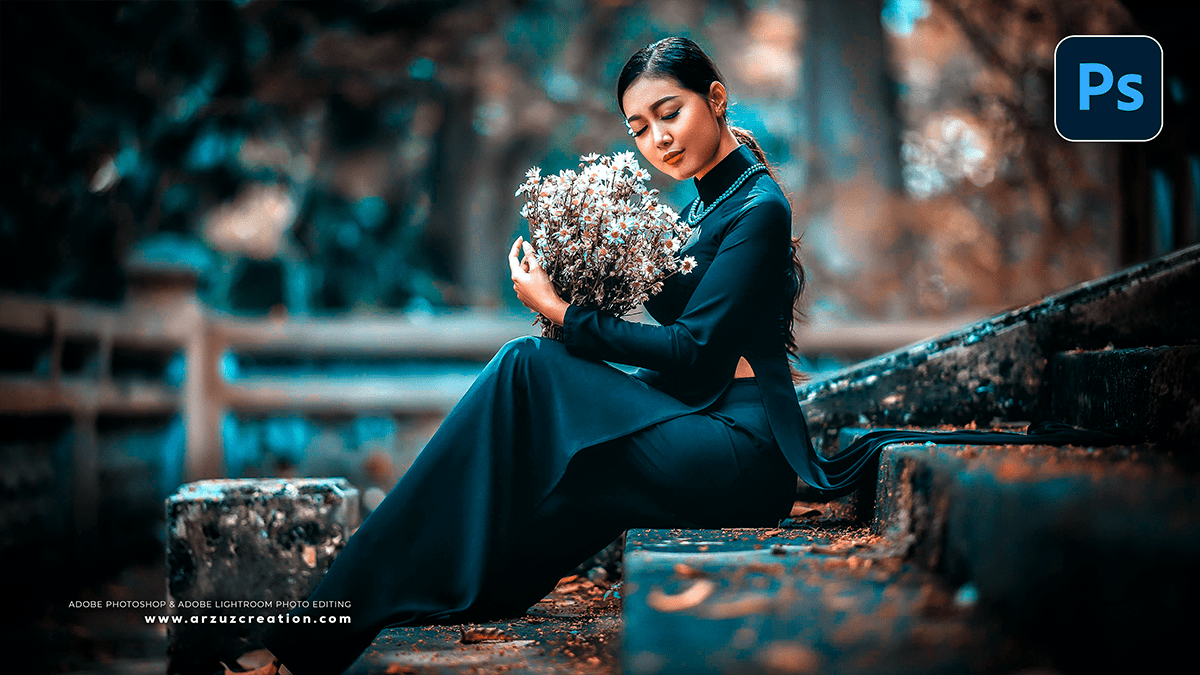
Blue Tone Colour Grading in Adobe Photoshop,

Therefore, that’s a popular effect! There are several ways to achieve a blue tone (or cold/icy/cinematic) photo editing effect in Photoshop, ranging from quick adjustments to more detailed color grading.
In other words, here are the most common and effective methods, typically using non-destructive Adjustment Layers:
Blue Tone Colour Grading in Adobe Photoshop,
🥶 Method 1: Curves Adjustment (Advanced Control)
Therefore, this is one of the most powerful and flexible ways to introduce a specific color tint to the shadows and highlights.
- Add a Curves Adjustment Layer: Click the half-black/half-white circle icon at the bottom of the Layers panel and choose Curves.
- Select the Blue Channel: In the Properties panel for the Curves layer, click the dropdown that says RGB and change it to Blue.
- Adjust the Curve:
- To add Blue to Shadows: Click the curve near the bottom-left (shadows) and drag it up.
- To add Yellow/remove Blue from Highlights: Click the curve near the top-right (highlights) and drag it down. Note: The blue channel controls the Blue/Yellow balance. Pulling the curve down adds yellow and removes Blue.
- Check the Red/Green Channels (Optional):
- Therefore, go to the Red channel. Drag the curve down in the shadows to add Cyan (which is opposite Red).
- In other words, go to the Green channel. Adjust slightly if needed for fine-tuning.
Blue Tone Colour Grading in Adobe Photoshop,
❄️ Step 2: Color Balance Adjustment (Quick Tints)
Therefore, this is a simpler way to target different tonal ranges.
- Add a Color Balance Adjustment Layer: Click the Adjustment Layer icon and choose Color Balance.
- Adjust Tones: You’ll have sliders for Shadows, Midtones, and Highlights.
- Shadows: Above all, Select Shadows in the dropdown. Move the slider toward Cyan and Blue.
- Midtones: Select Midtones. Move the slider slightly toward Blue.
- Highlights: In other words, Select Highlights. You might leave this alone or move it slightly toward Yellow (the opposite of Blue) to get a popular cinematic orange/blue contrast (like warm skin against a cool background).
Camera Raw Filter Photo Editing Tutorial,
🧊 Method 3: Photo Filter Adjustment (Preset Cool Tones)
In other words, this is the fastest way to apply a broad, uniform cooling effect.
- Add a Photo Filter Adjustment Layer: Click the Adjustment Layer icon and choose Photo Filter.
- Select a Cooling Filter:
- However, in the Properties panel, click the Filter dropdown.
- Above all, Choose Cooling Filter (82) or Cooling Filter (80).
- Adjust Density: Increase the Density slider to intensify the blue/cold effect.
- Preserve Luminosity: Ensure Preserve Luminosity is checked to prevent the image from becoming too dark.
- Adjust Opacity: However, lower the layer’s Opacity for a more subtle effect.
Blue Tone Colour Grading in Adobe Photoshop,
Pro Tip: LAB Color Mode (More Extreme Results)
However, A more advanced technique involves switching the image mode to LAB Color temporarily. This allows you to manipulate color channels separate from the light information, often resulting in a unique, deep blue tone:
- However, Go to Image > Mode > Lab Color (Click Don’t Flatten).
- Above all, Add a Curves Adjustment Layer.
- However, in the Curves properties, select the ‘b’ channel (which controls Blue/Yellow).
- Above all, adjust the curve to push tones toward blue, and then switch back to Image > Mode > RGB Color.
Which method sounds best for the look you are trying to achieve? I can provide more detail on any of these!
