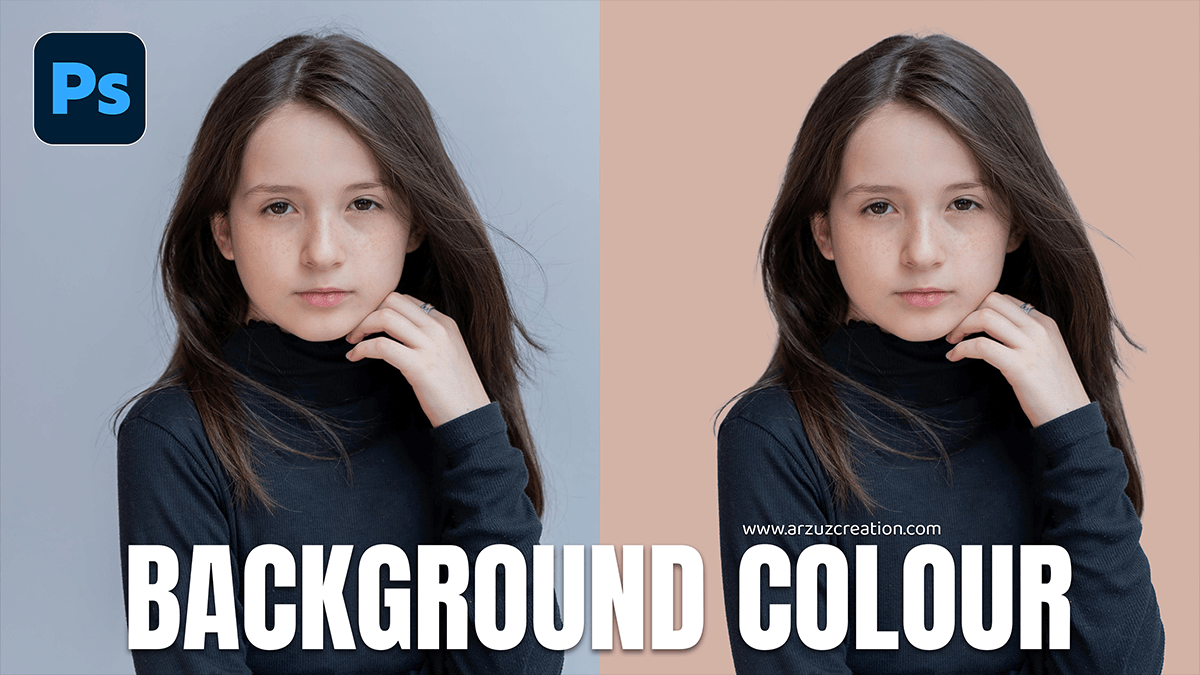
How to Give Background Color in Adobe Photoshop 2026,

Therefore, changing a background color in Photoshop is a fundamental skill, and the “best” way to do it depends on whether you are starting a fresh project or editing an existing photo.
How to Give Background Color in Adobe Photoshop 2026,
In other words, here are the most efficient methods to get it done.
1. For a New Project (The Quickest Start)
Therefore, if you haven’t started your design yet, you can set the color immediately:
Therefore, Go to File > New.
In other words, in the Background Contents dropdown, choose Custom or Background Color.
Therefore, click the color box to pick your hue before hitting Create.
2. For an Existing Photo (The “Pro” Non-Destructive Way)
Therefore, this is the best method because it creates a separate layer, allowing you to change the color later without starting over.
Select your subject: In other words, click the Select Subject button in the Contextual Task Bar (the floating bar) or go to Select > Subject.
Invert the selection: Press Ctrl + Shift + I (Windows) or Cmd + Shift + I (Mac) so that the background is selected instead of the person/object.
Add Color: Click the Adjustment Layer icon (the half-filled circle at the bottom of the Layers panel) and select Solid Color.
Pick your shade: Choose your color from the picker and click OK. Photoshop automatically creates a mask so the color only stays in the background.
How to Give Background Color in Adobe Photoshop 2026,
3. Using Shortcuts (The Fast Way)
In other words, if you already have a blank layer and want to fill it instantly, use these “power user” shortcuts:
Fill with Foreground Color: Alt + Backspace (Windows) or Option + Delete (Mac).
Fill with Background Color: Ctrl + Backspace (Windows) or Cmd + Delete (Mac).
Open Fill Dialog: Shift + F5 (This opens a menu where you can choose “Content-Aware,” “Pattern,” or a specific color).
4. For Complex Edges (Hair or Fur)
In other words, if your subject has messy hair, a solid color fill might look fake. After applying the Solid Color method above:
In other words, Double-click the Layer Mask (the black and white box next to your color layer).
However, Click Select and Mask.
However, use the Refine Edge Brush Tool (second tool down on the left) to paint over the hair edges. This helps the new color “bleed” naturally into the fine details.
How to Give Background Color in Adobe Photoshop 2026,
Summary Table: Which Tool to Use?
| Goal | Tool / Method | Why? |
| Complete Control | Solid Color Adjustment Layer | You can change the color anytime by double-clicking. |
| Speed | Paint Bucket Tool (G) | Great for simple, flat graphic designs. |
| Realistic Swap | Hue/Saturation Layer | Best for changing the color of an existing wall or sky. |
Would you like me to explain how to refine those tricky edges around hair or transparent objects?
