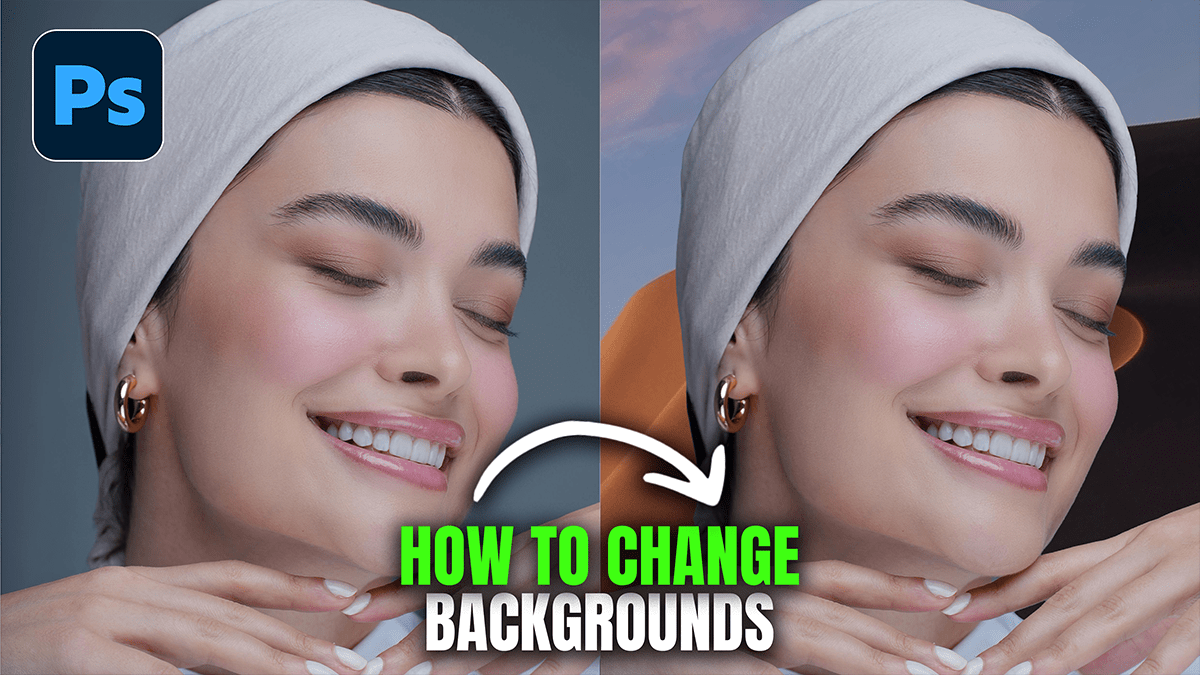
Image Background: How to Change in Photoshop

Therefore, in Adobe Photoshop 2026, changing a background has moved from a tedious manual task to a nearly instant AI-powered process. Whether you want to swap in a realistic photo or generate an entirely new scene from scratch, the Contextual Task Bar is now your primary command center.
Image Background: How to Change in Photoshop
In other words, here is the most efficient way to change your background in the 2026 version.
Method 1: The “One-Click” AI Swap (Fastest)
Therefore, this method uses the latest Firefly AI models to analyze your subject and generate a new environment that matches the lighting and perspective automatically.
Open your image and ensure the layer is unlocked in the Layers Panel.
Select the Subject: Therefore, on the Contextual Task Bar (the floating bar at the bottom of your screen), click Select Subject.
Invert the Selection: Click the Inverse icon on the Task Bar (or press Shift + Ctrl + I on Windows / Shift + Cmd + I on Mac).
Generate Background: Click Generative Fill.
Describe the Scene: Therefore, type a prompt like “Sunny mountain range with bokeh” or “Modern minimalist office” and hit Generate.
Pick a Variation: Photoshop will provide three AI-generated options in the Properties Panel. Choose the one that looks best.
Image Background: How to Change in Photoshop
Method 2: Replacing with Your Own Image
In other words, if you already have a specific photo you want to use as the new background, follow these steps:
1. Remove the Old Background
In other words, click Remove Background on the Contextual Task Bar. Photoshop will automatically create a Layer Mask, hiding the original background while keeping your subject intact.
Tip: If the edges (like hair) look rough, click Select and Mask in the Properties Panel to refine them.
2. Place the New Image
In other words, go to File > Place Embedded… and select your new background photo.
However, in the Layers Panel, drag the new image layer below your subject layer.
3. Use the “Harmonize” Tool (New for 2026)
However, to make your subject actually look like they belong in the new photo:
In addition, select your subject layer.
However, Go to Filter > Neural Filters.
In addition, turn on Harmonize.
However, select the new background layer as the “Reference Image.” Photoshop will automatically adjust the subject’s color temperature and brightness to match the new environment.
Image Background: How to Change in Photoshop
Key 2026 Updates to Watch For
Nano Banana Model: The 2026 update includes the “Nano Banana” generative model, which offers significantly greater detail for backgrounds involving complex textures like water or foliage.
Reference Image Swapping: You can now drag a reference photo into the Generative Fill prompt box to tell the AI, “Make the background look like the style of this photo.”
Built-in Upscaling: If your generated background looks a bit soft, use the new Generative Upscale (under the Image menu) to add high-frequency detail using the integrated Topaz-powered AI.
Would you like me to explain how to use the “Select and Mask” workspace to fix tricky hair or fur edges?
