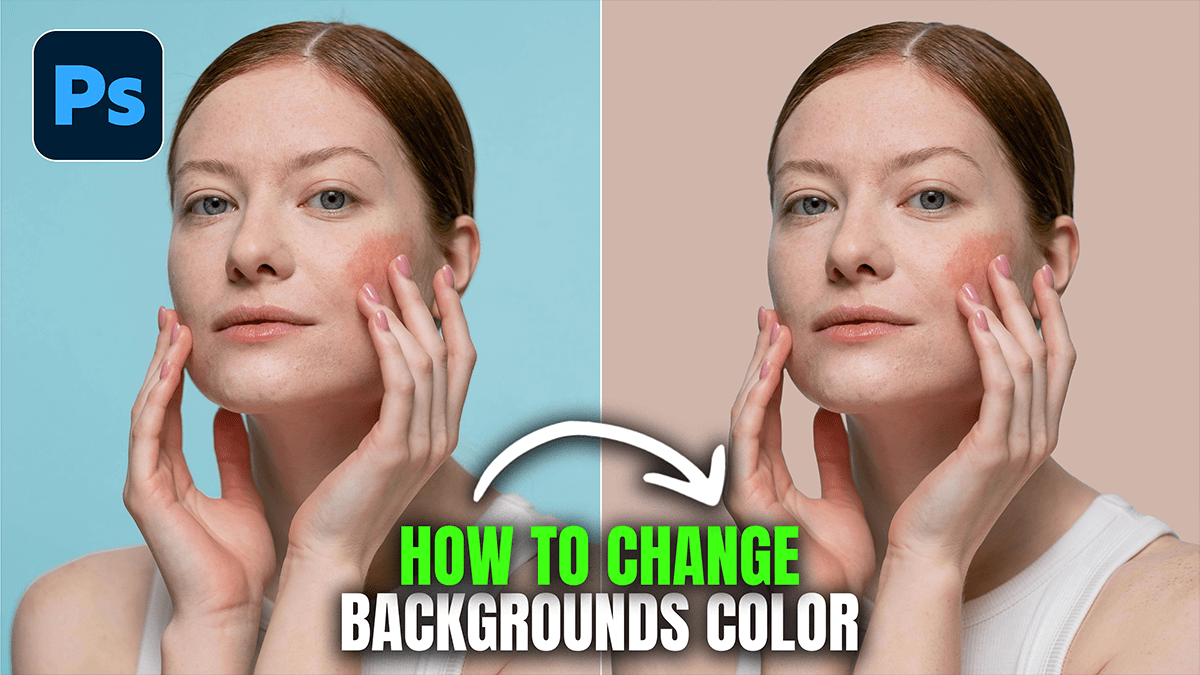
How to Change the Background Color in Adobe Photoshop 2026,

Therefore, in Adobe Photoshop 2026, changing a background color has become significantly faster thanks to improved AI tools like the Contextual Task Bar and on-device Select Subject.
How to Change the Background Color in Adobe Photoshop 2026
Therefore, depending on your starting point, here are the most effective methods to change your background color.
1. Using the “Select Subject” & Solid Color Fill (Best for Speed)
Therefore, this is the standard professional method for existing photos.
Select your subject: Click Select Subject in the Contextual Task Bar (the floating menu) or the Options bar at the top.
Tip: In 2026, the on-device model for “Select Subject” is much more accurate with hair and fine details.
Invert the selection: Go to Select > Inverse (or press Ctrl + Shift + I / Cmd + Shift + I) so that only the background is selected.
Add a Solid Color layer: Click the New Adjustment Layer icon (the half-filled circle) at the bottom of the Layers panel and choose Solid Color.
Pick your color: Therefore, choose a hue from the Color Picker. Photoshop will automatically create a mask so the color only appears behind your subject.
Refine (Optional): If the edges look harsh, click on the Mask thumbnail and use a soft black brush to hide or a white brush to reveal the color.
2. Using “Generate Background” (Best for Realistic Textures)
Therefore, New in the 2026 update, you can use the Nano Banana or Firefly generative models to not just change a color, but create a realistic studio backdrop.
However, use the Remove Background button in the Contextual Task Bar.
Therefore, Click Generate Background.
However, type a prompt like "solid matte sage green studio wall" or "blurred minimalist office background".
Above all, choose from the 3 variations provided in the Properties panel.
How to Change the Background Color in Adobe Photoshop 2026
3. Using Hue/Saturation (Best for Changing Existing Colors)
However, if your background already has a color and you just want to shift it (e.g., turning a blue wall into a red one):
Above all, create a Hue/Saturation adjustment layer.
However, click the Hand Tool icon in the Properties panel and click on the background color in your photo to “sample” it.
Above all, slide the Hue bar to change the color.
In addition, if the color changes on your subject as well, use the Mask to paint black over the areas you want to protect.
4. Setting a Color for New Documents
Above all, if you are starting from scratch:
In addition, go to File > New.
After that, in the Background Contents dropdown, choose Custom.
In additionclickck the color box next to it to select your starting canvas color before clicking Create.
How to Change the Background Color in Adobe Photoshop 2026
Pro Tips for 2026
Harmonize Tool: After changing a background color, your subject might look “pasted on.” Select your subject layer, go to Filter > Neural Filters, and turn on Harmonize. Select your new color layer as the “Source” to automatically match the lighting and color temperature.
Quick Shortcuts: In addition, to fill a background layer instantly with your foreground color, press Alt + Backspace (Windows) or Option + Delete (Mac).
Would you like me to walk you through how to use the new “Harmonize” filter to make your subject blend better with the new color?
