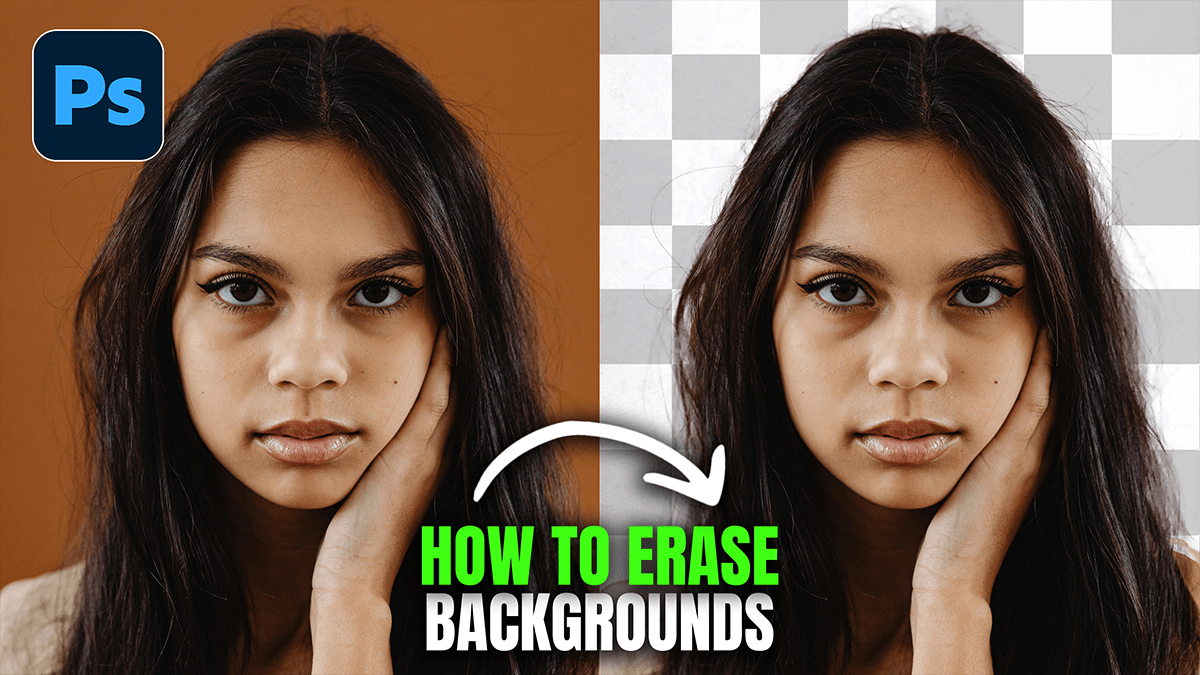
How to Erase Photo Background in Adobe Photoshop 2026,

Therefore, erasing a background in Photoshop has evolved from a tedious chore of clicking individual pixels to a nearly one-click experience, thanks to Adobe’s AI (Adobe Sensei). In the 2026 version, the tools are faster and more context-aware than ever.
How to Erase Photo Background in Adobe Photoshop 2026
In other words, here are the three most effective ways to get a clean cutout, ranked from easiest to most controlled.
1. The “One-Click” Method (Best for Beginners)
Therefore, this is the fastest route and works surprisingly well if there is a clear distinction between the subject and the background.
Open your image in Photoshop.
Therefore, unlock the layer by clicking the Lock icon in the Layers panel.
In other words, go to the Properties Panel (Window > Properties).
Therefore, under Quick Actions, click the Remove Background button.
In other words, Photoshop will automatically create a Layer Mask, hiding the background while keeping your original pixels safe.
How to Erase Photo Background in Adobe Photoshop 2026
2. The Contextual Task Bar (The Modern Way)
Therefore, Photoshop 2026 features a floating toolbar that follows your workflow. It’s often the quickest way to access AI features.
In other words, select your image layer.
Therefore, look for the Contextual Task Bar (the small floating bar usually at the bottom of the screen).
In other words, if it’s not visible, go to Window > Contextual Task Bar.
Therefore, Click Remove Background. This uses the latest cloud-based AI to analyze edges, often handling tricky areas like hair better than the local tool.
3. Select and Mask (Best for Hair and Fur)
In other words, if you are dealing with a “shaggy” subject—like a dog or a person with wispy hair—you’ll need the refinement tools.
However, Select the Quick Selection Tool (W).
In other words, click Select Subject in the top options bar.
However, once the “marching ants” appear, click Select and Mask… in the options bar.
Above all, use the Refine Edge Brush Tool (second tool down on the left) to paint over the tricky edges where the background is peeking through.
However, in the Output Settings on the right, choose Output to: Layer Mask and click OK.
How to Erase Photo Background in Adobe Photoshop 2026
Pro Tips for a Clean Result
Non-Destructive Editing: However, always use Layer Masks (the black and white thumbnails) rather than the Eraser tool. If you accidentally delete a toe or a strand of hair, you can “paint” it back in using a white brush on the mask.
Check your work: Above all, create a new layer underneath your subject and fill it with a bright, solid color (like neon green or red). This makes it easy to spot any “halos” or leftover background bits you missed.
In conclusion, would you like me to walk you through how to use Generative Fill to replace that deleted background with a completely new scene?
