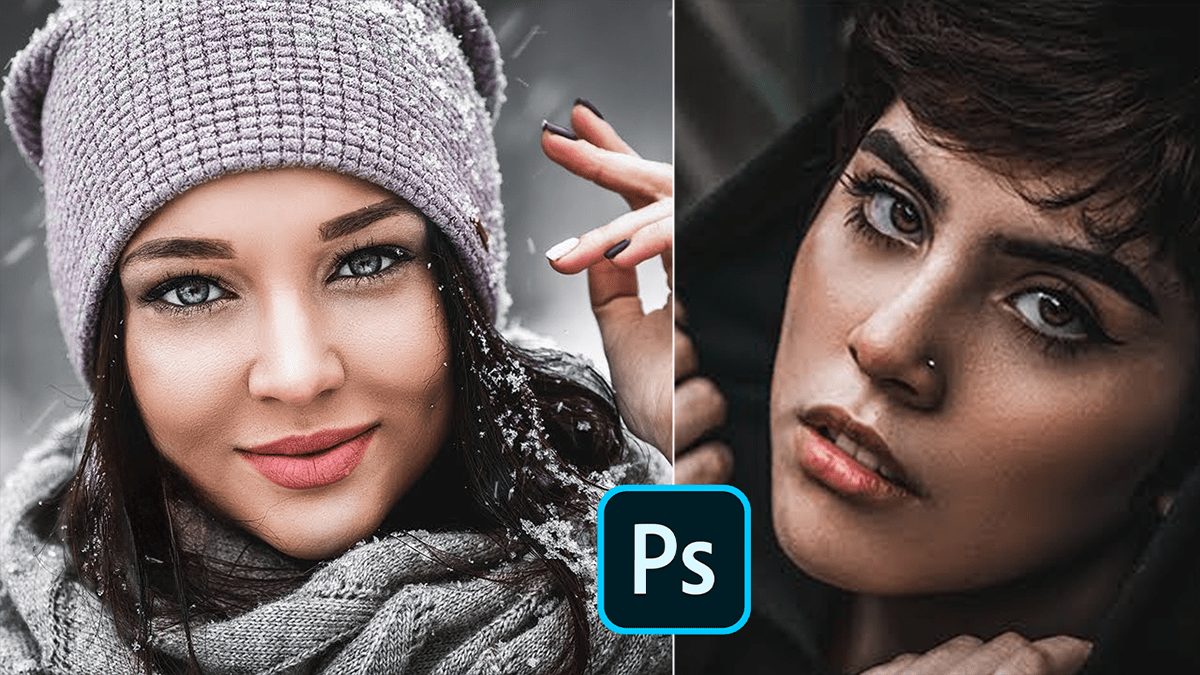
Adobe Camera Raw 18.2 Professional Colour Grading Tutorial,

Therefore, in Adobe Camera Raw (ACR) 18.2, professional color grading has moved beyond simple “filters.” The 2026 updates emphasize non-destructive precision and AI-assisted workflows that bridge the gap between photo editing and high-end digital intermediate (DI) cinema grading.
Adobe Camera Raw 18.2 Professional Colour Grading Tutorial,
In other words, here is the professional workflow for mastering color in ACR 18.2:
1. The “Base” Correction (Calibration & Basic)
Therefore, before adding style, you must normalize the image.
Calibration Panel: In other words, Pro colorists often start here. Adjusting the “Blue Primary” saturation can shift the entire color depth of an image without looking “fake.”
White Balance: In 18.2, use the Color & Vibrance logic to neutralize casts. Professionals often lean the Tint slightly toward Magenta (+2 to +5) for cleaner skin tones.
2. Point Color (The Surgical Tool)
Therefore, the Point Color tool (within the Color Mixer) is the most powerful addition for professional grading.
Variance Slider: In other words, use this to control how much “similar” color is affected. Moving it to the left pulls disparate hues toward your sampled color for a more uniform, “commercial” look.
Visualise Range: Always check this box to ensure you aren’t accidentally shifting colors in the background when you only mean to target a specific garment or skin tone.
Adobe Camera Raw 18.2 Professional Colour Grading Tutorial,
3. Three-Way Color Grading:
However, this is where the “look” is created using the Shadows, Midtones, and Highlights wheels.
Complementary Schemes: A classic pro move is to add Teal to the Shadows and Orange/Gold to the Highlights.
Blending & Balance: * Blending (100): Creates a smooth transition between wheels.
Balance: If the shadows feel too “muddy” with color, slide the Balance to the right to protect them.
4. Advanced Masking (AI-Powered)
However, ACR 18.2 features improved AI masking for selective grading:
Background & Sky: Apply separate grading to the sky (cooler/darker) versus the subject (warmer/brighter).
Select Person: Above all, use the “Body Skin” and “Teeth” sub-masks to apply specific Saturation/Luminance shifts that don’t affect the environment.
5. Tone Curve “Refine Saturation.”
However, one of the most “pro” features in recent versions is the Refine Saturation slider within the Point Curve.
The Problem: Above all, normally, increasing contrast with an S-Curve boosts saturation aggressively.
The Fix: Pull the Refine Saturation slider down to maintain your original color intent while still getting that punchy, high-contrast look.
Adobe Camera Raw 18.2 Professional Colour Grading Tutorial,
Comparison of Key Grading Panels:
| Tool | Best For… | Pro Tip |
| Color Grading Wheels | Overall cinematic mood/tint. | Use Midtones to fix skin tone luminosity. |
| Point Color | Fixing specific “off” colors. | Use the Eye Dropper to target specific foliage. |
| Calibration | Overall color science/depth. | Great for “popping” oranges and teals. |
Would you like me to walk you through a specific “cinematic look” (like Film Emulation or Dark Moody) using these tools?
