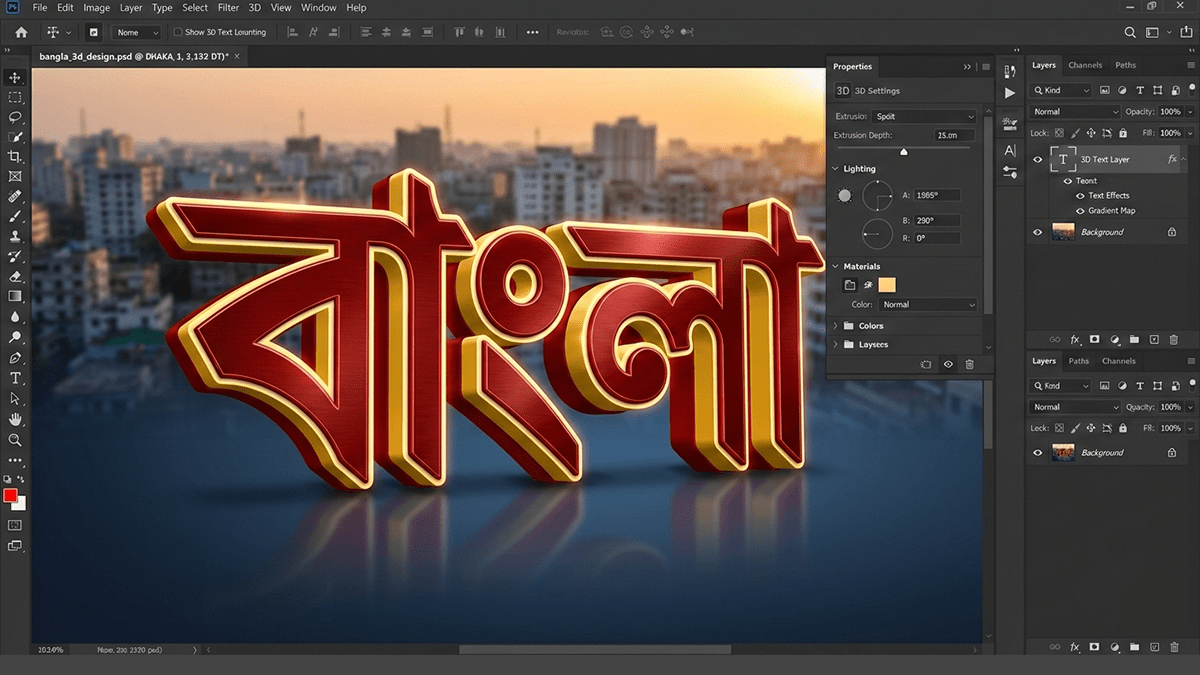
Make a Bangla 3D Text Design in Adobe Photoshop 2026,

Therefore, creating 3D text in Photoshop has changed slightly over the years (especially since Adobe phased out the old dedicated 3D menu), but you can still create a stunning 3D effect using Layer Styles or the Transform method.
Make a Bangla 3D Text Design in Adobe Photoshop 2026,
Above all, here is a step-by-step guide to creating a high-impact Bangla 3D design.
1. Preparation & Typing:
Therefore, before starting, ensure you have a Bangla font installed (like Li Ador Noee, Kalpurush, or Hind Siliguri).
Create Canvas: Open Photoshop and create a new document (e.g., 1920×1080).
Type Tool (T): Select the Type tool. Ensure your keyboard input is set to Avro or Ridmik.
Write your text: Type your Bangla word (e.g., “বাংলা” or “স্বপ্ন”).
Font Choice: Use a Bold or Extra Bold font. 3D effects look much better on thicker characters.
2. The “Manual Extrusion” Method (Best Results)
Therefore, since the dedicated 3D engine was deprecated, this “stacking” method is the most reliable way to get a clean 3D look.
Step A: Create the Depth:
Duplicate the Layer: Press Ctrl + J.
Color the Bottom Layer: In other words, select the bottom text layer and change its color to a darker shade of your main color (this will be the “side” of your 3D text).
The Nudge Trick: * Select the Move Tool (V).
In other words, Hold Alt (Option on Mac) and tap the Down Arrow and Right Arrow keys repeatedly (about 10–15 times).
However, Photoshop will create multiple copies, each offset by 1 pixel, creating a solid 3D “extrusion.”
Step B: Merge the Sides:
However, in your Layers panel, select all the “copy” layers you just created (but not the original top layer).
In other words, Press Ctrl + E to merge them into one “3D Depth” layer.
Make a Bangla 3D Text Design in Adobe Photoshop 2026,
3. Adding Realism with Layer Styles:
However, now, let’s make it pop. Double-click your top (front) text layer to open the Layer Style window.
| Effect | Setting Suggestion |
| Gradient Overlay | Use a subtle vertical gradient (e.g., light blue to dark blue). |
| Bevel & Emboss | Style: Inner Bevel. Increase ‘Size’ slightly to give the edges a rounded, metallic feel. |
| Inner Shadow | Use this to simulate lighting coming from the top. |
| Drop Shadow | Apply this to the merged depth layer (from Step 2) to lift the whole design off the background. |
4. Final Polish (Lighting & Shadows)
However, to make it look like a professional 3D render:
Cast Shadow: Create a new empty layer under everything. Use a soft black Brush (B) with low opacity to paint a shadow where the text meets the “floor.”
Highlights: Create a layer on top, set the blending mode to Overlay, and use a white brush to paint small “shines” on the corners of the Bangla letters.
Make a Bangla 3D Text Design in Adobe Photoshop 2026,
Pro Tip: The “Smart Object” Shortcut:
However, before you start duplicating layers, right-click your text and select “Convert to Smart Object.” This way, if you want to change the word later, you can just double-click the Smart Object, type a new Bangla word, save it, and the 3D effect will update automatically!
In conclusion, would you like me to walk you through how to add a “Glossy Plastic” or “Chrome” texture to your 3D Bangla text next?
