That’s a great question! Adobe Lightroom 2024 (the cloud-based version) and Lightroom Classic both received significant updates throughout 2024.
The focus for both versions has been heavily on Artificial Intelligence (AI) features to enhance and streamline the editing and organization process.
Here are some of the key updates and new features, especially from the major Adobe MAX 2024 releases:
Adobe Lightroom 2024,
🌟 Key AI-Powered Editing Features (Lightroom & Lightroom Classic)
Generative Remove: Powered by Adobe Firefly AI, this is the renamed/enhanced Remove tool (formerly the Heal tool).
It allows you to easily brush over unwanted objects or distractions in a photo, and the AI automatically removes them and generates a seamless fill that blends with the background.
Lightroom Classic introduced the ability to combine Generative AI with Detect Objects for more precise selections.
Lens Blur (General Availability): The AI-powered tool to quickly add aesthetic blur and bokeh effects to your photos, similar to portrait mode on phones.
It includes improvements like better subject detection, custom presets, and refined controls (like a Focus Range slider).
AI-Powered Denoise Enhancements: Improved support for more file types, including iPhone ProRAW files, to achieve cleaner, sharper images without losing detail.
Assisted Culling: An AI-powered feature to help you select your best photos faster by intelligently filtering and grouping similar shots based on quality.
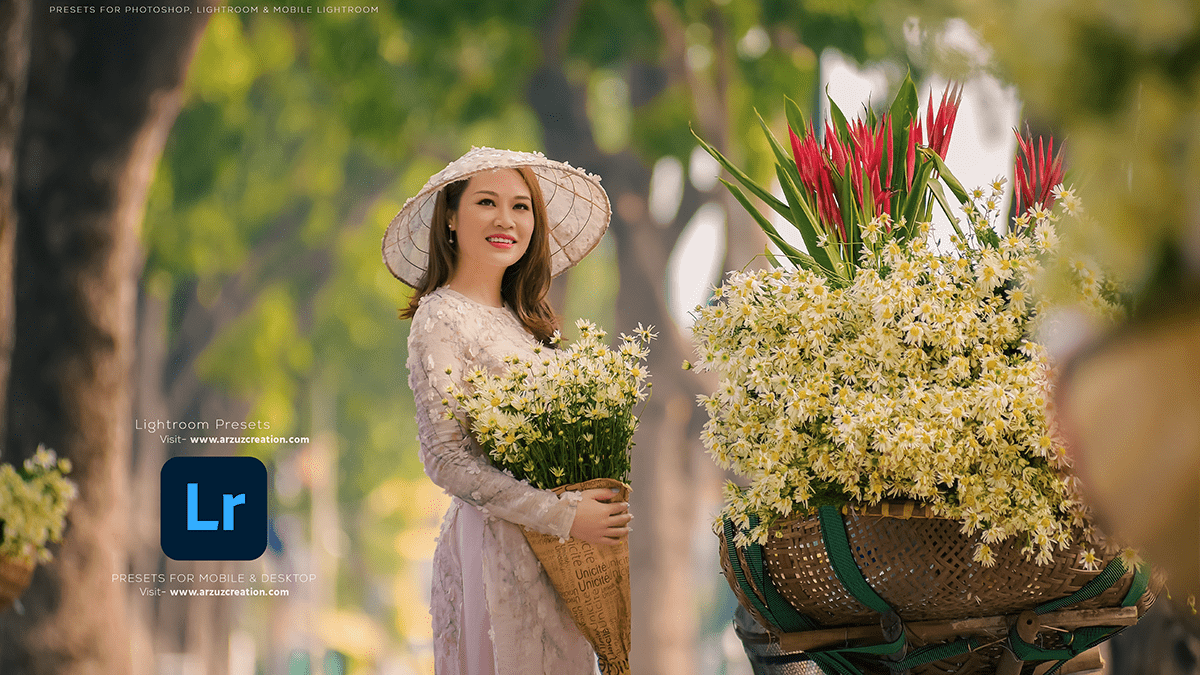
Soft Green Color Tone Adobe Lightroom CC 2025
🗃️ Organization and Workflow (Lightroom Desktop)
Smart Albums: A highly-requested feature for the cloud-based Lightroom. You can set rules (like rating, date, camera, or AI search terms) to automatically group images into albums that update themselves as you add new photos.
Edit in Third-Party Apps: You can now seamlessly send your images from Lightroom directly to external editors (like Topaz AI products) and save the edited TIFF file back to Lightroom.
🔐 Authenticity and Transparency
Content Credentials (CAI): Integration with the Content Authenticity Initiative. This allows you to embed metadata upon export that tracks the edits made to your images, including any AI use, to provide transparency about the photo’s origin and modifications.
🖥️ Lightroom Classic Specific Updates
Enhanced Tethering Support: Improved support for various camera brands, including enhanced Nikon and new support for Sony and Leica cameras.
Filter by Exported Images: New filtering options to organize and find photos based on whether they have been exported or not.
Performance Improvements: Continued enhancements for speed and responsiveness, especially in the Develop module.
Would you like me to look up a tutorial on how to use one of these specific new features, like Generative Remove?
Color grading in Adobe Lightroom (Classic or Creative Cloud) is a creative post-processing step that adds a specific visual style, mood, or “look” to your image. It is typically done after initial color correction (like adjusting White Balance and exposure) to ensure a balanced starting point.
Copy and Paste Settings: Adobe Lightroom Color Grading Tutorial,
The simplest and most common way to copy the color grading (or any edit settings) from one photo to another in Lightroom is by using the Copy and Paste Settings feature, which includes the Color Grading adjustments.
Adobe Lightroom: Change Photo Background Color Tutorial,
Changing the background color in Adobe Lightroom is done using the powerful Masking tools, which allow you to isolate the background from your main subject and apply color adjustments only to that area.
Lightroom is an incredibly powerful tool for creating cinematic photo edits. While Photoshop offers more pixel-level manipulation, Lightroom excels at non-destructive global and local adjustments, making it perfect for developing a consistent cinematic “look” across many images.
Color grading in Lightroom Mobile involves adjusting the tones and colors of your photo to create a specific mood or aesthetic. Here’s a step-by-step guide to help you get started.
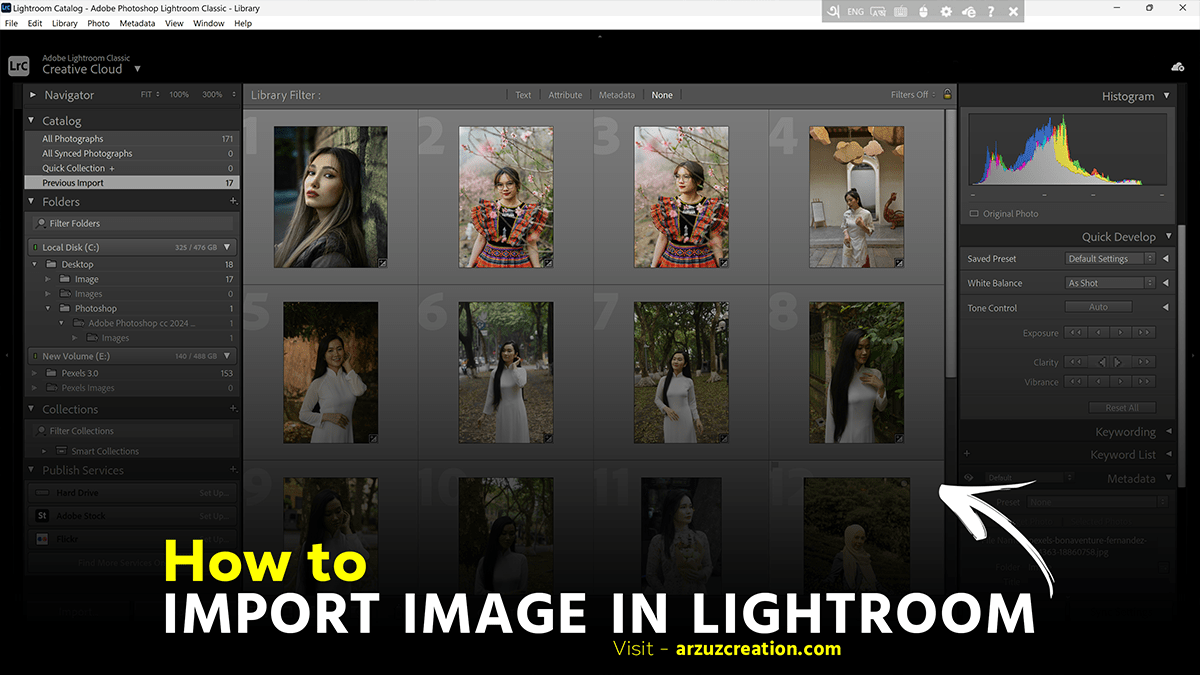
I’ll provide a detailed guide to help you get started with Lightroom, covering importing photos, basic and advanced editing techniques, and exporting your final images.
Adobe Lightroom is a versatile and powerful photo editing software used by photographers and enthusiasts to organize, edit, and enhance their images. Below, I’ll provide a detailed guide to help you get started with Lightroom, covering importing photos, basic and advanced editing techniques, and exporting your final images.
Adobe Lightroom is a powerful tool for professional photo editing and management. It offers a comprehensive suite of features designed to streamline the workflow for photographers, from importing and organizing photos to editing and sharing them. Here’s a detailed overview of some of the key features and how to use them effectively.
Lightroom’s Tone Curve is a powerful tool for photo editing that allows you to make precise adjustments to the tonal range of your image. Here’s a step-by-step guide on how to use the Tone Curve in Lightroom.
Retouching skin in Lightroom involves a combination of techniques to smooth out skin tones, reduce blemishes, and enhance natural features without making the skin look overly processed. Here’s a step-by-step guide to achieve professional-looking skin retouching in Lightroom.
In this Photoshop Lightroom tutorial, you learn, How to create a Dramatic color grading look in Adobe Lightroom. Step by step you learn this dramatic color grading look photo editing. LR presets are free to download.
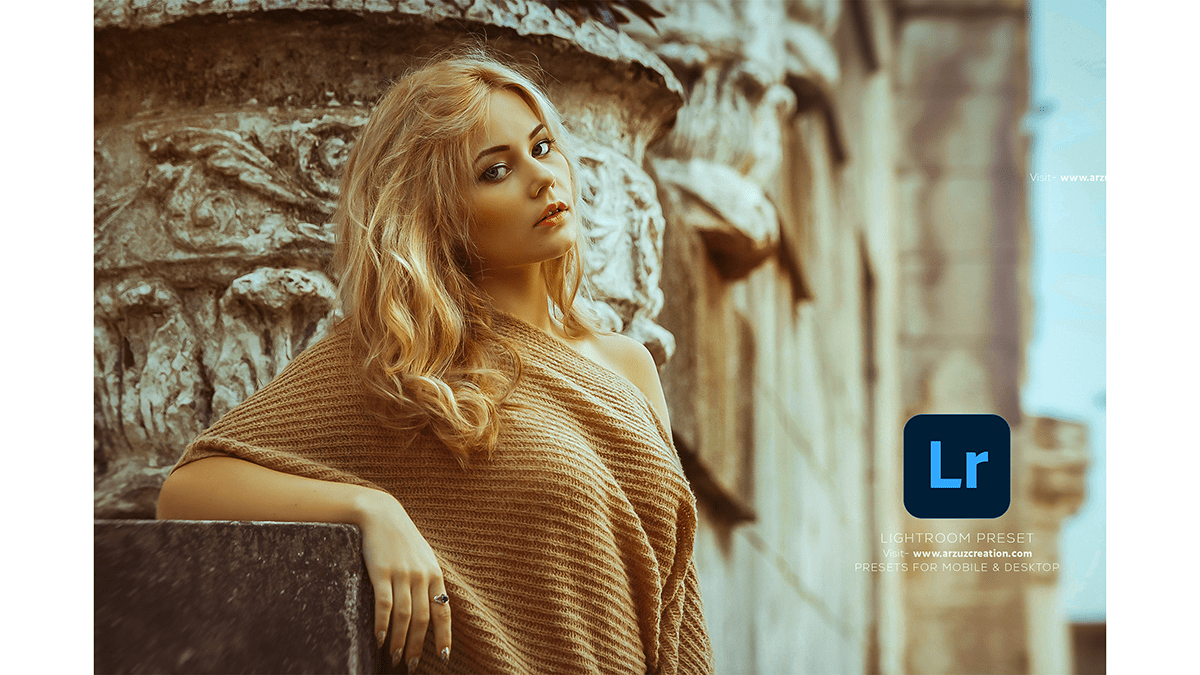
In this Photoshop Lightroom tutorial, you learn, How to professional color-grade outdoor or, indoor portrait photos in Adobe Lightroom. LR presets are free to download. LR professional editing tutorial.
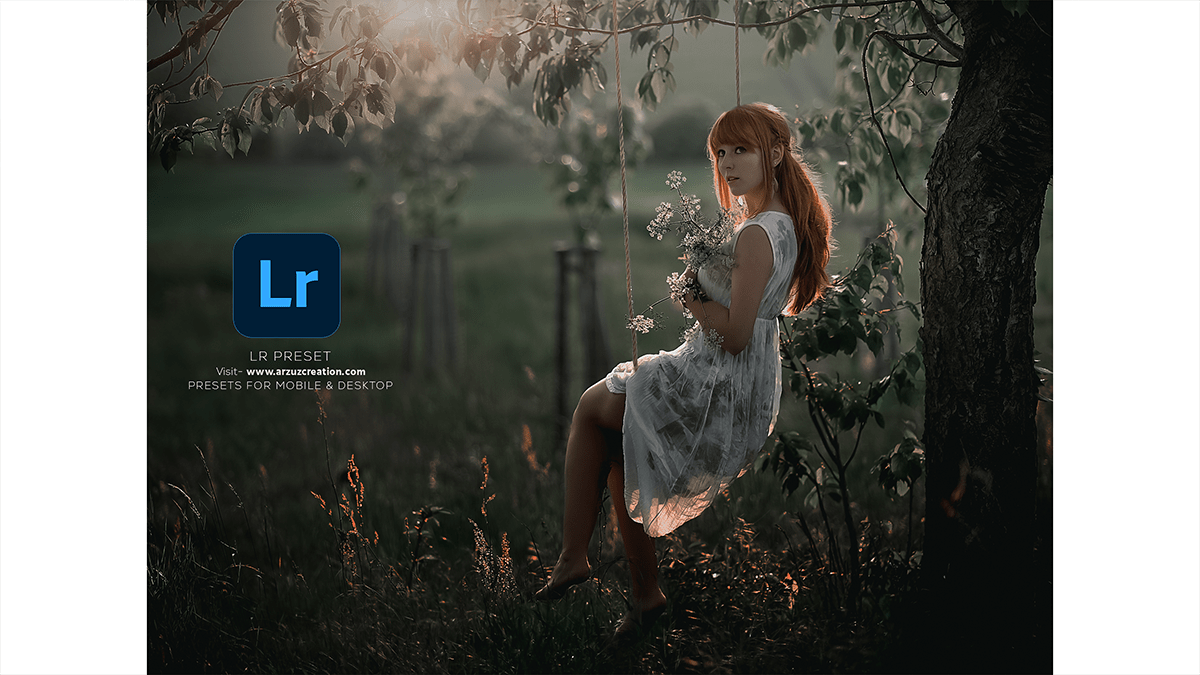
In this Photoshop Lightroom tutorial, you learn, How to create a moody color grading in Adobe Photoshop Lightroom. Premium moody color grading LR presets are free to download.
Adobe Photoshop Lightroom is a powerful photo editing and management software developed by Adobe Inc. It’s designed to assist photographers in organizing, editing, and sharing large numbers of digital images.
Lightroom Photo Color Grading Tutorial For Beginners. Adobe Photoshop Lightroom Color Grading & Color Correction Tutorial. Color Grading Presets Free Download. Lightroom Photo Editing.
Cinematic Color Grading Lightroom Tutorial For Beginners. How to Create Cinematic Color Grading in Adobe Photoshop Lightroom. Lightroom Photo Editing Tutorial For Beginners. Lightroom Presets.