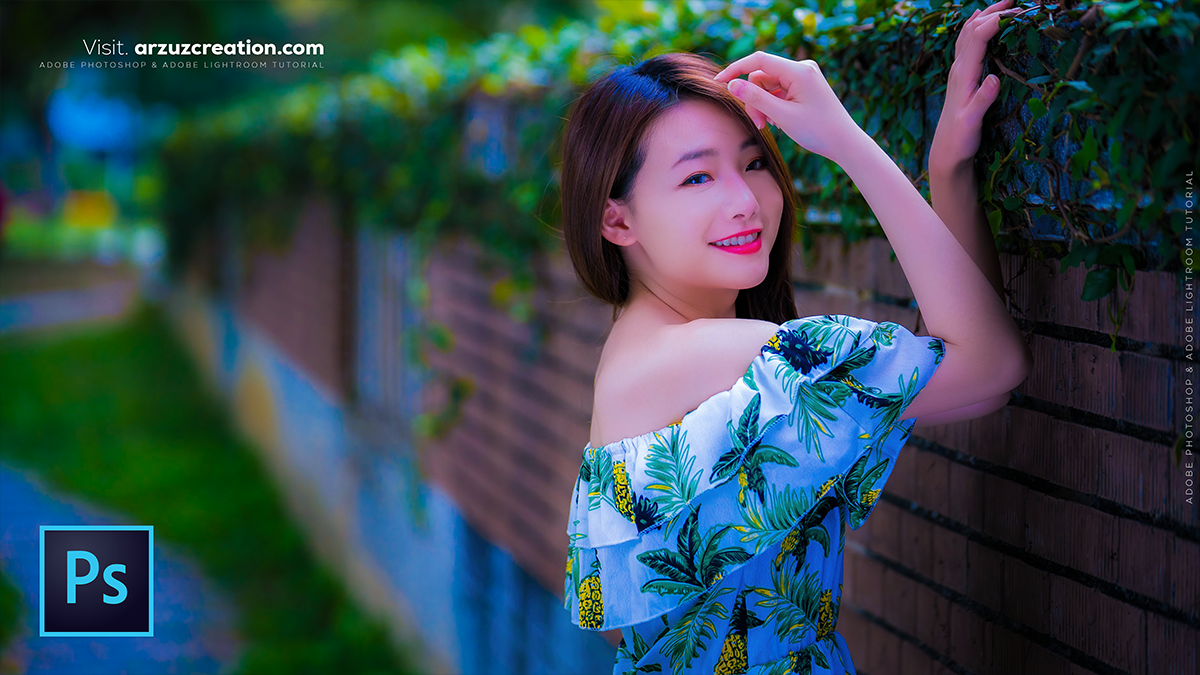
Adobe Photoshop Camera Raw Filter Colour Grading Tutorial 2025,
Therefore, in Adobe Photoshop’s Camera Raw Filter, the Color Grading panel (which replaced the old “Split Toning”) is one of the most powerful tools for creating a cinematic or stylized look. It allows you to inject specific colors into the shadows, midtones, and highlights of your image independently.

Adobe Photoshop: Camera Raw Filter Colour Grading Tutorial 2025
1. How to Access the Tool:
- Therefore, open your image in Photoshop.
- Pro Tip: Right-click your layer and select Convert to Smart Object. This allows you to go back and change your grading settings at any time.
- Therefore, go to Filter > Camera Raw Filter… (or press.
Ctrl + Shift + A). - In other words, in the right-hand panel, click to expand the Color Grading section.
2. The Three-Way Interface:
Therefore, by default, you’ll see three color wheels: Shadows, Midtones, and Highlights.
- Hue & Saturation: In other words, click and drag the handle (small circle) inside the wheel. Moving it toward the edge increases Saturation, while rotating it around the circle changes the Hue.
- Luminance Slider: Located underneath each wheel, this slider adjusts the brightness of that specific tonal range.
- Global Wheel: In other words, click the fourth icon at the top of the panel to see a “Global” wheel, which applies a tint to the entire image at once.
Adobe Photoshop Camera Raw Filter Colour Grading Tutorial 2025
3. Essential Sliders: Blending & Balance:
In other words, at the bottom of the panel are two sliders that control how the colors interact:
- Blending: * Low (0): Keeps the colors strictly separated (Shadow colors stay in shadows, Highlight colors stay in highlights).
- High (100): Blends the colors across the midtones for a smoother, more unified look.
- Balance: * Slide Left (-): Pushes the shadow color more into the midtones and highlights.
- Slide Right (+): Pushes the highlight color more into the midtones and shadows.
4. Pro Shortcuts for Precision:
In other words, working with color wheels can be finicky. Use these keyboard modifiers to be more precise:
- Hold
Alt(Windows) /Option(Mac): Slows down the movement of the handle so you can fine-tune the hue. - Hold
ShiftHowever, it locks the movement to a straight line from the center, allowing you to change Saturation without accidentally shifting the Hue. - Hold
Ctrl(Windows) /Cmd(Mac)However, it locks the movement to the outer circle, allowing you to change the Hue without changing the Saturation.
Adobe Photoshop Camera Raw Filter Colour Grading Tutorial 2025
5. Popular Grading Styles:
| Style | Shadow Adjustment | Highlight Adjustment |
| Teal & Orange | Teal/Cyan (cool) | Orange/Gold (warm) |
| Vintage/Film | Faded Green or Deep Blue | Warm Cream or Yellow |
| Moody/Noir | Deep Navy | Neutral or subtle Magenta |
Note: In other words, Always perform your Color Correction (White Balance, Exposure, Contrast) in the “Basic” panel before you start Color Grading. Grading is for “mood,” while Basic is for “accuracy.”
Would you like me to walk through how to create a specific look, like a “Teal and Orange” cinematic grade?
