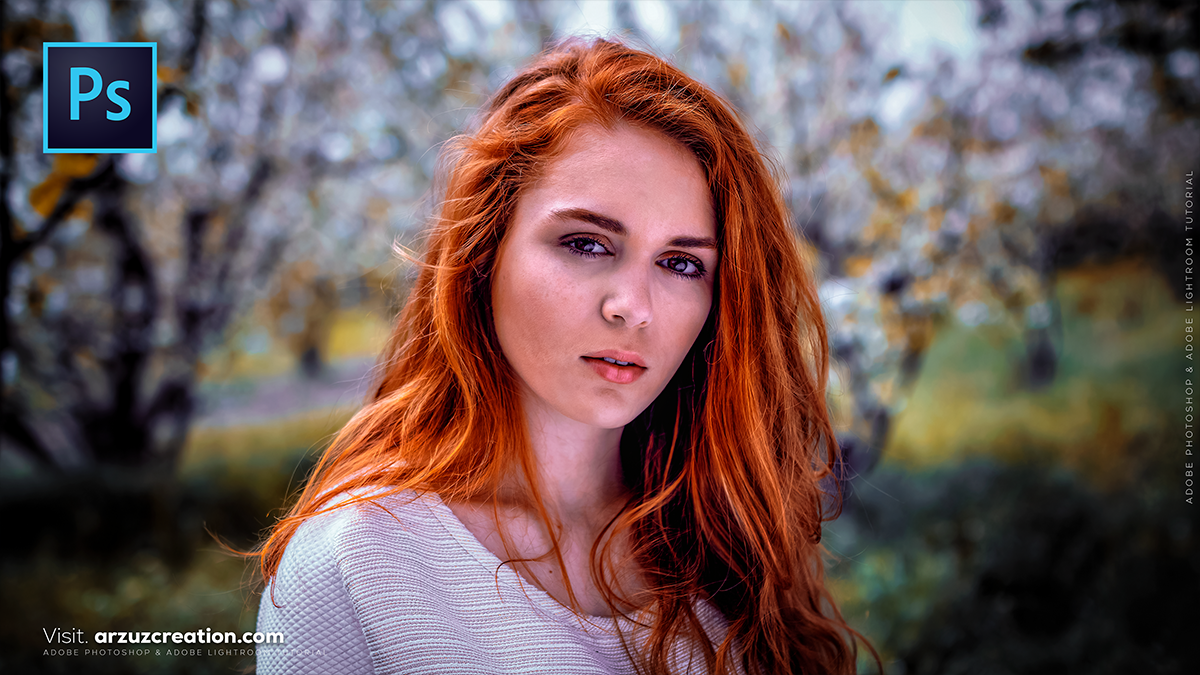
Camera Raw Filter: Professional Colour Grading in Photoshop,
Therefore, Color grading in the Camera Raw Filter is one of the most powerful ways to achieve a high-end, cinematic look in Photoshop. It allows for non-destructive, surgical control over your image’s palette.

Therefore, to get professional results, it is best to follow a structured workflow rather than jumping straight to the color wheels.
Camera Raw Filter: Professional Colour Grading in Photoshop,
1. The Professional Setup (Non-Destructive)
Therefore, before opening the filter, always prepare your layer so you can go back and change things later.
Convert to Smart Object: Right-click your image layer and select Convert to Smart Object.
Open the Filter: Go to Filter > Camera Raw Filter (or press. Ctrl + Shift + A).
Pro Tip: In other words, By using a Smart Object, you can double-click the “Camera Raw Filter” label in your layers panel at any time to re-adjust your grading.
2. The Core Color Grading Tools
Therefore, once inside the Camera Raw window, focus on these three specific panels:
A. The Basic Panel (The Foundation)
In other words, don’t skip this. A professional grade starts with a “clean” slate.
White Balance: Use the eyedropper on a neutral gray area to remove unwanted color casts.
Contrast & Texture: In other words, avoid overusing the “Contrast” slider; instead, use Dehaze for mood and Clarity for edge definition.
Camera Raw Filter: Professional Colour Grading in Photoshop,
B. The Color Grading Panel (The “Wheels”)
In other words, this is where the magic happens. You have three wheels: Shadows, Midtones, and Highlights.
Complementary Colors: In other words, A classic pro technique is “Teal and Orange.” Add a cool blue/teal to the Shadows and a warm orange/gold to the Highlights.
Blending & Balance: * Blending: Adjusts how much the colors overlap. High blending creates a smoother transition.
Balance: In other words, it shifts the “weight” of the grade. If the shadows are overpowering the image, slide this to the right to let the highlights dominate.
C. Calibration Panel (The Secret Weapon)
In other words, located at the bottom, this panel is used by pros to shift the underlying “DNA” of the colors.
In other words, adjusting the Blue Primary Saturation often makes the entire image feel deeper and more vibrant without looking “fake.”
Camera Raw Filter: Professional Colour Grading in Photoshop,
3. Advanced Techniques
Masking (Selective Grading): Use the Masking tool (M) to select only the sky or the subject’s skin. You can color grade the background cold while keeping the subject warm.
Point Color: Under the Color Mixer, use the Point Color eyedropper to pick a very specific hue (like the red in a shirt) and shift its Hue, Saturation, or Luminance without affecting similar colors in the rest of the image.
Professional Workflow Summary
| Step | Action | Why? |
| 1 | White Balance | Ensures colors start from a neutral point. |
| 2 | Color Mixer | Refines individual colors (e.g., making greens more “forest-like”). |
| 3 | Color Grading Wheels | Establishes the overall “mood” or cinematic tint. |
| 4 | Calibration | Deepens the overall color science of the RAW data. |
In conclusion, would you like me to walk you through a specific “look,” such as a Dark Cinematic or Bright & Airy aesthetic?
