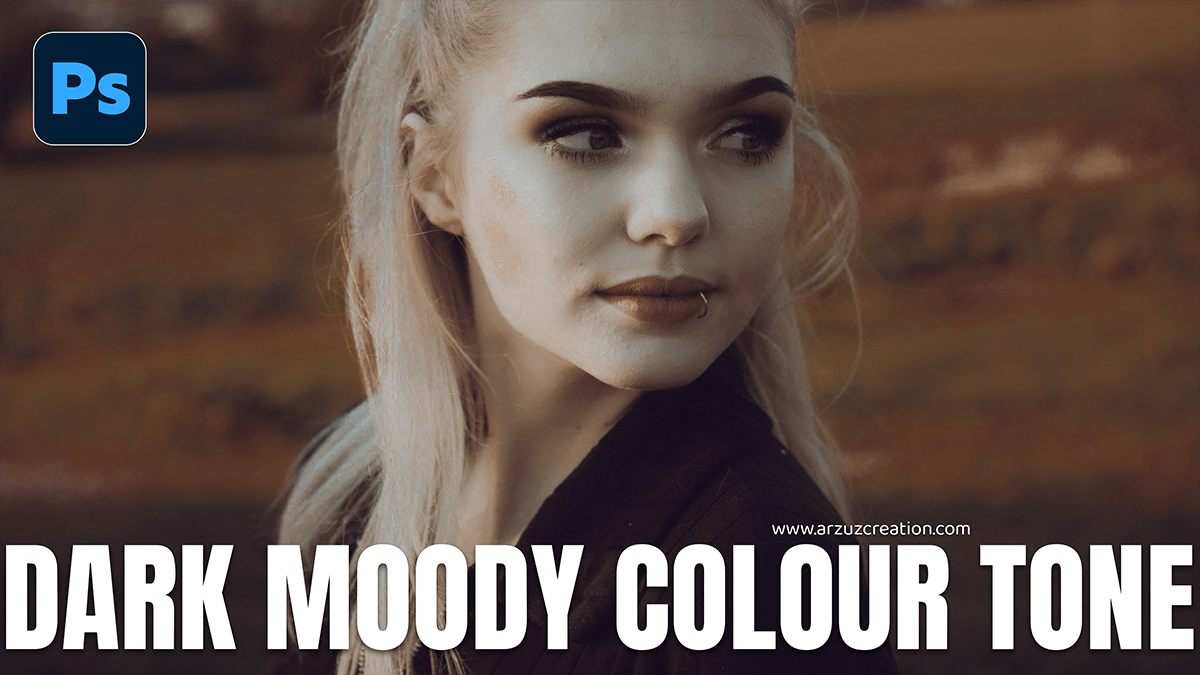
Adobe Photoshop 2026: Dark Moody Colour Grading Camera Raw,

Therefore, creating a “dark and moody” look in Photoshop 2026 has become significantly more intuitive thanks to new AI-driven adjustment layers and high-fidelity generative models. This aesthetic relies on deep shadows, desaturated colors, and selective lighting to create a cinematic atmosphere.
Adobe Photoshop 2026: Dark Moody Colour Grading Camera Raw
1. Using the New “Temperature and Tint” Adjustment Layer
Therefore, in Photoshop 2026, you no longer need to jump into Camera Raw for basic color balance.
- Go to the Adjustments Panel and select the new Temperature and Tint adjustment layer.
- Cool the Image: Slide the Temperature to the left (Blue) to create a cold, moody base.
- Tint: In other words, A slight push toward Magenta can add a cinematic “film” feel.
- Pro Tip: Use the Live Blend Mode Preview by hovering over “Multiply” to instantly see how the layer deepens the tones before committing.
2. Advanced Contrast with Curves
Therefore, the “Moody” look often involves “crushing” the blacks—fading the darkest areas, so they look matte.
- Create a Curves Adjustment Layer.
- Fade the Blacks: Therefore, click the bottom-left point of the curve and drag it slightly upward. This turns pure black into a dark charcoal gray.
- Add an S-Curve: In other words, place a point in the middle to protect midtones, and slightly pull down the shadows (lower-left quadrant) to add depth.
Adobe Photoshop 2026: Dark Moody Colour Grading Camera Raw
3. Targeted Color Grading
In other words, to get that signature “Teal and Orange” or “Deep Green” mood:
- Color Lookup (LUTs): Therefore, apply a “Filmstock” or “Moonlight” LUT at 20-30% opacity.
- Selective Color: In other words, go to the “Neutrals” channel. Increase Cyans and Blues to cool the shadows, while keeping the “Blacks” slider slightly boosted for density.
- Harmonize (AI): Therefore, if you are compositing elements, use the Harmonize tool (now out of Beta). It automatically matches the lighting and color temperature of your subject to a dark background.
4. AI-Enhanced Finishing Touches
In other words, Photoshop 2026 introduces Nano Banana and Flux models within the Generative Fill tool to enhance mood.
- Add Atmosphere: Use the Lasso tool on a background area and prompt: “soft ethereal mist” or “cinematic light rays.”
- Vignetting: Create a new layer, fill it with black, and use a large, soft eraser (0% hardness) to reveal the subject in the center. Set the layer to Soft Light and lower the opacity to 40%.
- Film Grain: Add a 50% Gray layer, go to
Filter > Noise > Add Noise, and set the blend mode to Overlay.
Adobe Photoshop 2026: Dark Moody Colour Grading Camera Raw
Comparison of Dark Moody Techniques
| Feature | Traditional Method | Photoshop 2026 AI Method |
| Color Balance | Camera Raw Filter | Temperature/Tint Adjustment Layer |
| Consistency | Manual Match Color | Harmonize AI Tool |
| Upscaling | Image Size (Bicubic) | Topaz Gigapixel (Built-in) |
| Atmosphere | Custom Brushes/Overlays | Generative Fill (Nano Banana model) |
Would you like me to generate a specific step-by-step workflow for a portrait or a landscape image?
