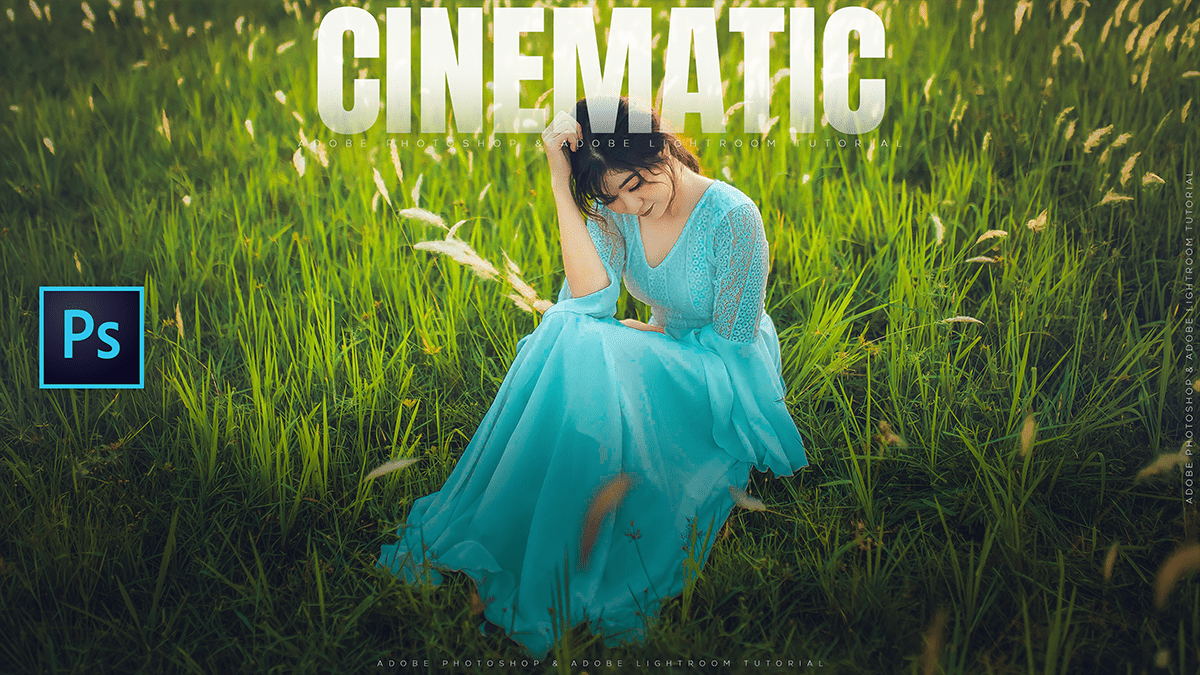
Adobe Photoshop Professional Cinematic Colour Grading Tutorial,

Therefore, achieving a professional “cinematic” look in Adobe Photoshop is most effectively done using the Camera Raw Filter. This tool allows you to manipulate light and color with the same precision as a professional film colorist.
Adobe Photoshop Professional Cinematic Colour Grading Tutorial,
Here is a step-by-step guide to professional cinematic color grading.
1. Preparation: The “Non-Destructive” Workflow
Therefore, before opening the filter, always convert your layer into a Smart Object.
- Why: In other words, this allows you to go back and re-adjust your grading at any time without losing image quality.
- How: Right-click your image layer and select Convert to Smart Object. Then, go to
Filter > Camera Raw Filter.
2. The Cinematic Grading Steps
Step A: The “Base” (Basic Panel)
Therefore, Cinematic images often have a higher dynamic range.
- Contrast: Increase slightly to add “pop.”
- Highlights & Whites: Pull these down to recover detail in bright areas (giving it a flatter, film-like sky).
- Shadows & Blacks: In other words, lift them slightly to reveal detail in the darks, or “crush” them for a moody noir look.
- Texture & Clarity: Add a small amount of Texture (+10) for sharpness, but avoid overdoing Clarity as it can make the image look “unnatural.”
Adobe Photoshop Professional Cinematic Colour Grading Tutorial,
Step B: The Color Wheels (Color Grading Panel)
In other words, this is where the magic happens. Professional cinema often uses a Complementary Color Scheme (like the famous “Teal and Orange” look).
- Shadows: Move the circle toward Teal/Blue. This adds depth and a “cool” mood.
- Highlights: Move the circle toward Orange/Yellow. This mimics natural skin tones and the effects of sunlight.
- Midtones: In other words, keep these neutral or slightly warm to ensure skin tones look healthy.
- Blending & Balance: Use the Balance slider to decide if the “cool” shadows or “warm” highlights should dominate the image.
Step C: Fine-Tuning (Color Mixer & Calibration)
- Color Mixer (HSL): Targeted adjustments. If the greens in the background are too distracting, go to “Saturation” and pull the Green slider down.
- Calibration (Bottom Panel): In other words, A “pro secret.” Shifting the Blue Primary Hue to the left often creates that specific cinematic teal-blue that is hard to get elsewhere.
Step D: Finishing Touches (Effects Panel)
- Grain: In other words, Real film has texture. Add a small amount of Grain (Amount: 15, Size: 25, Roughness: 50) to break up digital smoothness.
- Vignetting: Drop the Post-Crop Vignetting slightly (- -10 to -20) to draw the viewer’s eye toward the center.
Adobe Photoshop Professional Cinematic Colour Grading Tutorial,
Summary Table: Popular Cinematic Styles
| Style | Shadow Color | Highlight Color | Key Adjustment |
| Blockbuster (Teal/Orange) | Teal/Cyan | Orange/Gold | High Contrast, High Texture |
| Vintage/Retro | Faded Blue | Cream/Yellow | Crushed Blacks, Heavy Grain |
| Moody/Nordic | Deep Blue | White/Cold | Low Saturation, High Shadows |
| Horror/Thriller | Green/Cyan | Cold Grey | High Contrast, Low Midtones |
Pro Tip: If you create a look you love, click the three dots (…) in the right-hand menu and select Create Preset. You can then apply this same cinematic grade to any future photo with one click.
Would you like me to walk you through how to create a specific “Teal and Orange” look with the exact slider values?
