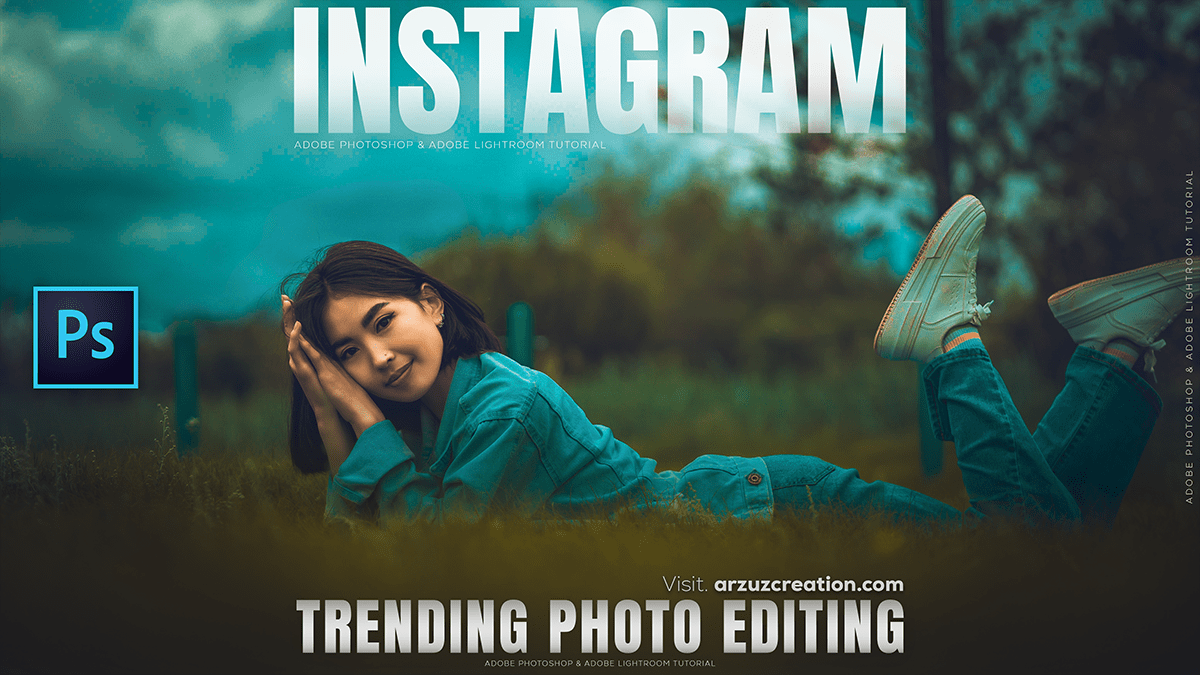
Instagram Trending Photo Editing: Adobe Photoshop 2026

Therefore, Instagram editing in 2026 is a blend of “Old World” nostalgia (film textures, vintage grain) and “New World” AI-driven perfection (clean aesthetics, generative backgrounds).
Instagram Trending Photo Editing: Adobe Photoshop 2026
Here are the top trending styles and how to achieve them specifically using Adobe Photoshop 2026.
1. The “Clean Girl” Aesthetic (Naturalism)
Therefore, this trend focuses on “unfiltered” looking photos—bright, airy, and high-detail. It’s less about heavy filters and more about perfecting the natural light.
Key Technique: However, Use Camera Raw Filter (Ctrl+Shift+A).
The Edit:
Exposure: Boost slightly for a “glow.”
Shadows: Lift (+30) to remove harshness.
Clarity: However, drop slightly (-5) to soften skin naturally.
Generative Fill: In other words, if there’s a stray person or trash can in the background, use the Remove Tool (shortcut J) or type “remove distraction” into the Contextual Task Bar.
Pro Tip: Therefore, in Photoshop 2026, use the “Nano Banana” AI model to upscale your phone photos to 8K quality before editing, maintaining that crisp “pro” look.
2. Cinematic “Film Still” Mood
Therefore, Photos that look like a frame from a high-budget movie. This relies on “Teal and Orange” color grading and grain.
The Edit:
Color Grading: However, in Camera Raw, go to the Color Grading tab. Set Shadows to a cool Blue/Teal and Highlights to a warm Orange/Gold.
Grain: However, Go to Filter > Noise > Add Noise (Gaussian, Monochromatic) at about 3-5%.
Black Bars: Therefore, add two black rectangles at the top and bottom to mimic a 2.35:1 aspect ratio.
Trending Detail: In other words, add a tiny “Date/Time” stamp in the bottom right corner using a low-res orange font (like Digital-7) to lean into the 90s camcorder vibe.
Instagram Trending Photo Editing: Adobe Photoshop 2026
3. The “90s Polaroid” & Light Leaks
Therefore, Nostalgia is peaking in 2026. This look is characterized by soft contrast, “washed out” blacks, and warm light leaks.
The Edit:
Curves Layer: In other words, create a Curves adjustment. Pull the bottom-left point (Blacks) upward to “fade” the shadows.
Light Leaks: Therefore, create a new layer, use a large soft Brush (B) with a bright Red or Orange color, and paint a blob on the edge of the frame. Set the Blend Mode to Screen and lower the Opacity to 40%.
Blur: In other words, use Filter > Blur > Tilt-Shift to keep the center sharp while the edges go soft.
4. AI-Enhanced “Surrealism.”
In other words, mixing reality with impossible elements is huge for Reels covers and viral posts.
The Edit:
Generative Expand: In other words, use the Crop Tool to pull the edges of your photo out. Leave the prompt blank and hit “Generate” to let Photoshop create a vast, epic landscape around you.
Sky Replacement: However, Use Edit > Sky Replacement. In 2026, you can now prompt specific skies like “Northern Lights with purple nebula.”
Luminous Glow: In other words, use the “Bloom” filter (new in 2026) to make light sources (lamps, sun, neon) bleed into the surrounding pixels for a dreamlike effect.
Instagram Trending Photo Editing: Adobe Photoshop 2026
Comparison of Trending Styles:
| Aesthetic | Vibe | Best For | Main Tool |
| Clean Edit | Therefore, Natural, bright, high-end | Lifestyle, Portraits | Remove Tool / Camera Raw |
| Retro Film | Moody, nostalgic, grainy | Travel, Street photography | Curves / Grain / HSL |
| Cyberpunk | Neon, high contrast, blue/pink | Night life, Urban | Color Grading / Neon Glow |
| Hyper-Surreal | Dreamy, AI-expanded, epic | Creative Art, Covers | Generative Fill & Expand |
Would you like me to walk you through a specific step-by-step tutorial for one of these looks, or perhaps create a custom Photoshop Action for you?
