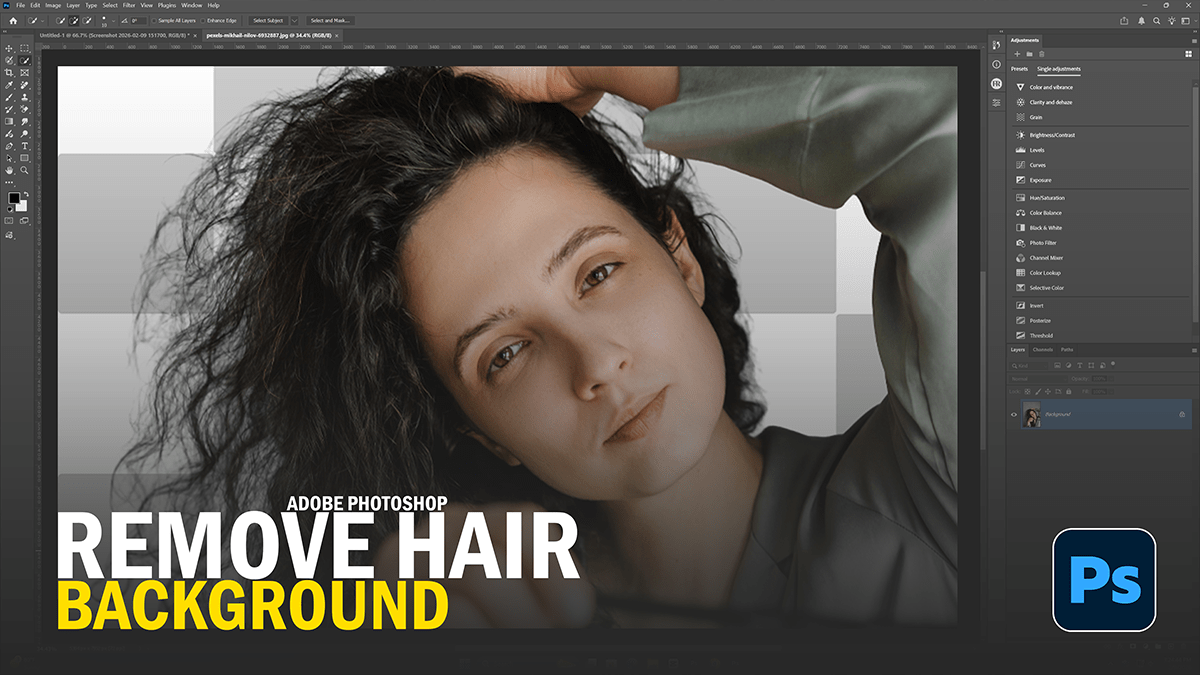
Remove Complex Hair Background in Adobe Photoshop 2026,

Therefore, removing a complex background from hair used to be the “final boss” of photo editing, but Photoshop 2026 has made it significantly easier with AI-driven tools.
Remove Complex Hair Background in Adobe Photoshop 2026,
In other words, here is the most efficient workflow to get clean, professional results.
1. The “Select Subject” Kickstart:
Therefore, don’t start by masking manually. Let the AI do the heavy lifting first.
In other words, open your image and go to Select > Subject.
Pro Tip: Therefore, look at the Options Bar at the top. Ensure “Cloud (Detailed results)” is selected instead of “Device.” This uses Adobe’s servers to process fine strands of hair much more accurately.
2. Enter the “Select and Mask” Workspace:
Therefore, with your selection active, click Select and Mask in the Options Bar. This is where the magic happens.
View Mode: In other words, change this to “On Black” or “On White” (press B or W) to see exactly where the fringe is messy.
Refine Hair: However, click the Refine Hair button at the very top. Photoshop will automatically attempt to find flyaway strands and subtract the background from them.
Remove Complex Hair Background in Adobe Photoshop 2026,
3. The Refine Edge Brush Tool (Manual Touch-ups)
In other words, if the AI missed a few spots between curls or wisps:
- selectr, Select the Refine Edge Brush Tool (the second one down in the left toolbar).
- In other words, brush lightly over the edges where the background is still peeking through the hair.
- Keep the brush half-on and half-off the hair. Don’t paint deep into the solid parts of the head.
4. Cleaning the Colors:
Above all, even with a perfect mask, you might see “color contamination” (e.g., a green tint on the hair from a green screen).
- Above all, in the Properties panel on the right, scroll down to Output Settings.
- In addition, check the box for Decontaminate Colors.
- Above all, adjust the slider until the “halo” effect disappears.
Remove Complex Hair Background in Adobe Photoshop 2026,
5. Final Output;
- Above all, Set Output To: “New Layer with Layer Mask”.
- In addition, click OK.
Comparison of Methods:
| Method | Best For… | Difficulty |
| Select Subject (Cloud) | General portraits with decent contrast. | Easy |
| Refine Hair Button | Fine, wispy hair or fur. | Instant |
| Channel Masking | Extremely complex backgrounds with high contrast. | Advanced |
| Object Selection Tool | Group shots where you need to isolate one person. | Moderate |
In conclusion, would you like me to explain how to use Channel Masking for those extra-stubborn backgrounds where the AI might struggle?
