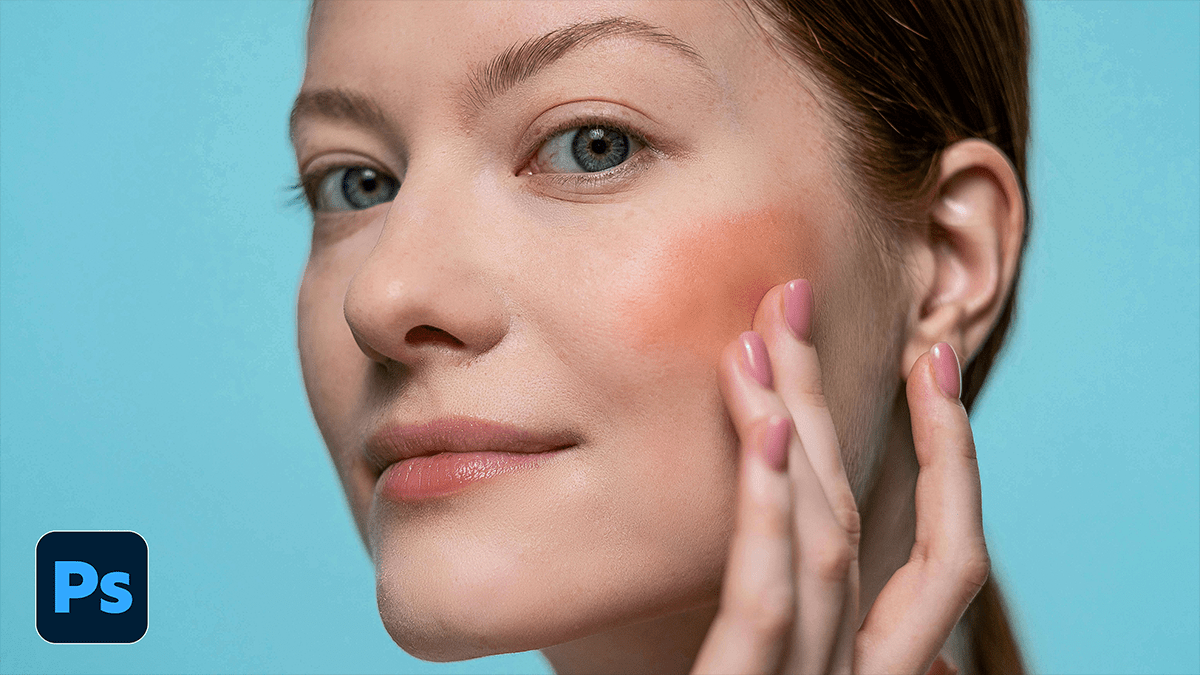
Remove Acne or Blemishes Using Adobe Photoshop Patch Tool,

Therefore, the Patch Tool is a classic for a reason: it’s excellent for clearing up acne and blemishes because it doesn’t just “paint” over the skin; it blends the texture from a clean area with the lighting and color of the target area.
Remove Acne or Blemishes Using Adobe Photoshop Patch Tool,
In other words, here is the quick-start guide to getting smooth, natural results.
1. Set Up Your Layer:
Therefore, never work directly on your original photo. If you make a mistake, you want to be able to go back and correct it.
Action: In other words, Press Ctrl + J (Windows) or Cmd + J (Mac) to duplicate your background layer.
Pro Tip: Rename this layer “Blemish Cleanup.”
2. Select the Patch Tool:
Therefore, find it in the toolbar (it looks like a square piece of fabric with stitches). It’s usually grouped with the Healing Brush.
Shortcut: Press J.
Settings: In the top menu bar, ensure the mode is set to Normal and Source is selected.
Remove Acne or Blemishes Using Adobe Photoshop Patch Tool,
3. The “Circle and Slide” Technique:
This is where the magic happens:
Draw: In other words, use the tool to draw a loose circle around the blemish you want to remove.
Drag: Click inside your selection and drag it to a nearby area of clear skin.
Release: In other words, let go. Photoshop will automatically snap the texture from the clear area into the selection, blending the edges seamlessly.
4. Refining the Look:
However, if the edit looks a little “fake” or too perfect, you can adjust the intensity:
In other words, immediately after dragging (before you click anything else), go to Edit > Fade Patch Selection.
However, lower the opacity to around 70-80%. This lets a tiny bit of the original skin texture show through, making the edit look much more realistic.
Remove Acne or Blemishes Using Adobe Photoshop Patch Tool,
Best Practices for Natural Results:
| Do | Don’t |
| Pick nearby skin: Texture changes across the face (forehead skin is different from cheek skin). | Drag too far: Don’t grab skin from the chin to fix the nose; the pores won’t match. |
| Work in small sections: Tackle one blemish at a time. | Include edges: Avoid selecting parts of eyebrows, lips, or nostrils, or you’ll get a blurry smudge. |
Would you like me to explain how to use “Content-Aware” mode with the Patch Tool for more complex backgrounds?
