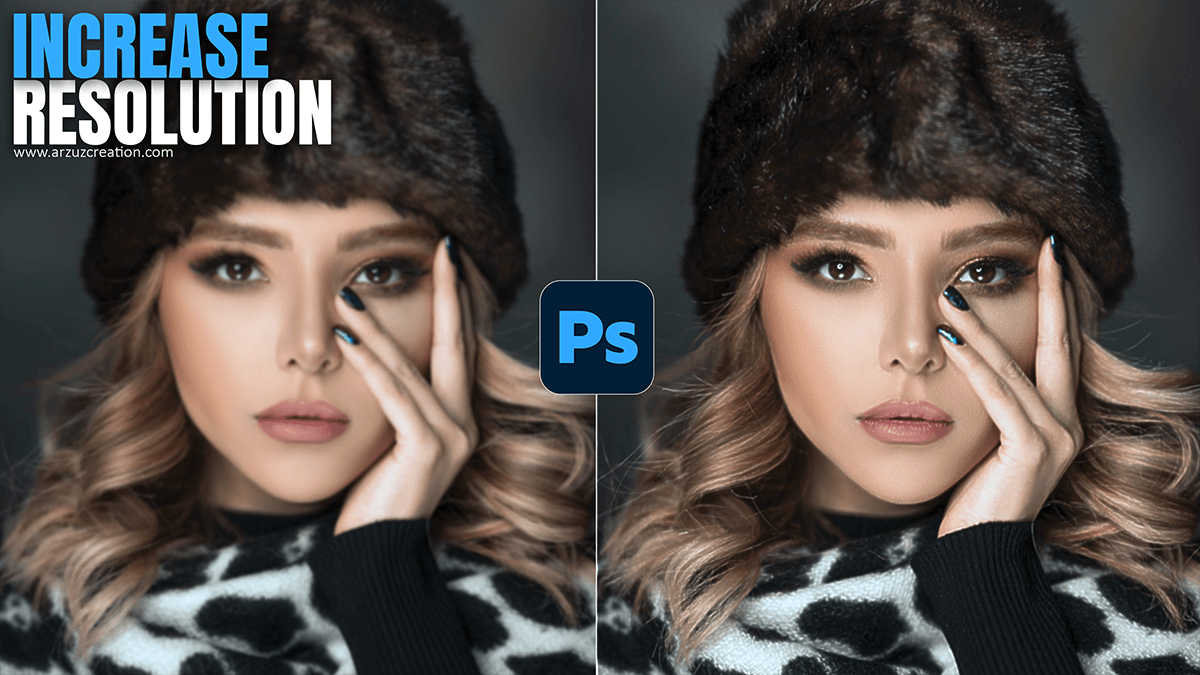
Adobe Photoshop 2026 Generative Fill Image Resolution Increase

Therefore, the Photoshop 2026 update introduced significant changes to how resolution is handled for AI features. While the Generative Fill tool itself still relies on a tiled generation system, Adobe has added new “Generative Upscale” workflows and integrated third-party tech to solve the “blurry” output problem.
Adobe Photoshop 2026 Generative Fill Image Resolution Increase
In other words, here is the breakdown of how to handle image resolution with Generative Fill in 2026:
1. The “Generative Upscale” Tool:
Therefore, the biggest addition in the 2026 version is a dedicated Generative Upscale menu. Instead of just “stretching” pixels, this feature uses AI to rebuild textures (like fur, skin, or fabric) while increasing the pixel count.
Location: Image > Generative Upscale
Models: Therefore, you can now choose between Adobe Firefly, Topaz Gigapixel, and Topaz Bloom (integrated directly into the Photoshop interface for premium subscribers).
Scale: In other words, you can upscale images by 2x or 4x their original size (up to 8,000 pixels).
Adobe Photoshop 2026 Generative Fill Image Resolution Increase
2. The “Enhance Detail” Feature:
Therefore, if you use Generative Fill and notice the filled area looks “softer” than the rest of your high-res photo, use the Enhance Detail button.
How it works: In the Properties Panel, look for the small “Enhance Detail” icon on your selected variation.
Result: In other words, it applies a localized Super Resolution algorithm to that specific AI-generated patch, doubling its internal resolution to match the surrounding pixels more closely.
3. Workaround: The 1024px Tiling Method:
Despite the 2026 updates, the core Generative Fill engine continues to generate content in 1024 x 1024 px blocks. If you select a massive 4000px area and hit “Generate,” it will stretch that 1024px result to fit, causing blurriness.
To get maximum “True” resolution:
In other words, set your Marquee Tool to a “Fixed Size” of 1024 x 1024 px.
However, make your selection in a corner of the area you want to fill.
In other words, click Generative Fill and generate.
However, move the selection over (with a small overlap of 10-20px) and regenerate.
Repeat this tiling process. Since each block is exactly 1024px, Photoshop generates it at “native” resolution without any stretching.
Adobe Photoshop 2026 Generative Fill Image Resolution Increase
4. Resolution vs. DPI:
In addition, it is a common misconception that AI can generate at “300 DPI.”
The Reality: DPI (Dots Per Inch) is a print instruction, not a measure of digital file size.
The Fix: In addition to preparing an AI-generated image for high-quality print, focus on the Pixel Dimensions. Use the Generative Upscale (4x) to ensure you have enough total pixels so that when you set the file to 300 DPI, the physical print size remains large enough for your needs.
Would you like me to walk you through the steps for a specific project, such as upscaling an old low-res photo or expanding a high-res landscape?
