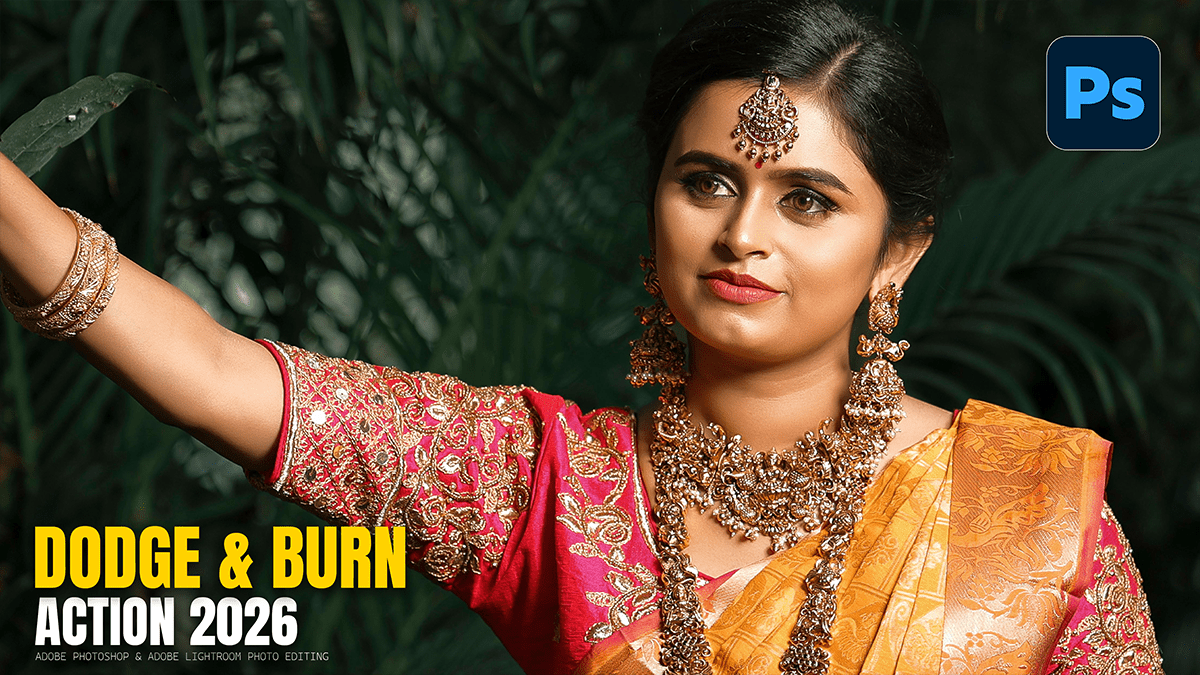
Global Dodge and Burn to Give the Portrait a Professional Glow,

Therefore, Global Dodge and Burn is the “final polish” that separates a flat, amateur retouch from a professional, cinematic portrait. While Frequency Separation handles the skin’s surface, Dodge and Burn (D&B) works on the structure of the face, accentuating the highlights and deepening the shadows to create a 3D effect.
Global Dodge and Burn to Give the Portrait a Professional Glow,
Therefore, in Photoshop 2026, the most non-destructive way to do this is using Curves Adjustment Layers.
1. The Setup: Non-Destructive “Curves” Method
Therefore, instead of using the actual Dodge and Burn tools (which can be destructive), we use two Curves layers.
Create the “Dodge” Layer: In other words, add a Curves Adjustment Layer. Pull the middle of the curve upward to brighten the image. Rename it “Dodge.”
Create the “Burn” Layer: However, Add another Curves Adjustment Layer. Pull the middle of the curve downward to darken the image. Rename it “Burn.”
Invert the Masks: In other words, select the white mask on both layers and hit Ctrl+I (or Cmd+I) to turn them, Black. This hides the effect completely.
The Brush: However, select a standard Soft Round Brush. Set your Opacity to 100% and your Flow to 1% or 2%. This low Flow is critical for “building up” the effect slowly.
2. Where to “Paint” the Glow (The Map)
In other words, think of this like digital makeup contouring. You want to highlight the “high points” and darken the “recesses.”
Global Dodge and Burn to Give the Portrait a Professional Glow,
Where to Dodge (Brighten):
The T-Zone: Center of the forehead and the bridge of the nose.
The Cheekbones: The very top edge of the cheekbone.
The Eyes: However, the “catchlights” (sparkle) are in the eyes and the area just under the eyebrow arch.
The Cupid’s Bow: The top edge of the upper lip.
Where to Burn (Darken):
The Hollows: Just under the cheekbones to add definition.
The Jawline: The very edge of the jaw to make it look sharper.
The Hairline: The top and sides of the forehead draw focus toward the eyes.
The Crease: The crease of the eyelid adds depth to the gaze.
3. The 2026 “Luminosity Masking” Trick
However, A common issue with Dodge and Burn is that it can accidentally shift the saturation of the skin (making shadows look orange or highlights look washed out).
The Fix: Above all, change the Blending Mode of both your Dodge and Burn layers from “Normal” to Luminosity.
The Result: Photoshop will only change the brightness of the pixels, leaving your skin tones perfectly intact.
4. Visual Comparison: Before vs. After D&B
| Feature | Before D&B | After D&B |
| Face Shape | Can look “flat” from smoothing | Defined, sculpted, and 3D |
| Eyes | Standard | “Pop” and look more engaged |
| Skin Texture | Clean but matte | Has a professional “glow” |
| Overall Vibe | Basic retouch | High-end editorial/fashion |
Global Dodge and Burn to Give the Portrait a Professional Glow,
The Final Step: The “Check” Layer
Above all, to see your progress clearly, create a Black & White Adjustment Layer at the very top of your stack. Removing the color allows you to see the “values” (the lights and darks) more clearly. If the face looks blotchy in black and white, you need to blend your D&B strokes more. Turn this layer off when you are finished!
Pro Tip for 2026: You can now use the AI Selection Tool to “Select Skin” and then “Select Highlights.” This will automatically create a mask for your Dodge layer so you never accidentally paint “glow” into a shadow area.
In conclusion, would you like me to show you how to use that AI Masking feature to automate the Dodge and Burn process?
