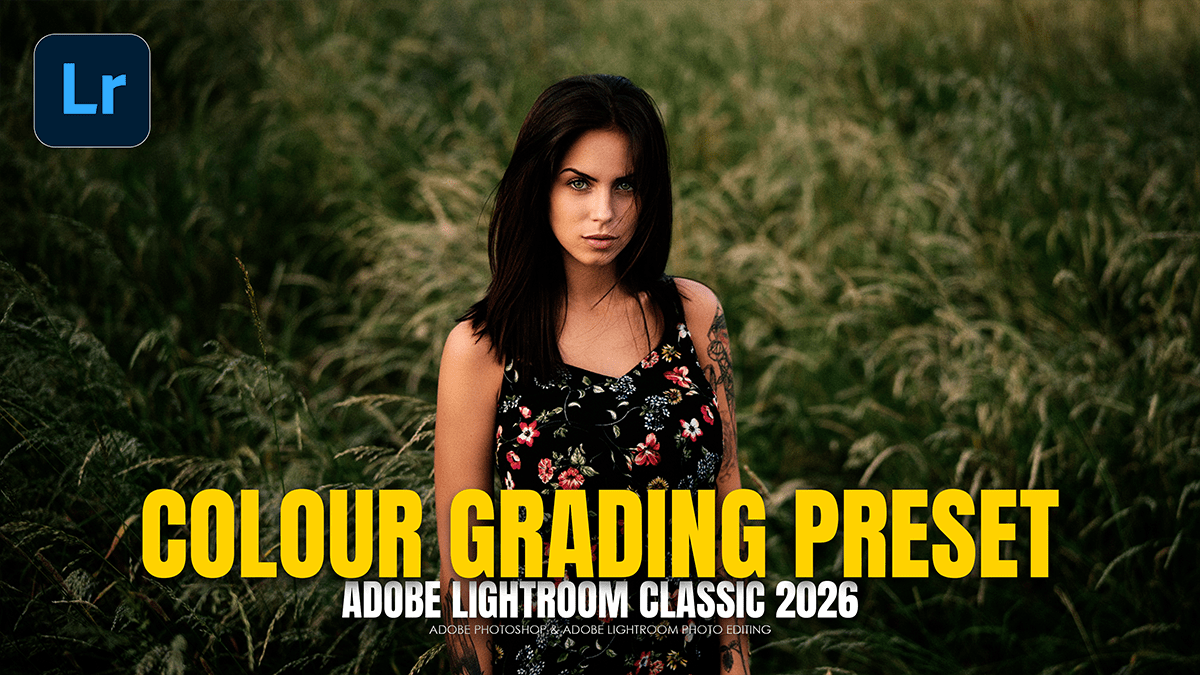
Adobe Lightroom’s Advanced Photo Editing Tutorial For Beginners,

Therefore, Adobe Lightroom has evolved significantly as of 2026, shifting from simple slider adjustments to a sophisticated, AI-driven environment. In other words, for professional photo editing and color grading, the current “gold standard” workflow balances automated precision with manual artistry.
Adobe Lightroom’s Advanced Photo Editing Tutorial For Beginners,
1. The Professional Workflow (The “Perfect Negative” Approach)
Therefore, A pro workflow is binary: first, fix the technicals; then, apply the creative.
AI Culling: In other words, use Assisted Culling to filter your best shots based on focus, exposure, and even “eyes open” status before you touch a single slider.
Global Corrections: Start in the Basic Panel.
White Balance: Therefore, set this first; it acts as the foundation for all color grading.
Dynamic Range: In other words, use the Alt/Option key while dragging the Blacks and Whites sliders to find the exact point of clipping.
AI Masking (The Game Changer): Therefore, instead of global adjustments, use AI to isolate the Subject, Sky, or even Background. New for 2026, the Snow Masking tool helps isolate winter textures, and Reflection Removal cleans up glare automatically.
2. Advanced Color Grading Techniques:
However, Color grading is where you establish your “signature” look. In 2026, the tools are more granular than ever.
Adobe Lightroom’s Advanced Photo Editing Tutorial For Beginners,
The Point Color & Variance Tool:
However, the standout update for this year is Point Color Variance.
Precision: Use the eyedropper to select a specific hue (like a flower or a jacket).
Variance Slider: Increase the variance to create more separation between similar tones (e.g., making autumn leaves pop against a trunk) or decrease it to “smooth” color inconsistencies in skin tones.
The 3-Way Color Grading Wheels:
However, this remains the home of the “Cinematic” look:
Shadows: Often graded toward teals or deep blues for a cinematic feel.
Midtones: This is where your skin tones live. Keep the saturation low here to maintain naturalism.
Highlights: Pushed toward oranges or yellows to simulate “Golden Hour” or a warm glow.
Blending & Balance: Use these sliders to control how aggressively the colors bleed into each other.
3. Pro Tips for Efficiency:
Solo Mode: Right-click any panel header and select Solo Mode. This automatically collapses all panels except the one you are currently using, keeping your workspace clean.
Generative Upscale: If you’re working with heavy crops or old files, the integrated Firefly/Topaz engine allows for a 4x Generative Upscale, “hallucinating” detail that holds color adjustments better than traditional resizing.
Batch Processing: Edit one “hero” image, then use Cmd+Shift+S (Sync Settings) to apply those specific adjustments to the rest of the scene. Avoid jumping to Photoshop until the Lightroom batch is 100% complete to prevent workflow bottlenecks.
Adobe Lightroom’s Advanced Photo Editing Tutorial For Beginners,
4. 2026 Aesthetic Trends:
| Style | Key Characteristics |
| Moody Natural | Rich shadows with detail, muted greens, and soft atmospheric light. |
| Clean Film | Balanced white balance, natural skin tones, and subtle grain. |
| Warm Monochrome | Black and white with charcoal or cream undertones rather than pure neutral. |
Pro Tip: If you’re a high-volume editor, keep an eye on your Generative Credits. Most Pro plans now include between 250 and 1000 credits per month for AI-heavy tasks like Generative Remove or Upscaling.
